How to Use ChatGPT for Interior Design and Room Layout

How to use ChatGPT for interior design: prompts that work, the AI interior designer inside Home Planner, and how to turn AI ideas into a real room layout.
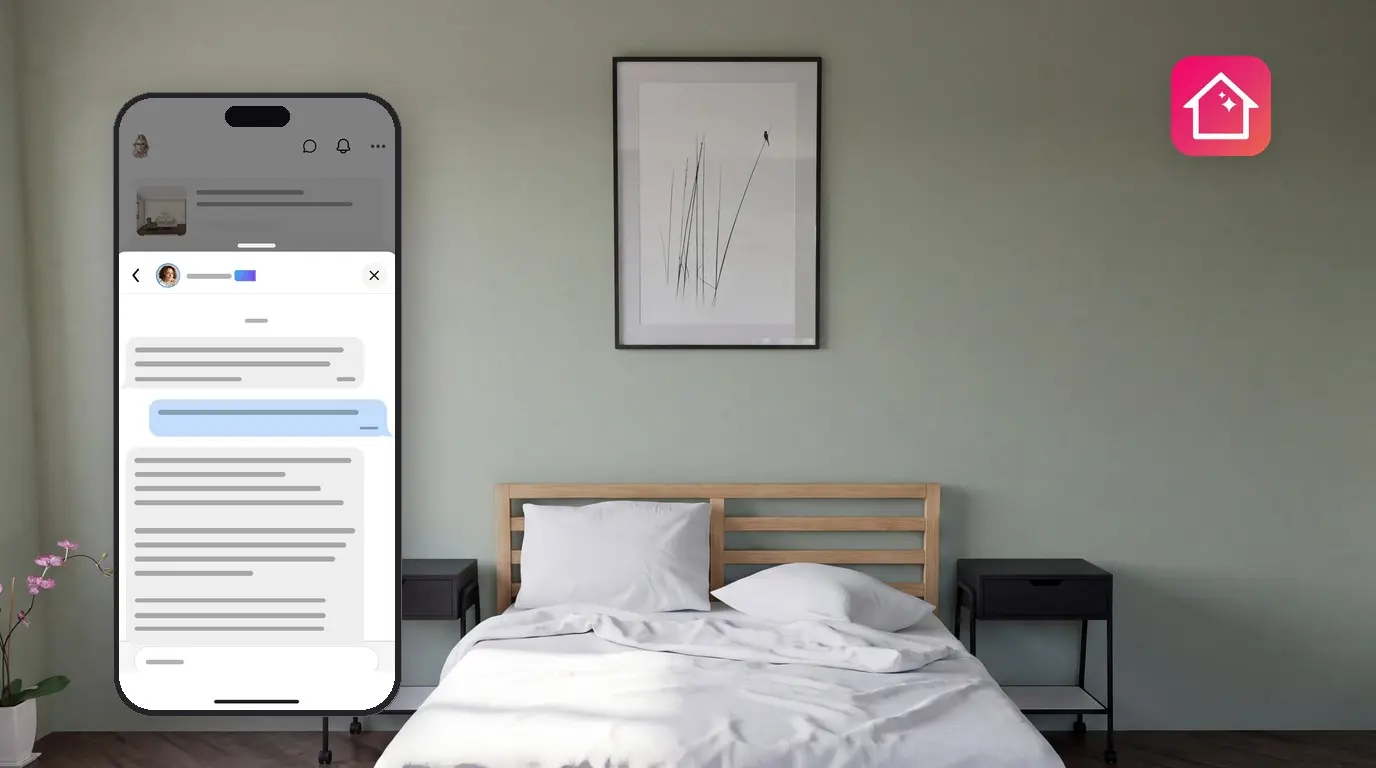
You can use ChatGPT for interior design: ask it about colors, furniture, styles and room layout, and get practical ideas quickly. Home Planner has its own AI interior design assistant, Ann, built on OpenAI GPT models, the technology behind ChatGPT. Ann answers design questions inside the app and knows the Home Planner furniture catalog.
This guide shows how to ask good questions, where to find the assistant in Home Planner, and how to turn the answers into a real room layout in 2D and 3D. Home Planner works on iPhone, iPad, Android, Mac and Windows.
How it works
An AI chat gives you ideas; Home Planner turns the ideas into a plan you can see and measure.
- Ask the AI interior designer about your room: its size, shape, style and what you need from it.
- Build the layout in the Home Planner floor plan: walls, doors, windows and furniture at real sizes.
- Check the result in 3D, and ask the assistant again about anything you want to change.
Can ChatGPT design a room?
In a typical chat, ChatGPT can suggest a layout and, as of October 2026, can look at a photo you upload (OpenAI help); it does not measure your room or check that furniture fits. A chat knows only the sizes you give it and what a photo shows. Ann in Home Planner reads text only. Use the chat for ideas and decisions, and use a floor plan to test them.
| Task | ChatGPT or similar AI chat | Home Planner floor plan |
|---|---|---|
| Ideas for a style, colors and materials | Yes | Apply them to walls, floors and furniture |
| Suggest where the bed, sofa or desk goes | Yes, in words | Place the real items and see if they fit |
| Check clearances and walkways | Only from the sizes you give it | Yes: every item has its real size |
| Show the room in 3D | Only as a picture, not a 3D model | Yes |
| Find an item in the Home Planner furniture catalog | No | Add it from the catalog; Ann (in Home Planner) names the category |
For a picture of a redesigned room instead of advice, use the AI Redesign tool in Home Planner. Ann offers it when you ask her to design your room (see below).
Before you start
You need Home Planner and a question about a room. A floor plan of the room makes the answers much more useful.
| You need | Why |
|---|---|
| Home Planner on iPhone, iPad, Android, Mac or Windows | The AI interior designer is part of the app. |
| An internet connection | Every answer is created online. |
| The room size and the position of doors and windows | The assistant cannot see your plan. The more facts you give, the better the layout advice. |
| A country where the assistant is offered | It is not available in China. |
| A paid Home Planner plan for more than 10 answers a day | The free version includes 10 answers from the assistant every day. |
How to ask ChatGPT about interior design: better prompts
A good prompt gives the AI the facts about the room, the people who use it and the result you want. Most of these prompts work in ChatGPT and with Ann in Home Planner; the photo prompt works in ChatGPT only.
- Size and shape: "My bedroom is 3.4 × 4.1 m (11 × 13.5 ft), with a door in the corner and one window on the long wall."
- Use: "Two adults sleep here, and one of them works from home two days a week."
- Must-haves: "A queen-size bed, a wardrobe and a small desk."
- Style and budget: "Scandinavian style, light wood, mid-range budget."
- The question: "Suggest two furniture layouts and say what goes on each wall."
Ask one thing at a time and continue the same conversation: the assistant remembers what you said earlier in the chat. If an answer does not fit your room, say why ("the radiator is under the window") and ask again.
| Goal | Example prompt |
|---|---|
| Room layout | Living room 4 × 5.5 m (13 × 18 ft), TV on the short wall, door in the middle of the long wall. Where do the sofa and the dining table go? |
| Color palette | North-facing bedroom with oak floors. Suggest three wall colors that feel warm. |
| Furniture choice | What size of rug fits under a 2.2 m (7 ft) sofa in a 4 m (13 ft) wide room? |
| Small space | How do I fit a home office into a 9 m² (97 sq ft) guest room that also needs a bed? |
| Style | What makes a room look Japandi, and which three items should I change first? |
| Photo (ChatGPT) | Here is a photo of my living room. Suggest three changes that need no new furniture. |
Ask the AI interior designer in Home Planner
Home Planner's assistant is a chat with an AI interior designer called Ann. She answers questions about interior design, renovation and how to do things in Home Planner.
Open the chat
- Select the round help button with a question mark. It is at the bottom left of the home screen and on the right side of the project editor. If you do not see it in the editor, go back to the normal 2D or 3D view of the project. You can also select the three-dot button, then Help and Feedback.
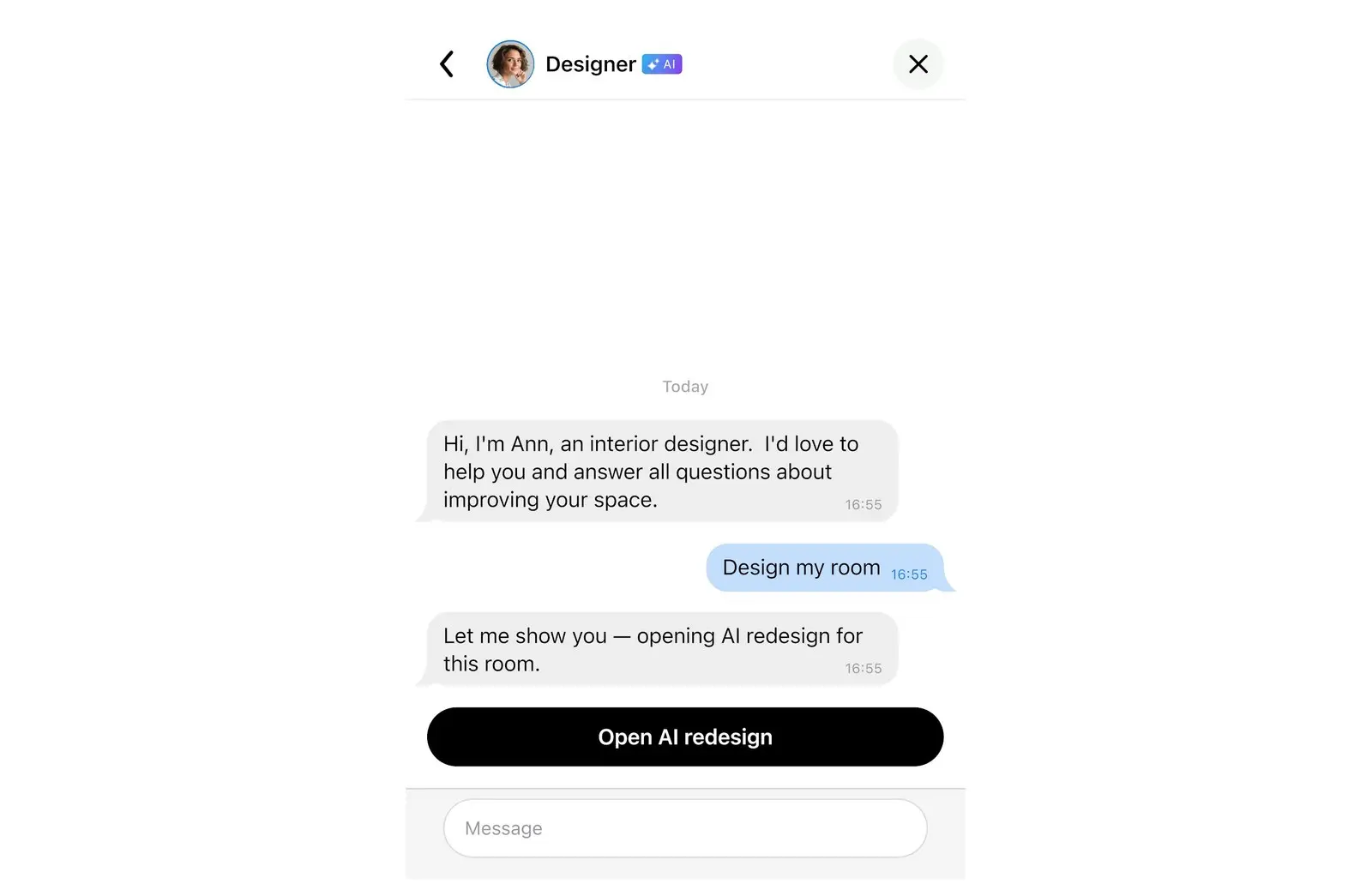
- Select Ask a question (AI). The chat with the Designer opens, and Ann says hello. If you do not see Ask a question (AI), the assistant is not available in your country.
- Type your question and send it. Wait for the answer before you send the next message. Do not write personal details such as your address or phone number: questions go to Home Planner servers and OpenAI models.
Button names and messages are shown in English here. The app shows them in your app language.

The same chat is also in Messages, at the top of your chat list.
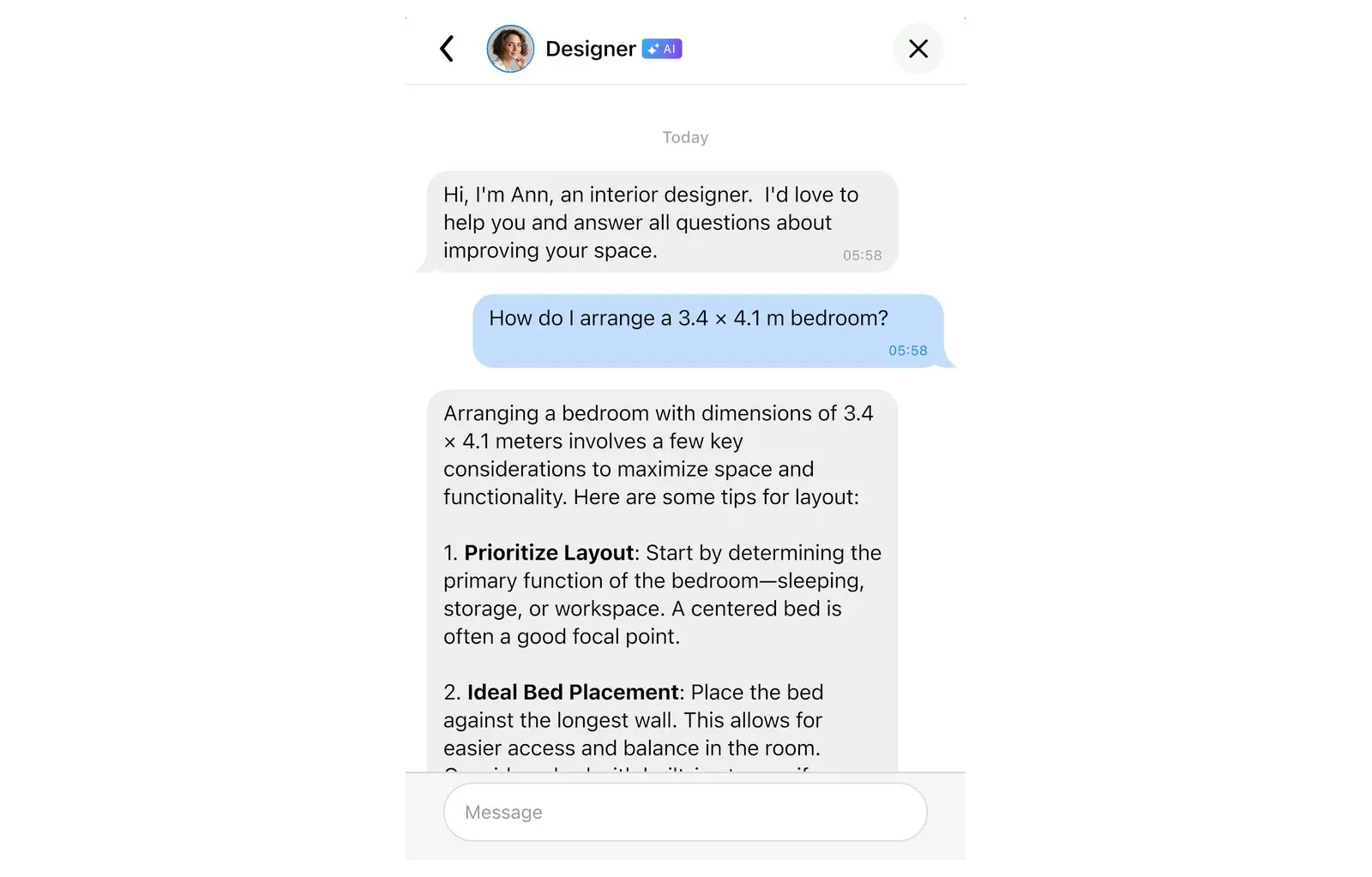
What Ann can do
- Give interior design and renovation advice: layouts, colors, materials, lighting, storage.
- Explain how to do something in Home Planner, often with a link to the detailed guide.
- Tell you which furniture catalog category has the item you need. The category shows as a link. Select it to open that category in the furniture catalog.
- Answer in your language: write in any language, and she answers in the same one.
Check structural, electrical and plumbing advice with a qualified professional before you start work.
Ask Ann to design your room
Write "design my room" or "redesign this room", and Ann offers Open AI redesign. Select it to open AI Redesign and choose your room photo there. This reply does not count towards the daily limit. AI Redesign has its own guide: How to redesign your room with AI from a photo. For general advice, see How to Use AI for Interior Design.
Get quick advice while you choose furniture
The Home Planner furniture catalog has a short AI tip for the room you are furnishing. The tip uses your room type, its size and the project style.
- Open a project and open the furniture catalog.
- Open a category, for example beds or sofas.
- Select Need advice in the row of filters at the top. The tip shows when you browse a category, not when you search. If the row has no Need advice, try another category.
- Read the Designer's Advice card, then select Got It.

Turn the AI answer into a room layout
A room layout is only right when it fits the real room, so build it in the Home Planner floor plan after the chat. Home Planner does not read a pasted layout, so you place the items yourself. If ChatGPT gave you a picture of a plan, treat it as a sketch: its sizes are not reliable, so use the real wall lengths.
- Draw the room in the 2D plan, or import a floor plan, with the real wall lengths. See How to Create a Floor Plan on Your Phone. To get the wall lengths, see How to Measure Any Room with Your Phone or Measure a Room with a Bluetooth® Laser Measure.
- Add doors and windows where they are in the real room.
- Add the furniture the AI suggested from the catalog and place it as described. Compare each item's size with the real piece.
- Check that you can walk between items and open every door, and move items that are in the way.
- Open the 3D view to see the room. If something does not work, tell the assistant what you see and ask for another option.
Trademark notice. Home Planner is not affiliated with, endorsed or sponsored by OpenAI, Apple Inc., Google LLC, Microsoft Corporation or Bluetooth SIG, Inc.; their names and marks belong to their owners. The Bluetooth® word mark and logos are registered trademarks owned by Bluetooth SIG, Inc. iPhone, iPad and Mac are trademarks of Apple Inc., registered in the U.S. and other countries. Android is a trademark of Google LLC. Other trademarks are the property of their respective owners.
Try it on your own project
Free app for iPhone, iPad, Mac, Android and Windows.