Bluetooth® Laser Measure App: Measure a Room in Home Planner

Connect a compatible Bluetooth® laser measure — selected Bosch, Leica, Stanley, DEWALT and Mileseey models — to Home Planner and send each wall length into your floor plan.
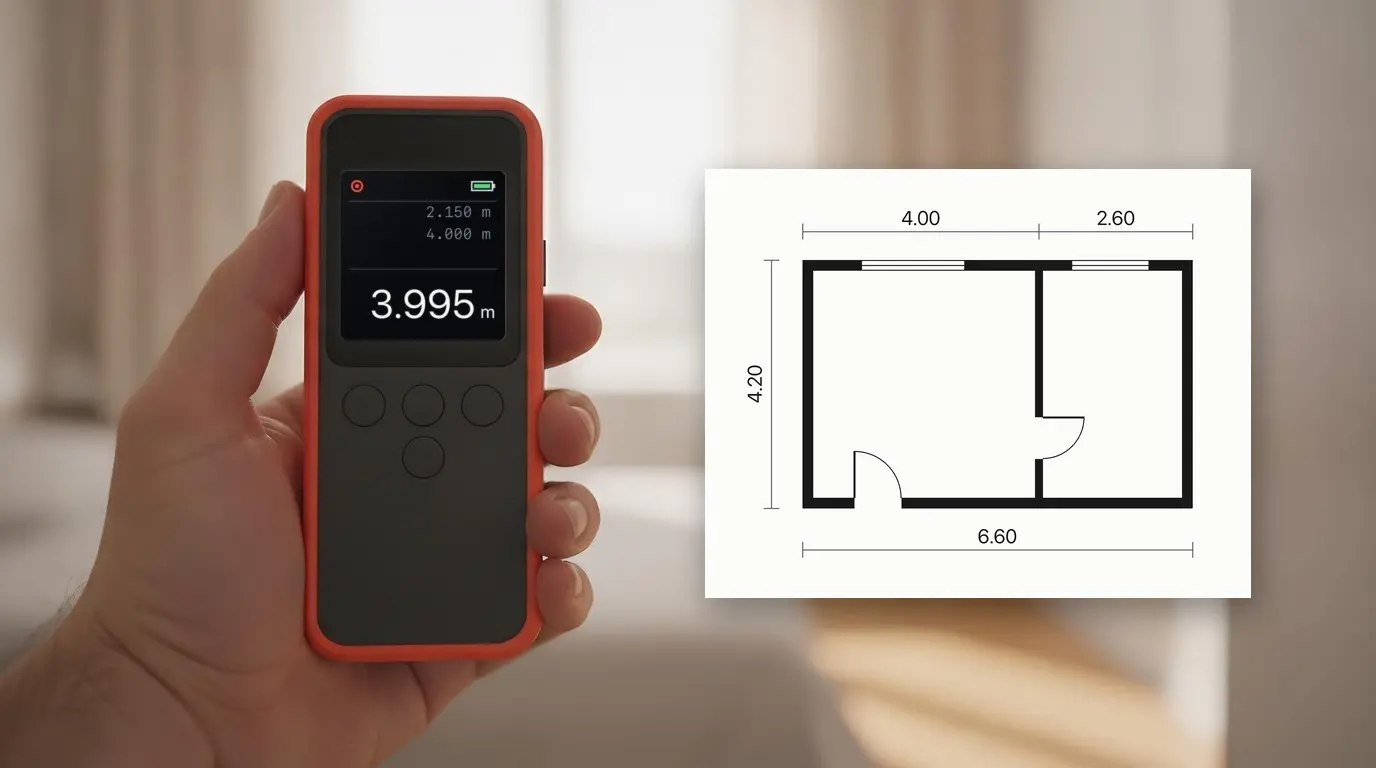
Home Planner works as an app for your Bluetooth® laser measure: measure each wall with a compatible laser distance meter, and the reading goes straight into your floor plan. No notebook and no retyping.
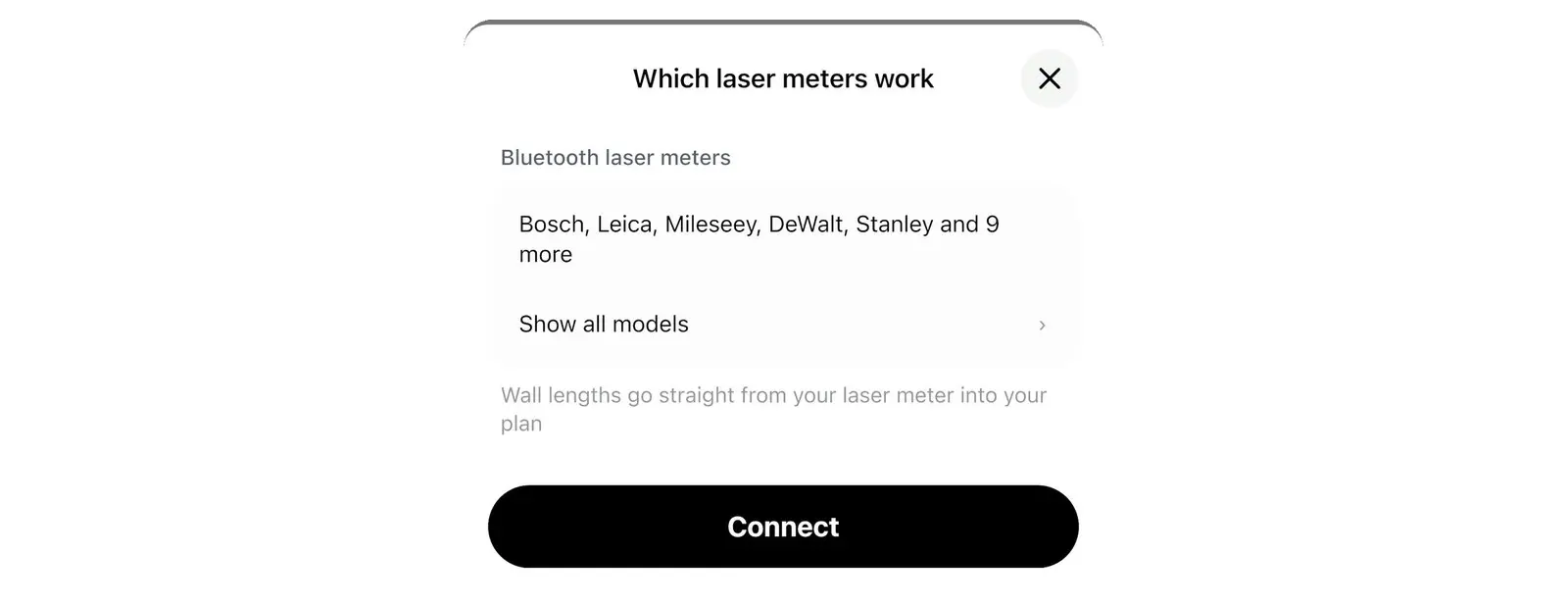
Home Planner is built to connect to selected Bluetooth® laser measure models from Bosch, Leica, Stanley, DEWALT, Mileseey, STABILA, Würth, Hilti and other makers — around 60 models in the app's list today — on iPhone, iPad, Mac and Android.
How it works
Home Planner connects to a compatible Bluetooth® laser measure and writes each reading into the wall, door or window size you select.
- Connect your Bluetooth® laser measure to Home Planner once.
- Measure a wall: open its size and press the button on your meter. The length goes into the plan.
- Measure the whole room clockwise: the app tells you which wall, door or window to measure next.
Before you start
You need Home Planner PRO, a compatible Bluetooth® laser measure and a room drawn in the 2D plan.
| You need | Why |
|---|---|
| Home Planner PRO | Connecting a laser measure is part of PRO. Before you buy PRO, check that **Laser measure** shows above the size keypad. |
| iPhone, iPad, Mac, or an Android phone or tablet | The app connects to the meter with Bluetooth® wireless technology. The Windows version does not support laser measures. |
| A compatible Bluetooth® laser measure | See the list below, or in the app: select the ? next to Laser measure. |
| The Bluetooth® setting turned on | On Android 10–11 also turn on Location: Android needs it to find Bluetooth® devices. |
| A room in the 2D plan | You measure walls of a room you have drawn or imported. Measuring a whole room needs a closed room. |
Laser measures in the app's list
Home Planner is built to connect to the selected Bluetooth® laser measures below: around 60 models from Bosch, Leica DISTO, Stanley, DEWALT, Mileseey, STABILA, Würth, Hilti and other makers. The list comes from the app's own model list. We built support from publicly available descriptions of how each model connects; we have not tested every model on a real device. A model that is not in the list may not connect. If a listed model does not connect, contact support from the app. The full, current list is in the app: select ? next to Laser measure → Show all models.
| Brand | Models | Listed for |
|---|---|---|
| Bosch | GLM 50-27 C / CG, GLM 50 C, GLM 100 C, GLM 100-25 C, GLM 120 C, GLM 150 C, GLM 150-27 C, GLM 165-27 C, GLM 400 C, PLR 30 C, PLR 40 C, PLR 50 C, AdvancedDistance 50C (AD 50C), UniversalDistance 30C / 40C / 50C | iPhone, iPad, Mac, Android |
| Leica DISTO | D1, D2, D2G, D110, D510, D810, S910, E7500i, X3, X4 | iPhone, iPad, Mac, Android |
| Leica DISTO | D3a BT, D330i, D8 | Android only |
| Stanley | TLM 99s, TLM 99si, TLM 165si, TLM660 | iPhone, iPad, Mac, Android |
| DEWALT | DW03050, DW03101 | iPhone, iPad, Mac, Android |
| Mileseey | P7, P9, T7, D5T, M120, M130, R2B, S50, XTAPE, DT20 (older version) | iPhone, iPad, Mac, Android |
| STABILA | LD 250 BT, LD 520, LD 530 BT | iPhone, iPad, Mac, Android |
| Würth | WDM 3-19, WDM 6-22, WDM 8-14, WDM 9-24 | iPhone, iPad, Mac, Android |
| Hilti | PD-I | iPhone, iPad, Mac, Android |
| Hilti | PD-38 | Android only |
| Johnson | LDM130, LDM330 | iPhone, iPad, Mac, Android |
| Other | FNIRSI IR40, Hersch LEM 50, Precaster CX100, Suaoki P7 | iPhone, iPad, Mac, Android |
| CEM | iLDM-150 | Android only |
| REEKON | T1 (keyboard mode) | iPhone, iPad, Mac, Android: turn on keyboard mode on the meter and pair it in your device's Bluetooth® settings |
Android only models: pair the meter in your phone's Bluetooth® settings first, then connect it in Home Planner.
Home Planner is not affiliated with, endorsed by or sponsored by any of the makers named here. Their names and model names are used only to say which meters the app is built to connect to.
Connect your laser measure
You connect a laser measure once, from the size keypad of any wall. Home Planner remembers it.
- Open your project in the 2D plan and select the length of a wall. The size keypad opens.
- Select Laser measure, the first button above the keypad, next to ?. The first time, allow Bluetooth® access (on Android: Nearby devices). Without PRO, the app opens Which laser meters work with the list of models and a Buy PRO button.
- Turn on the Bluetooth® function of the laser measure (see the meter's manual). Until the meter is found, the app asks you to press its Bluetooth® button. Leica DISTO D810 or S910: first turn on Unencrypted App Mode on the meter.
- Under Nearby, select your laser measure. The app connects and saves it under My devices.

Next time you open a size keypad, Home Planner reconnects to the same meter on its own.

Example screens of the connection flow, made with a simulated laser measure. The device names on them are examples; in the app you see the name your own meter reports.
Measure a wall with a laser measure
With a meter connected, every press of its button fills the size you are editing.
- Select the size you want to measure: wall length, wall height, or the width, height or position of a door or window.
- Check the line above the keypad: a green dot means the meter is connected.
- Press the measure button on the laser measure. The reading appears in the selected field.
- Select Done. Home Planner moves the wall to the new length.
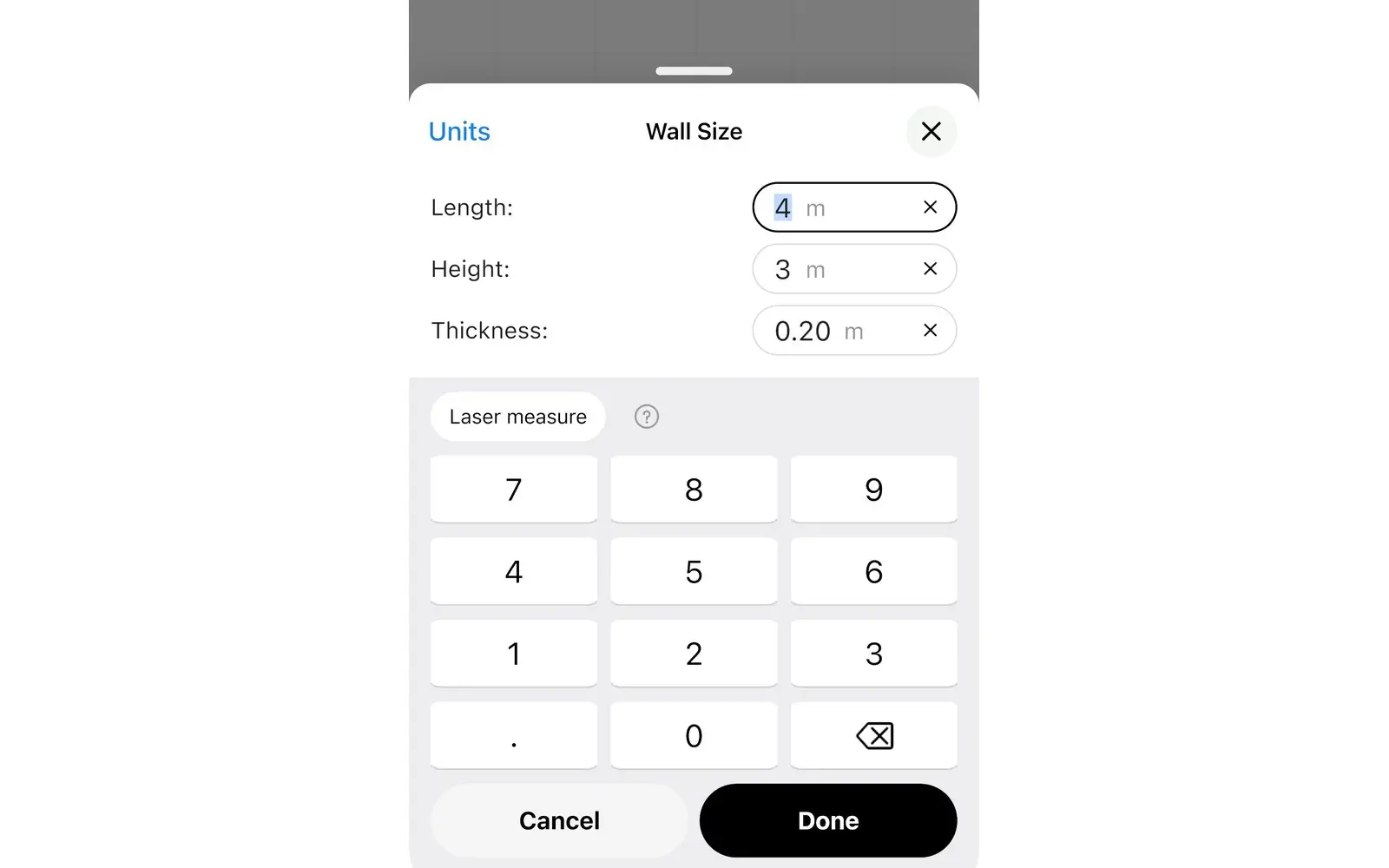
The app shows the reading in your own units (metres or feet), whatever unit the meter uses.
Follow your device maker's safety instructions. Never point a laser at anyone's eyes.
Measure a whole room with a laser measure
The room series is a fast way to turn a sketch into a floor plan from your measured sizes: the app shows which wall, door or window to measure next, in clockwise order.
- With a meter connected, open the length of a wall in a closed room and select Measure room ›.
- Stand where the plan shows the meter mark and aim the beam along the red line to the opposite corner. Press the button: the wall gets its length, and the app goes to the next step.
- For each door and window, the app asks for two readings: the distance from the corner to the opening, and the opening's width. If a door or window touches the corner, it asks only for the width.
- Go on clockwise until the last wall. Select Skip to leave a step out, or the back arrow to measure it again.
- If the shape of the room is still unclear, the app asks for diagonals from corner to corner. Then you see Room measured.
Select × to stop at any time: the walls you already measured stay in the plan.
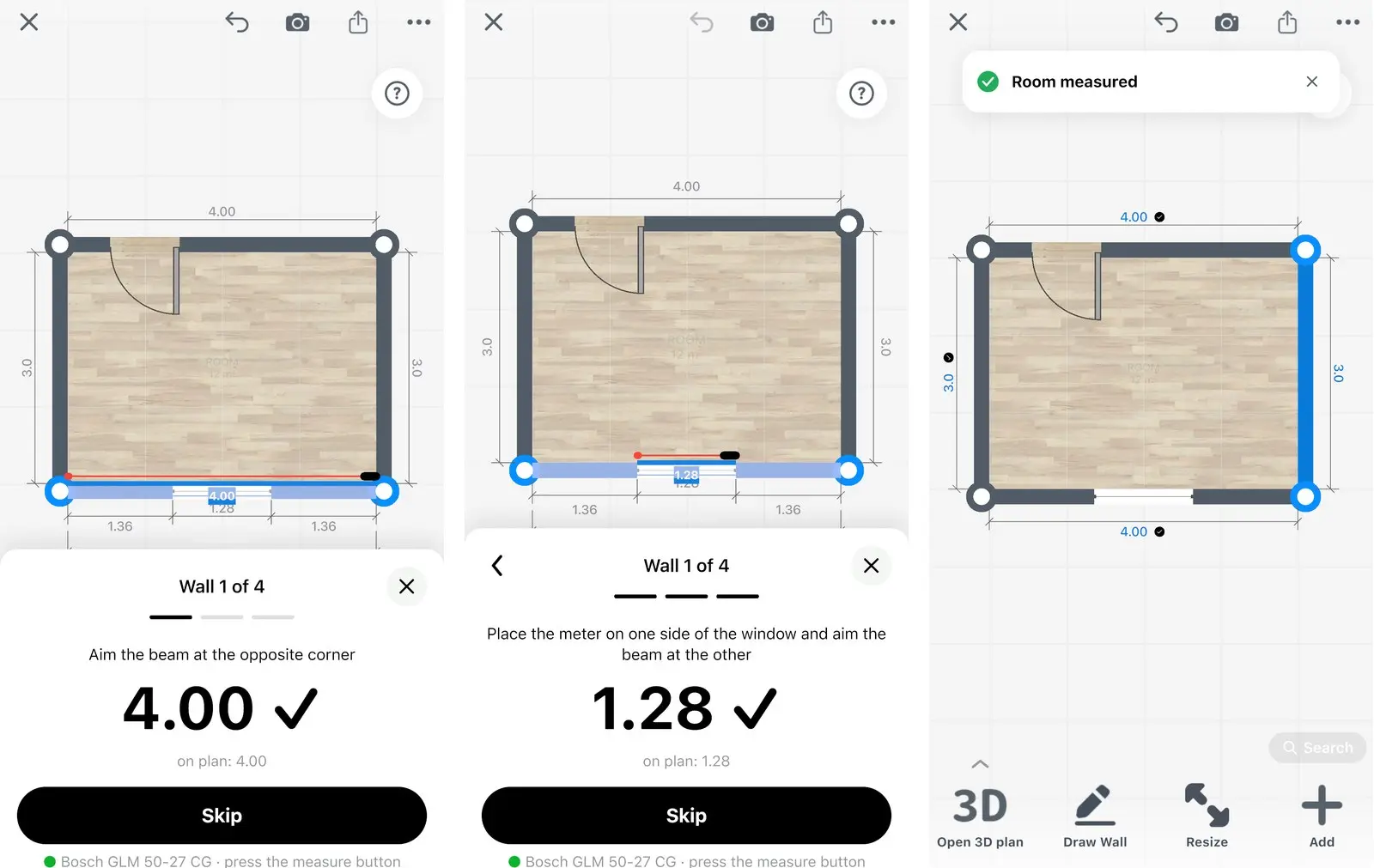
Example screens of the room series, made with a simulated laser measure.
Tips for accurate readings
Accurate readings come from single distance mode, a steady meter and one app connected to it.
- Set the laser measure to single distance mode, not area or volume.
- Hold the back of the meter flat against the wall or corner, at the same height for every wall.
- Close other measuring apps on the phone: a meter connects to one app at a time.
- Measure the whole wall from corner to corner first, then doors and windows.
Troubleshooting
Most connection problems come from Bluetooth® settings or from another app that holds the meter.
| Message in the app | What to do |
|---|---|
| "Bluetooth is off. Turn it on to find your laser meter" | Turn on the Bluetooth® setting on your phone, tablet or Mac. |
| "Allow Bluetooth access in Settings to connect a laser meter" | Select Settings and allow Bluetooth® access for Home Planner. |
| No laser meter found | Turn on the meter's Bluetooth® function and close other measuring apps. Select Try again. On Android, pair Bosch GLM 50 C, GLM 100 C and PLR 30 / 40 / 50 C in your phone's Bluetooth® settings first. |
| Turn on Location: on Android 10–11 the laser meter can't be found without it | Turn on Location in Android settings. |
| Set the laser meter to single distance mode | Switch the meter from area or volume mode to single distance. |
| The laser meter couldn't measure. Aim again | Aim at a solid, flat surface and press the button again. |
| A grey dot and "not connected" above the keypad | Select the status line to reconnect, or turn the meter on again. |
| Laser meter: not connected · Connect (during the room series) | Select Connect, or turn the meter on again. |
| Leica DISTO D810 or S910 does not send readings | Turn on Unencrypted App Mode on the meter. |
Questions and answers
Which Bosch, Leica and other laser measure models can I connect to Home Planner?
Selected Bluetooth® models from Bosch, Leica, Stanley, DEWALT, Mileseey, STABILA, Würth, Hilti and other makers — around 60 in the app's list today. See the table above, or select ? next to Laser measure in the app. Home Planner is not affiliated with these makers.
Is it free?
Connecting a laser measure is part of Home Planner PRO. Before you buy PRO, check that Laser measure shows above the size keypad. Without PRO, you can still draw and measure your plan by hand.
Does it work on Android and on Mac?
Yes: on iPhone, iPad, Mac and Android. Some listed models work on Android only; the table marks them. The Windows version does not support laser measures.
Can I measure in feet?
Yes. The app shows readings in the units you chose in Home Planner and converts them from the meter's units for you.
Can I change a reading?
Yes. In the room series go back to the step and measure again, or select the wall on the plan. Every reading is a normal size you can also type or undo.
Why measure clockwise?
Going around the room in one direction lets the app place every corner, door and window in the right spot. It asks for diagonals only when the room shape needs them.
Trademark notice. Home Planner is not affiliated with, endorsed by or sponsored by Bluetooth SIG, Inc., Apple Inc., Google LLC, Microsoft Corporation or the makers of laser measures named on this page; their names and marks belong to their owners. Their names and model names are used only to identify the devices and platforms the app is built to work with. Compatibility is based on the list in the app; a listed model is not guaranteed to work in every configuration.
The Bluetooth® word mark and logos are registered trademarks owned by Bluetooth SIG, Inc. Android is a trademark of Google LLC. iPhone, iPad and Mac are trademarks of Apple Inc., registered in the U.S. and other countries. Windows is a trademark of the Microsoft group of companies. Bosch, Leica, DISTO, Stanley, DEWALT, Mileseey, STABILA, Würth, Hilti, Johnson, FNIRSI, Hersch, Precaster, Suaoki, CEM and REEKON are trademarks of their respective owners.
Try it on your own project
Free app for iPhone, iPad, Mac, Android and Windows.