How to Design a Room from Scratch: The Complete 2026 Guide

Learn how to design any room from scratch in 2026. From LiDAR scanning to AI-driven style choices and photorealistic rendering.
Facing a completely empty, echoey room is one of the most intimidating moments for any homeowner. The possibilities are infinite, but so are the potential mistakes. Where do you put the sofa? How big should the rug be? Why does the lighting feel "off"?
In 2026, you don't need a four-year degree in architecture to design like a pro. With the right workflow and the power of Home Planner, you can move from a "blank box" to a dream interior in five simple steps.
Step 1: Digital Twinning (The Scan)
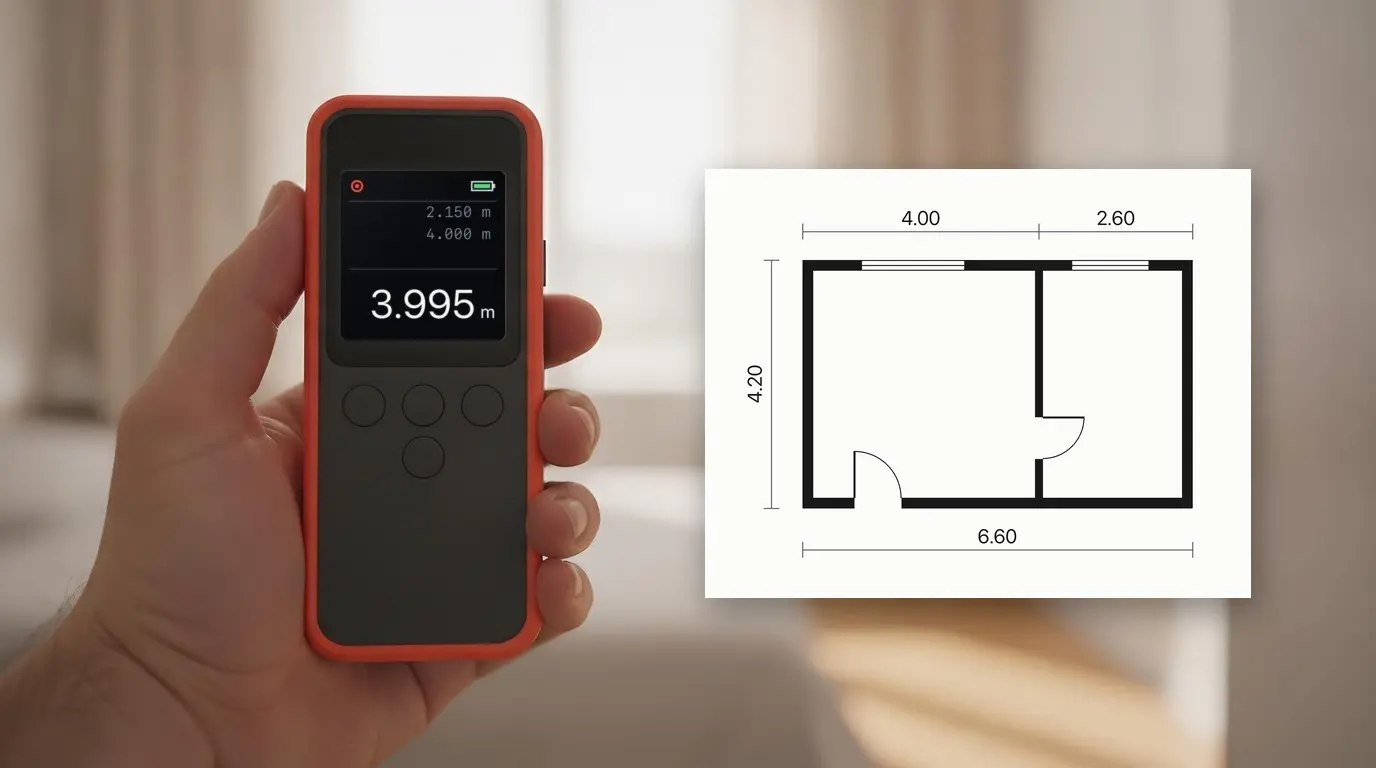
You cannot design what you haven't measured. Stop guessing dimensions and start scanning.
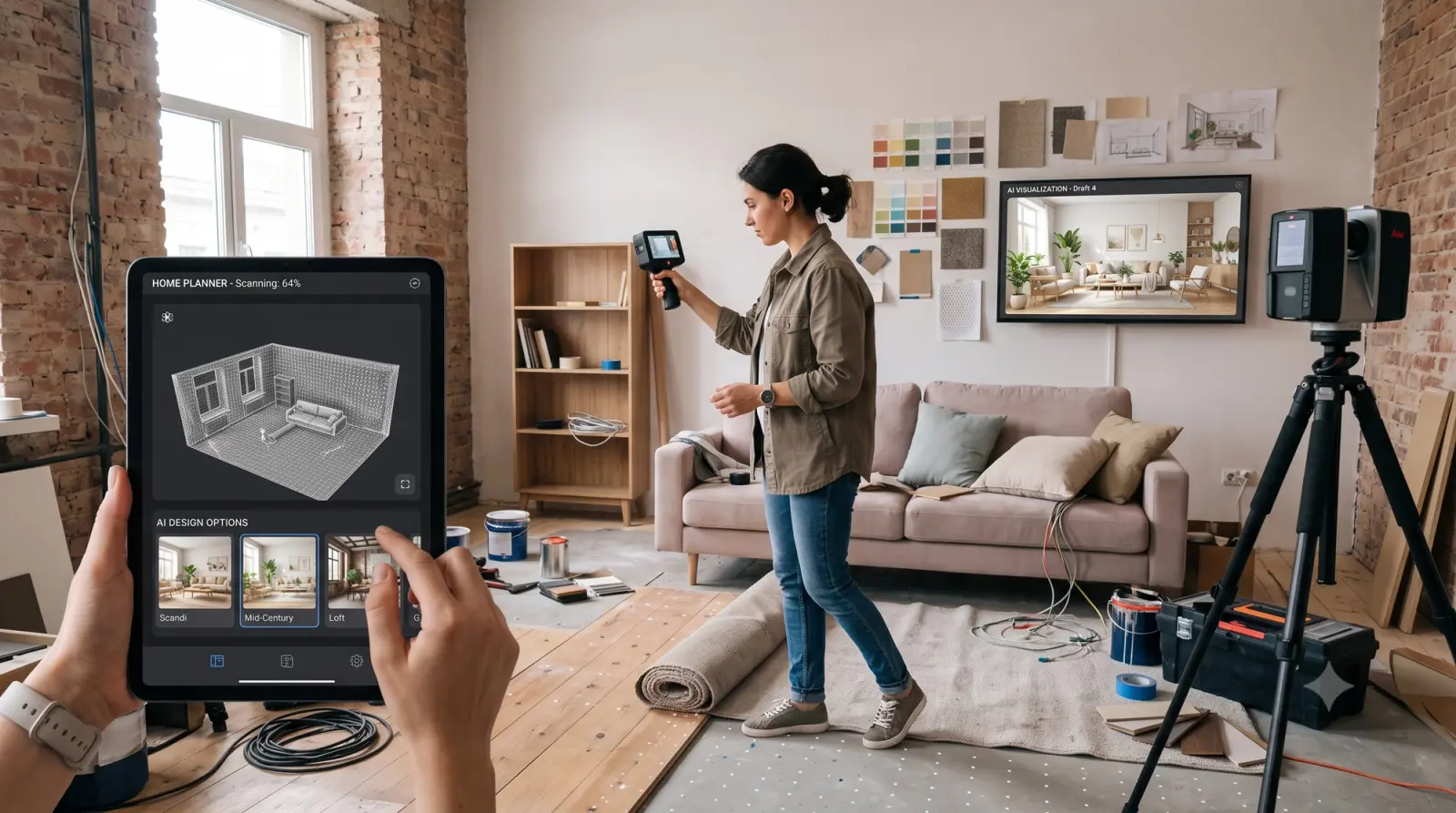
Using the AR LiDAR Room Scanner, simply walk around your empty room. In under two minutes, the app will capture every corner, window, and door frame with millimeter precision. You now have a 100% accurate 3D model of your space. This is your "Digital Twin"—the foundation of everything that follows.
Step 2: Curing Blank Canvas Anxiety
If you don't know where to start, looking at an empty 3D grid can be just as scary as an empty physical room.
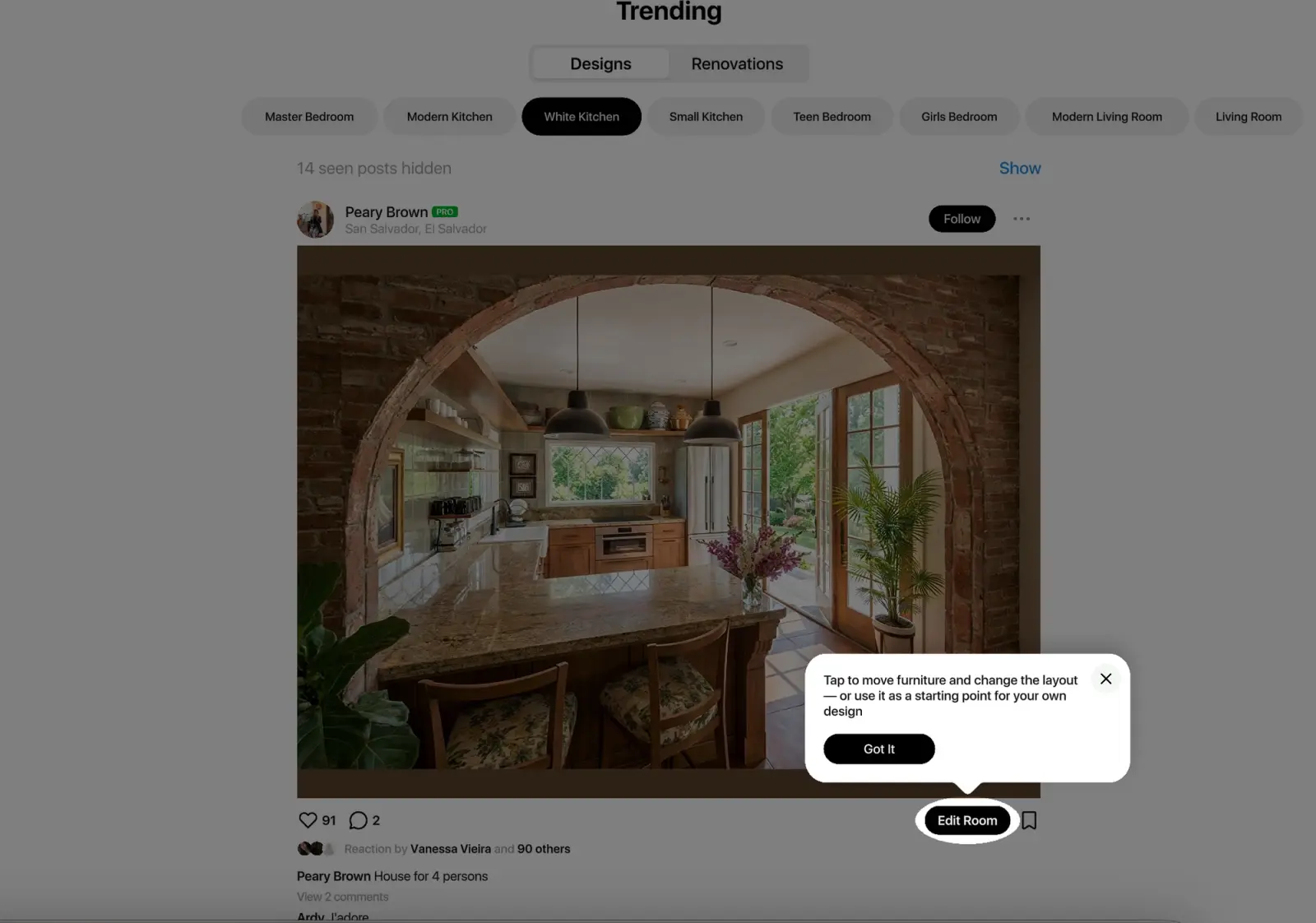
Pro Tip: Browse the Projects Gallery in Home Planner. Filter by room type (e.g., "Living Room") and size. Find a design that resonates with you and click Edit Room.
Step 3: The Big Pieces First (The Layout)
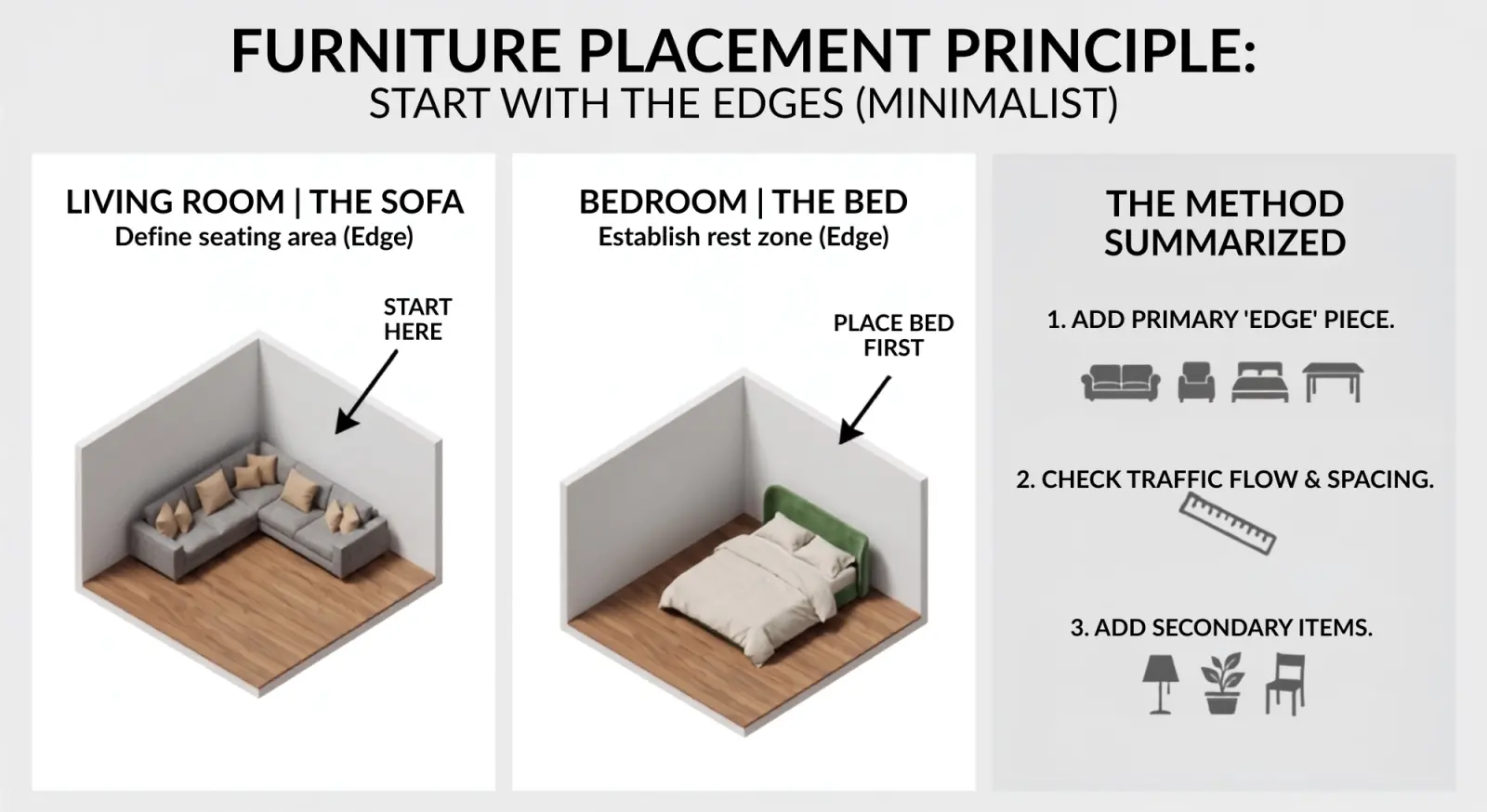
Design is like a puzzle. You always start with the edges. In a room, the "edges" are your largest pieces of furniture:
Living Room: The sofa.
Bedroom: The bed.
Dining Room: The table.
Use the 3D Catalog in Home Planner to drop in real retail items. Because the dimensions are tethered to reality, you can immediately see if a sectional sofa blocks the flow of traffic or if a king-sized bed leaves no room for drawers.
Step 4: AI Redesign (The Style Phase)
Once your layout is functional, it’s time to make it beautiful.
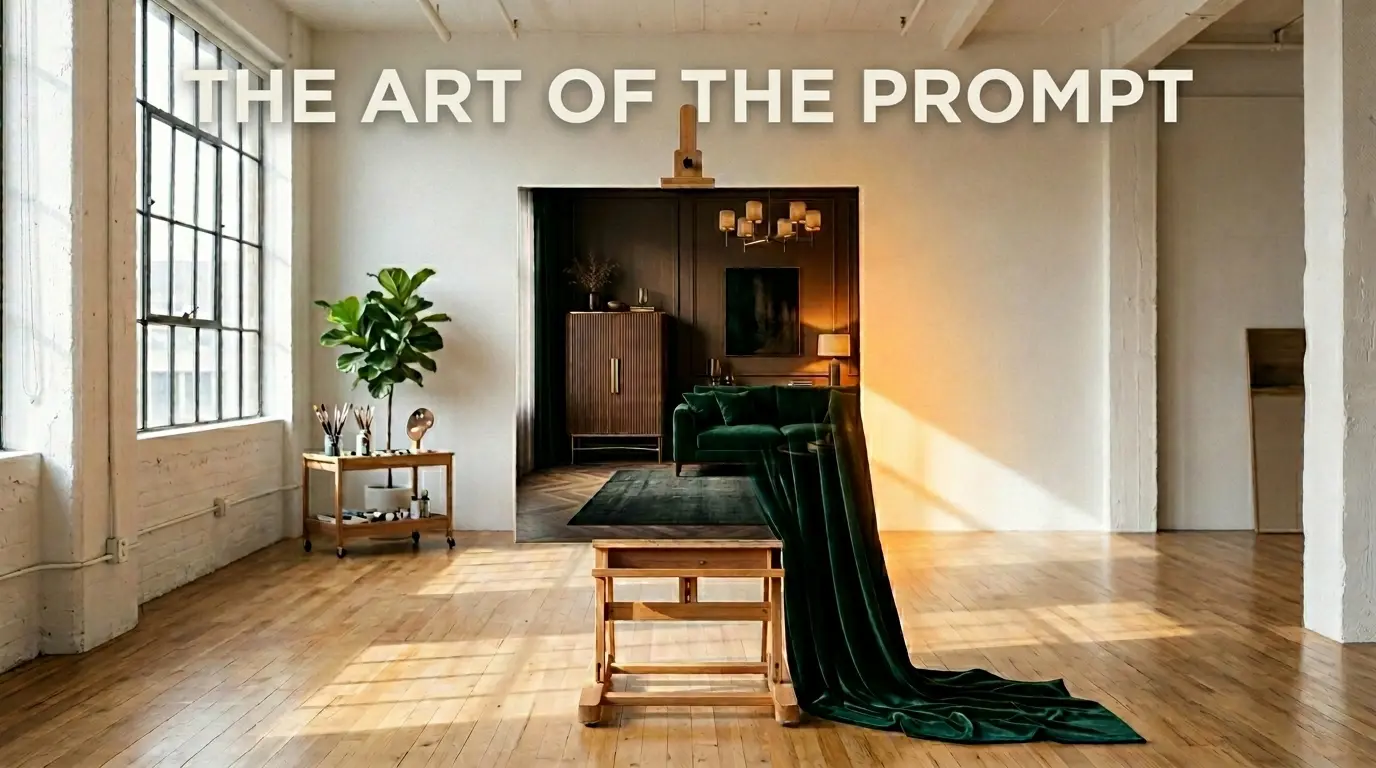
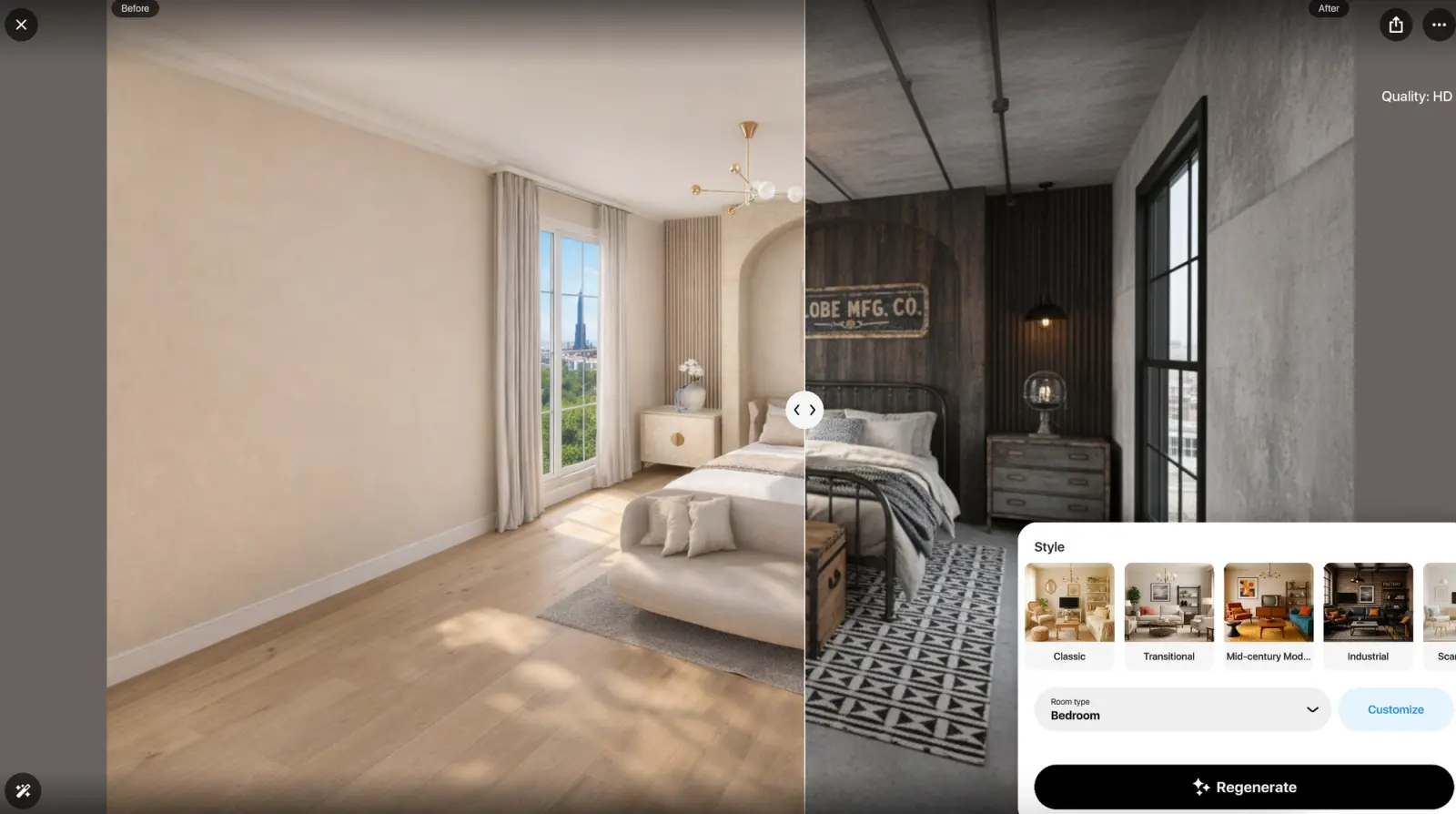
This is where you use AI Redesign. Select your room and enter your desired style into the prompt field—perhaps "Moody Elegance" or "Scandi-Minimalist." The AI will analyze your furniture placement and suggest a cohesive color palette, wall treatments, and lighting. It’s like having an interior designer looking over your shoulder, offering instant professional feedback.
Step 5: The "Reality Check" (Rendering)
Before you buy a single item, perform a Reality Check.
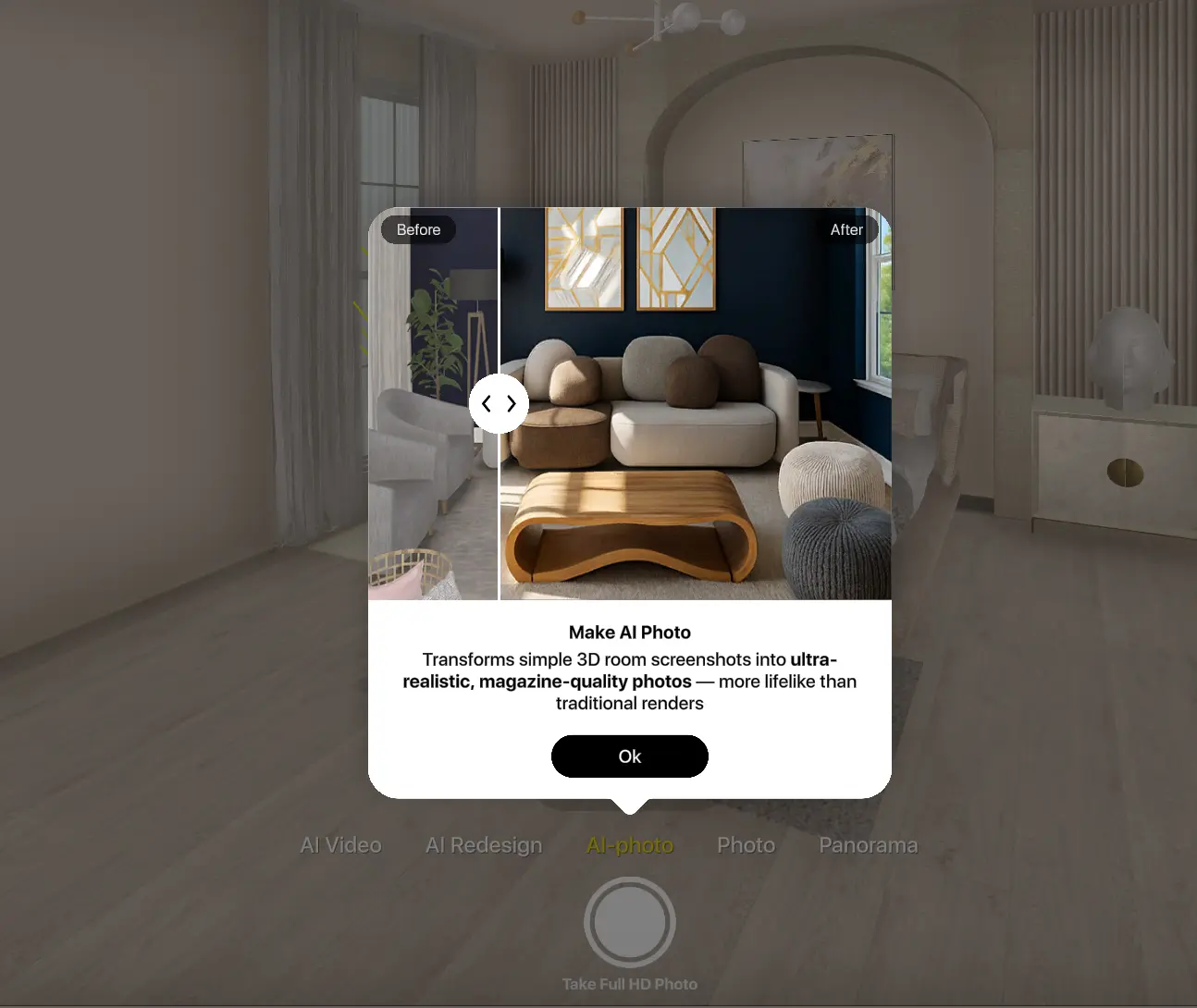
Use the Home Planner AI Render to generate a magazine-quality 4K photorealistic image of your design. See how the late-afternoon sun hits the velvet sofa. Check if the dark green walls feel cozy or too dark. If something doesn't look right, change it in the app—not after you’ve already paid for the paint.
Don't just decorate. Design. Download Home Planner and start your first project from scratch today.

Try it on your own project
Free app for iPhone, iPad, Mac, Android and Windows.