How to Visualize Furniture in Your Room Before You Buy

Visualize furniture in your room before you buy: place real brand products in a plan of your room, see them in 3D at real size, and get a shopping list with prices.
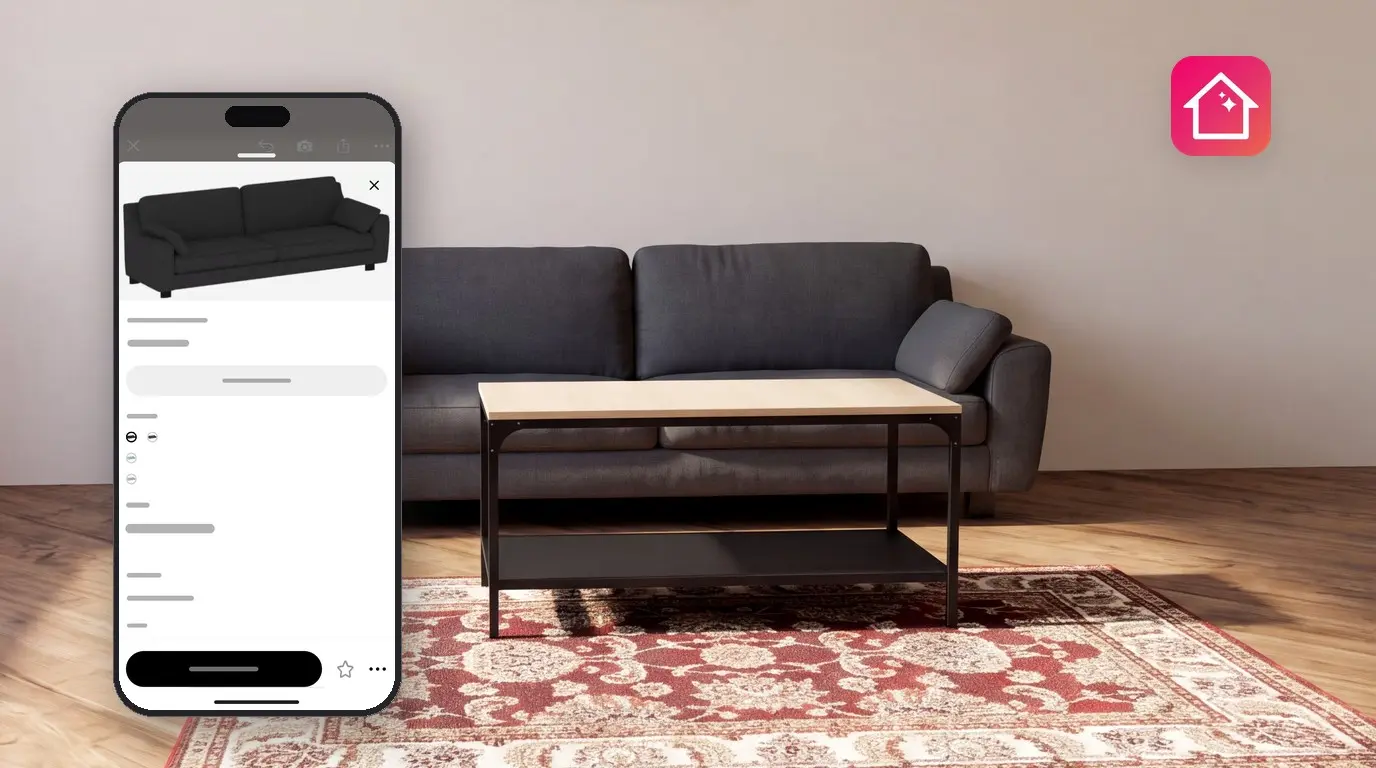
A sofa that looked right in the store can block a door at home. To visualize furniture in your room first, put the real product into a plan of your own room and look at it from every side in 3D. Home Planner does this with a catalog of furniture and decor from real brands and online stores: brand products keep their real size and show a store price where the store gives one.
When the room looks right, Home Planner gives you a shopping list with every item, its quantity and price, grouped by room. Then take the list to the store: each product card has Find in Stores. Some catalog items need PRO.
How it works
In Home Planner you draw the room once, add real products from the catalog, then use the shopping list to buy in stores.
- Make a plan of your room with its real walls, doors and windows.
- Add real products from the catalog and see them in the room in 3D.
- Open the shopping list to see what you need, how many and the total price, and find each item in stores.
Before you start
You need Home Planner and a plan of the room you want to furnish. Button names in this guide are the English names; in another app language, look for the same button. On a phone, some buttons move: if a button is not where this guide says, look along the same edge of the screen.
| You need | Why |
|---|---|
| Home Planner | On iPhone, iPad, Android, Mac or Windows. |
| A plan of your room | Draw the walls or import a floor plan. Real wall lengths let you check that furniture fits. |
| The size of the room | Measure the walls, doors and windows, or use a plan with dimensions. |
| Home Planner PRO (optional) | Some catalog items need PRO. On a free plan, Home Planner shows the PRO offer when you add one, or later when you share or render the room. |
No plan yet? See how to create a floor plan on your phone or how to upload a floor plan.
Find real furniture in the catalog
The Home Planner catalog holds furniture and decor from real brands, with a store price for brand products. Generic items have no store price. Have a photo of a piece? Find furniture from a picture.
- Open your project in the 2D plan and select an empty place, so that no item is selected. If an item is selected, a product you pick in the catalog can replace it.
- Select Add Furniture in the bottom-right corner of the 2D plan. The catalog opens. If the button says Add, you are still in Edit Walls: select Done at the top left, and Add Furniture appears.
- Choose a category, for example sofas or tables.
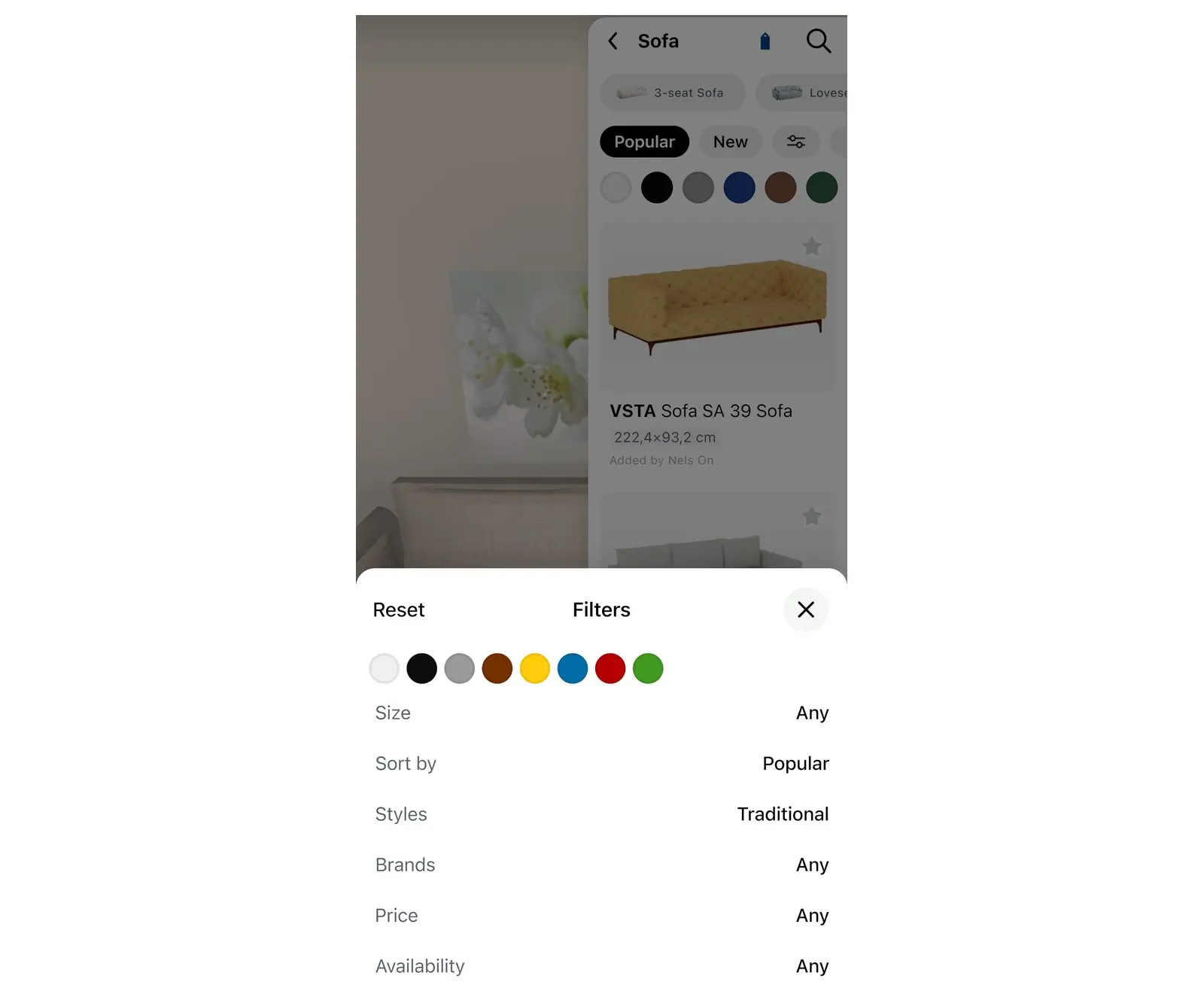
- Use the catalog filters to narrow the list: Brands, Price, Size and Availability. Select Size and enter the largest width, depth and height that fit your space.
- Select a product to open its card. The card shows the Size, the price and the brand.
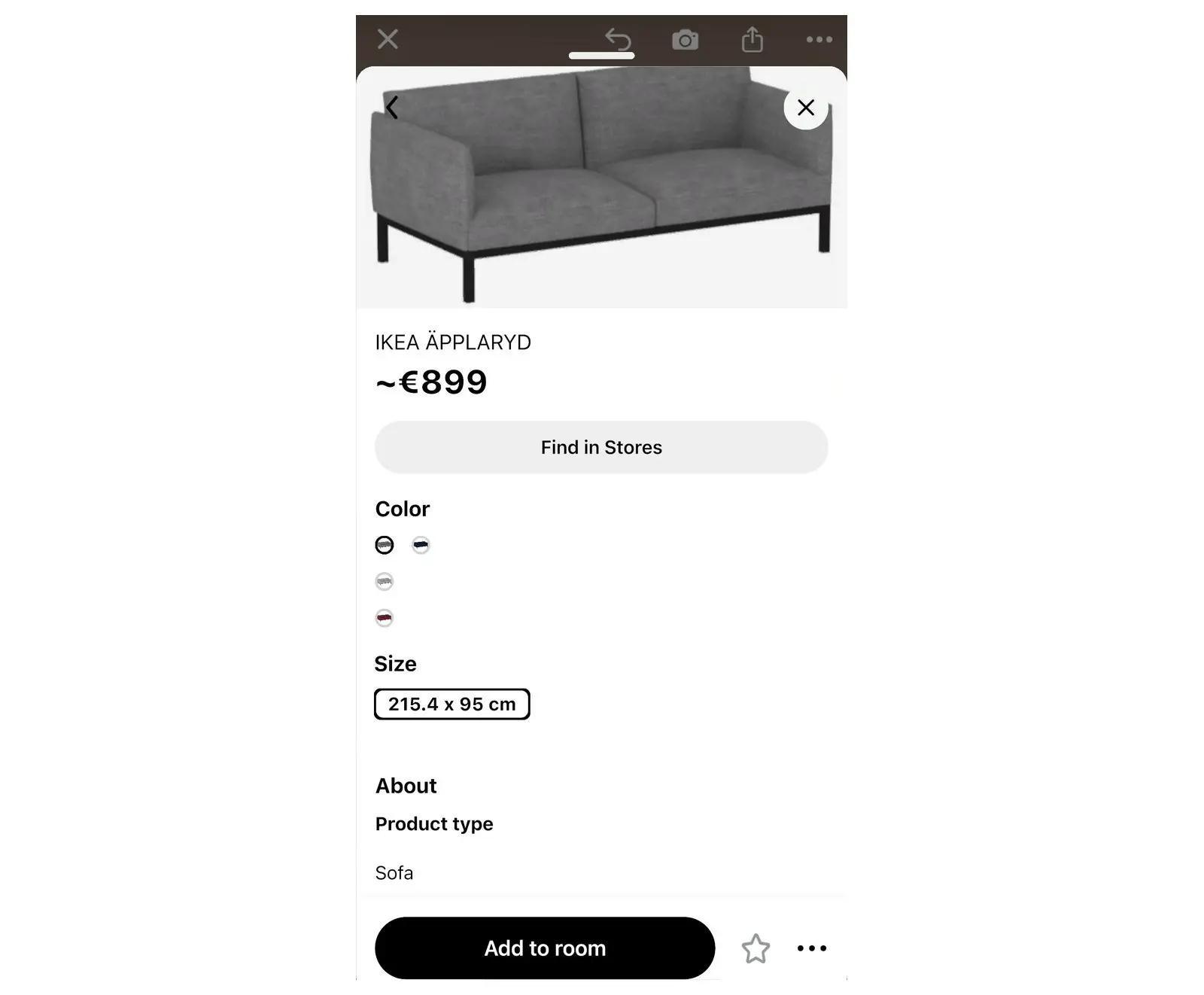
On the product card, select the brand logo to see more: Explore [brand name] Collection opens all products of that brand, and Visit Official Page opens the product on the brand's website when the brand has one.
Visualize the furniture in your room
Home Planner places the product in your plan, so you can look at it from every side in 3D before you decide.
- On the product card, select Add to room. The product appears in your room at its real size.
- Drag it in the 2D plan to move it. Keep enough space to walk around it and to open doors and drawers.
- Select Open 3D plan in the bottom-left corner to see the furniture with your walls, floor, windows and light.
- To try another product in the same place, select the product in the room and select the replace icon, to the right of the trash icon in the toolbar next to it. A window of similar products opens; choose one. If you add a second sofa to compare, the shopping list counts both until you delete one.
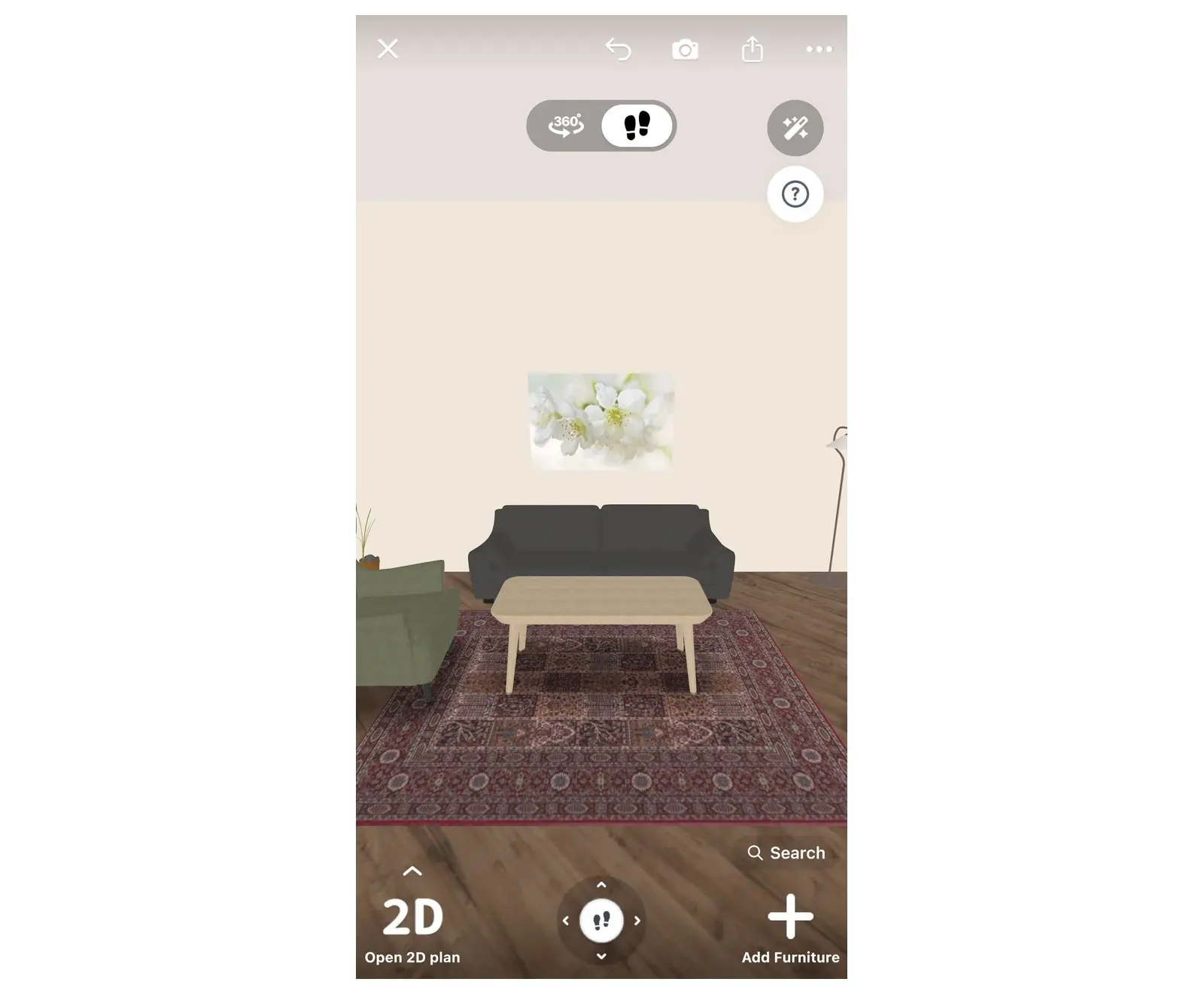
The plan keeps real distances, so what fits in Home Planner fits in the room, as long as the walls in the plan match your measurements.
Get a shopping list of everything in the room
The shopping list is Home Planner's list of every product and finish in your project, with quantity, price and total.
- In the editor, select the share icon in the right-hand toolbar. A menu opens. No share icon? Select Done at the top left to leave Edit Walls, and the icon comes back.
- Select Shopping list. Do not use PDF in this menu for the list: it exports the whole project. The shopping list has its own Export PDF.
- The list shows the whole project, grouped by room: furniture, then floor, walls and ceiling. To see one room or level, choose its tab at the top of the list.
- Check the total next to Total Price: at the bottom of the list. With PRO, Stats in the same share menu shows the total of each level and room.
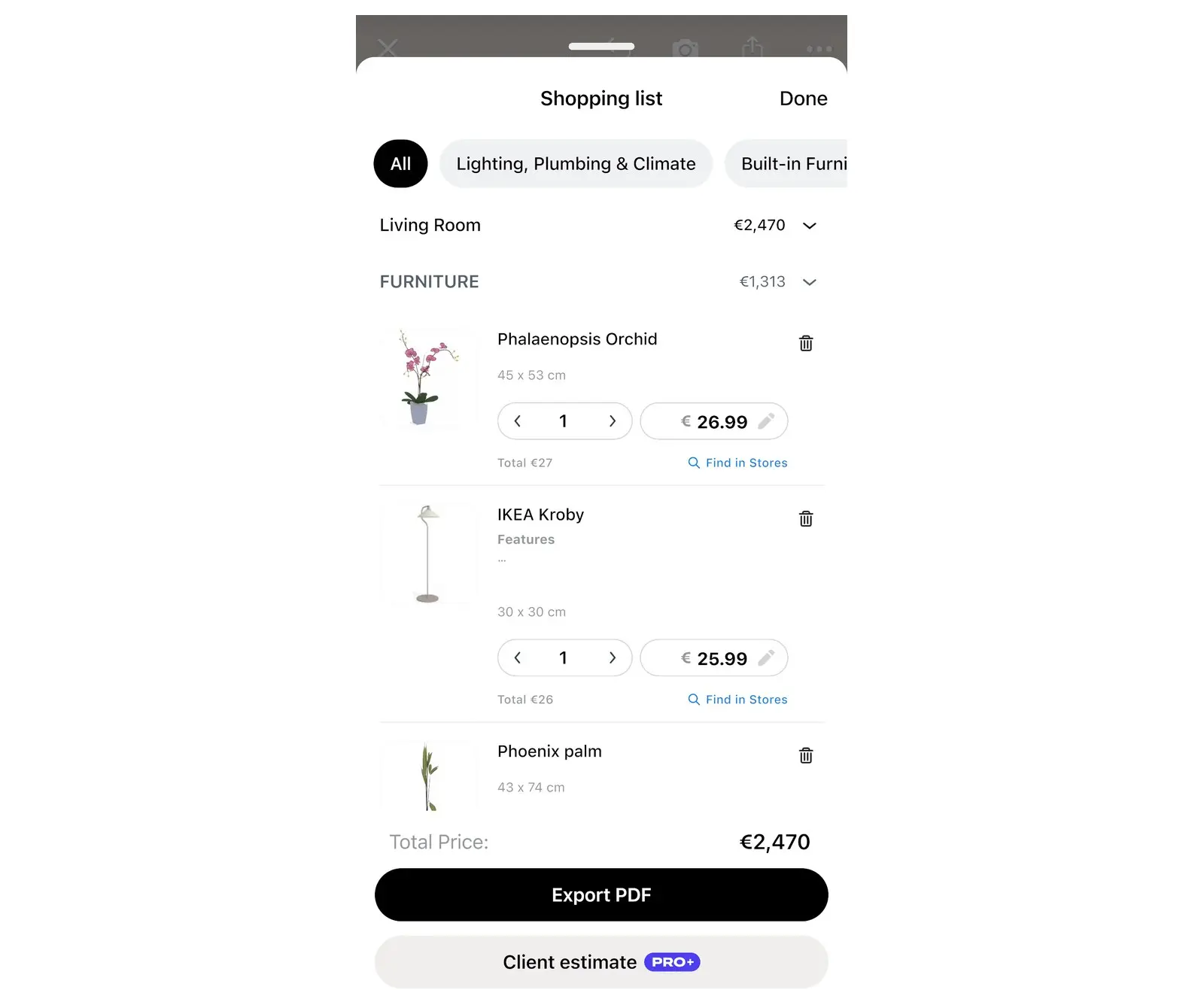
You can change the list to match what you plan to buy. Your changes stay in the project.
| In the shopping list | What you can do |
|---|---|
| Qty | Change how many you need, for example 4 chairs. |
| Price | Type the price you found, for example a sale price. The totals update. |
| Delete | Home Planner asks what to remove: Remove from List keeps the product in the room; Remove from List and Room removes it from the room too. |
| Reset | A button at the top left of the window. It appears after you change the list, asks you to confirm, then restores the original list. |
| Add Accessories | For products that have accessories: add them to the product. |
| Export PDF | Home Planner makes a PDF with each product's picture, size, article number, quantity and price, for the room or level you chose, and opens the window to save or share it. |
Find the products in stores
Home Planner can search online stores for a catalog product: use Find in Stores on the product card.
- Open the product card: select the product in the catalog, or select it in your room and then select the small product card that appears.
- Select Find in Stores. Home Planner shows Searching... with the progress, or opens the brand's official page at once.
- If Home Planner finds several matching products, choose one from the list. The product page opens.
- Check the price and size in the store before you buy. Store prices and stock change.
- If Home Planner shows Search failed, it did not find the product in stores. Search the store by the product name and brand, or type the price yourself.
To buy the whole room, use Find in Stores on each product, or take the list's Export PDF to the store.
For a full renovation budget, see how to estimate renovation costs from a floor plan.
Trademark notice. Home Planner is not affiliated with, endorsed or sponsored by Apple Inc., Google LLC, Microsoft Corporation or Inter IKEA Systems B.V.; their names and marks belong to their owners. iPhone, iPad and Mac are trademarks of Apple Inc., registered in the U.S. and other countries. Android is a trademark of Google LLC. Other trademarks are the property of their respective owners.
Try it on your own project
Free app for iPhone, iPad, Mac, Android and Windows.