How to Find Furniture from a Picture and Try It in Your Room

Find furniture from a picture with Home Planner: take a photo, get similar 3D models from the catalog, see them in your room in 3D and find them in stores.
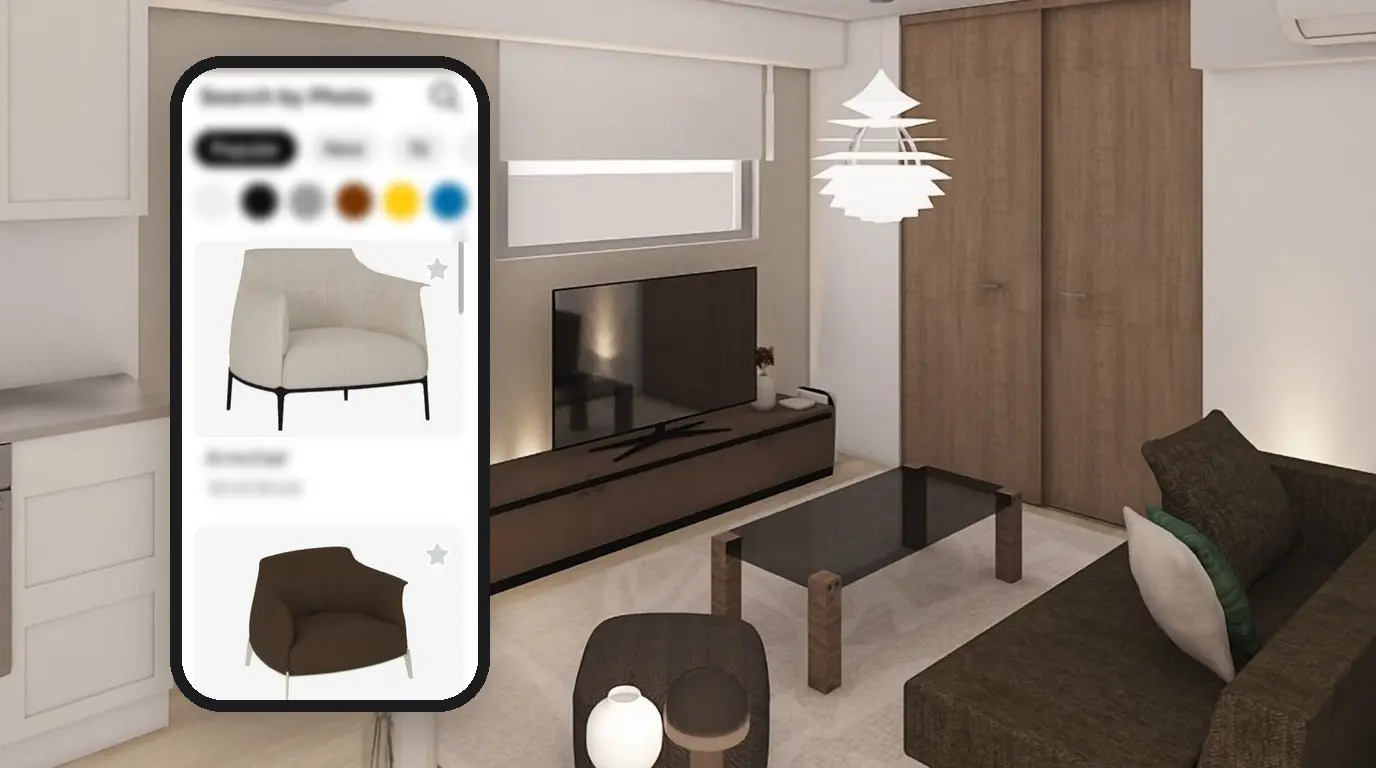
Saw an armchair in a café or on a shop website and wonder how it would look in your living room? To find furniture from a picture, take a photo of it or choose a screenshot from your gallery. Home Planner finds 3D models that look like it in its catalog. You place one in your room plan and see in 3D how a piece like it fits next to your own furniture.
Home Planner also has a second photo search: it looks for the same or a similar product in online stores. This guide shows both searches. It works on iPhone, iPad, Android, Mac and Windows.
How it works
- Open the search in your project and select Search by Photo.
- Choose a photo: take a new one or use a picture you already have, for example a screenshot from a shop website, then crop it to one item.
- Open a match and select Add to room, then look at it in 3D.
Before you start
Search by photo needs no subscription; a result with a lock needs one, as in the rest of the catalog.
| You need | Why |
|---|---|
| Home Planner on iPhone, iPad, Android, Mac or Windows | Search by photo is part of the furniture catalog on every platform. |
| An internet connection | Home Planner sends the photo to its server, which passes it to Google Cloud Vision, an image recognition service, and then compares the result with the catalog. |
| A project with a room | For the catalog search: you place the furniture you find in a room. Create a room first, or open one of your designs. |
| A photo of one item | A clear picture of one sofa, chair, table or lamp gives better matches than a photo of a whole room. |
Button names are shown in English. If Home Planner is in another language, look for the same buttons in the same places.
Find furniture from a picture in the catalog
Open the photo search
- Open your project in Home Planner.
- Select an empty spot in the plan, so that nothing is selected. If a sofa is selected when you choose a sofa from the results, Home Planner replaces it at once instead of opening its card.
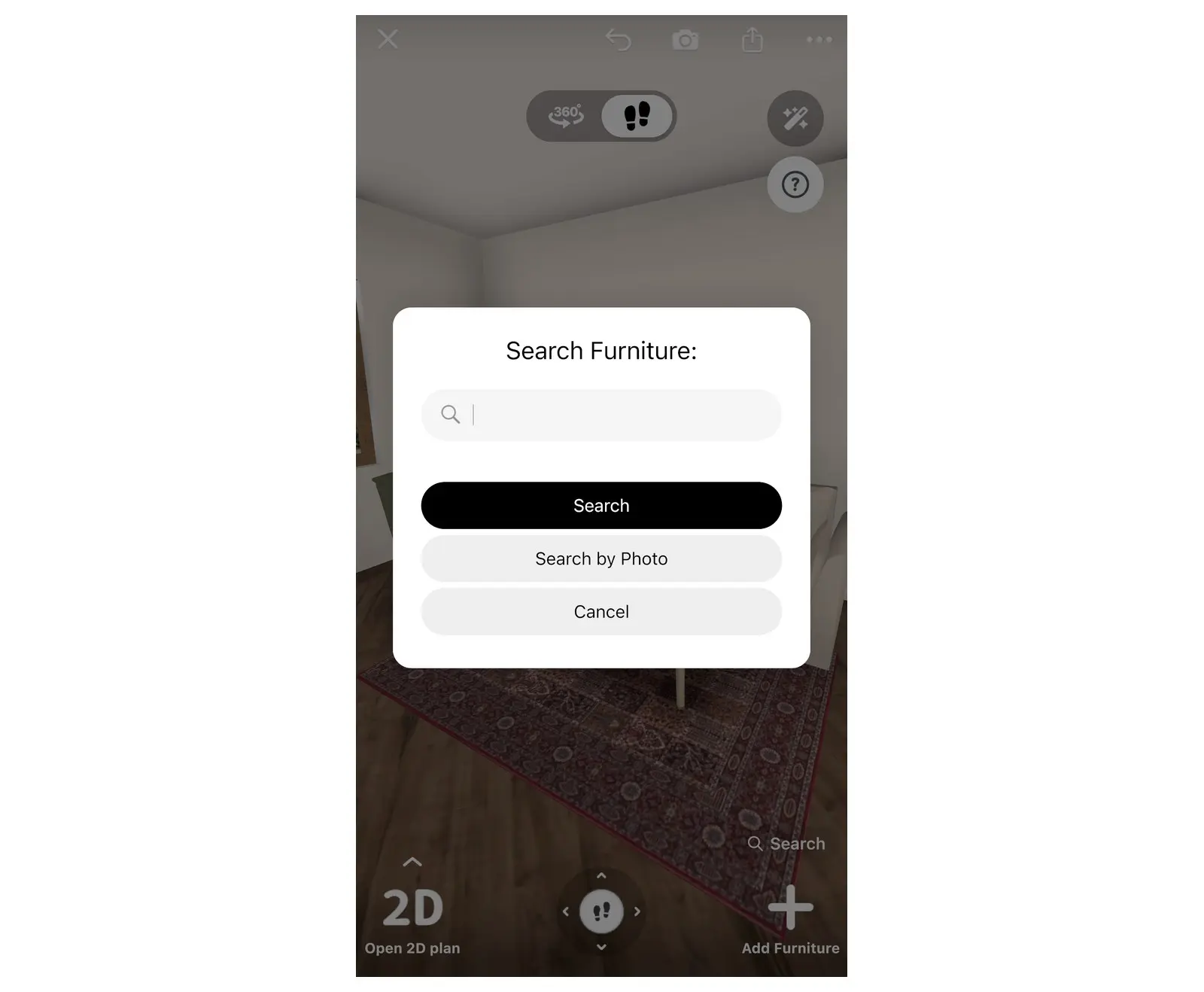
- Select Search in the lower-right corner of the editor. The Search Furniture window opens with Search and Search by Photo. If you do not see Search, finish drawing walls or leave measuring mode.
- Select Search by Photo.
Choose and crop the photo
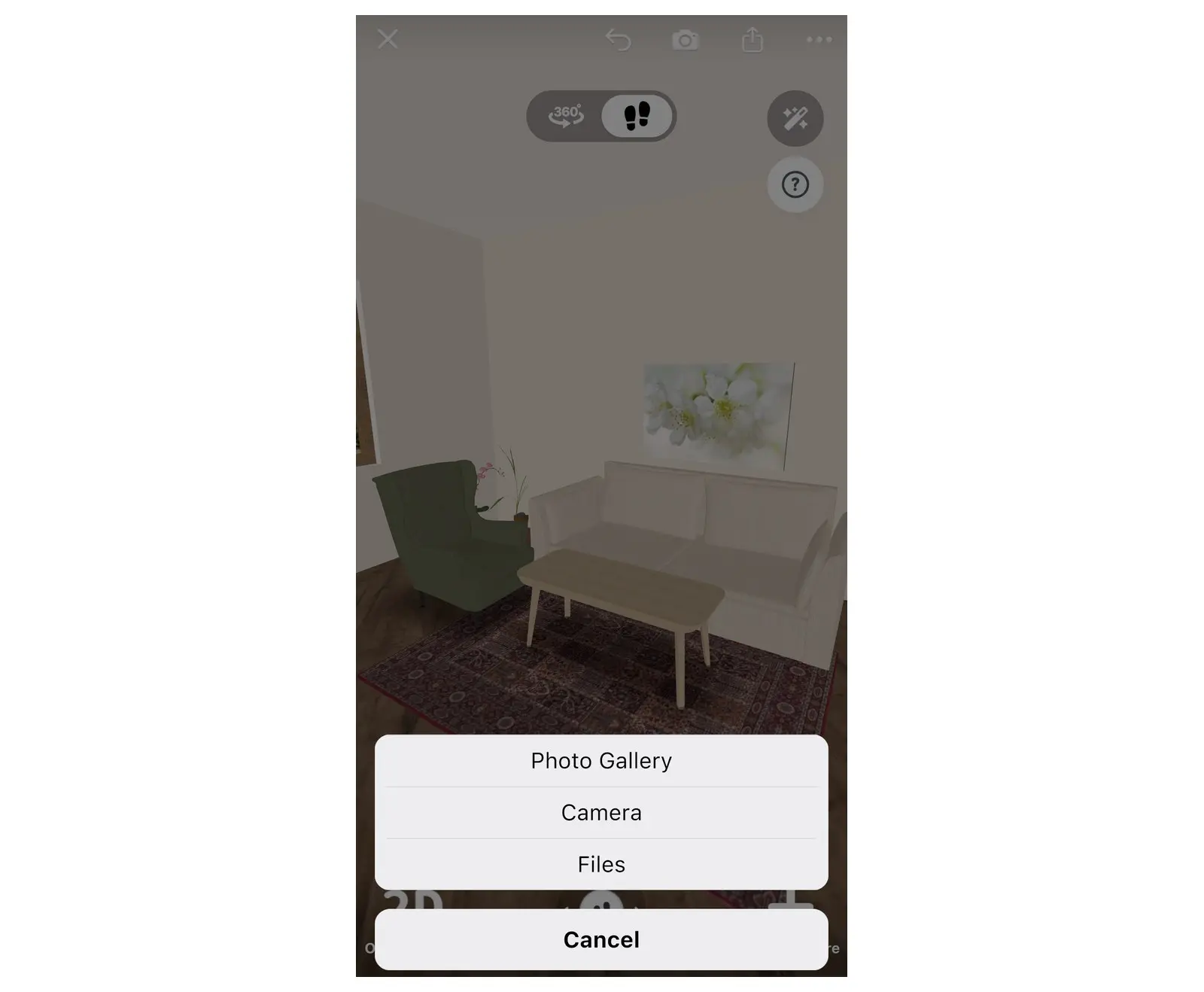
- Choose where the picture comes from. On a phone or tablet, select Photo Gallery, Camera or Files. On a Mac or a Windows computer, choose an image file. If the app asks for access to the camera or photos, allow it. If you denied it before, turn it on for Home Planner in your device settings.
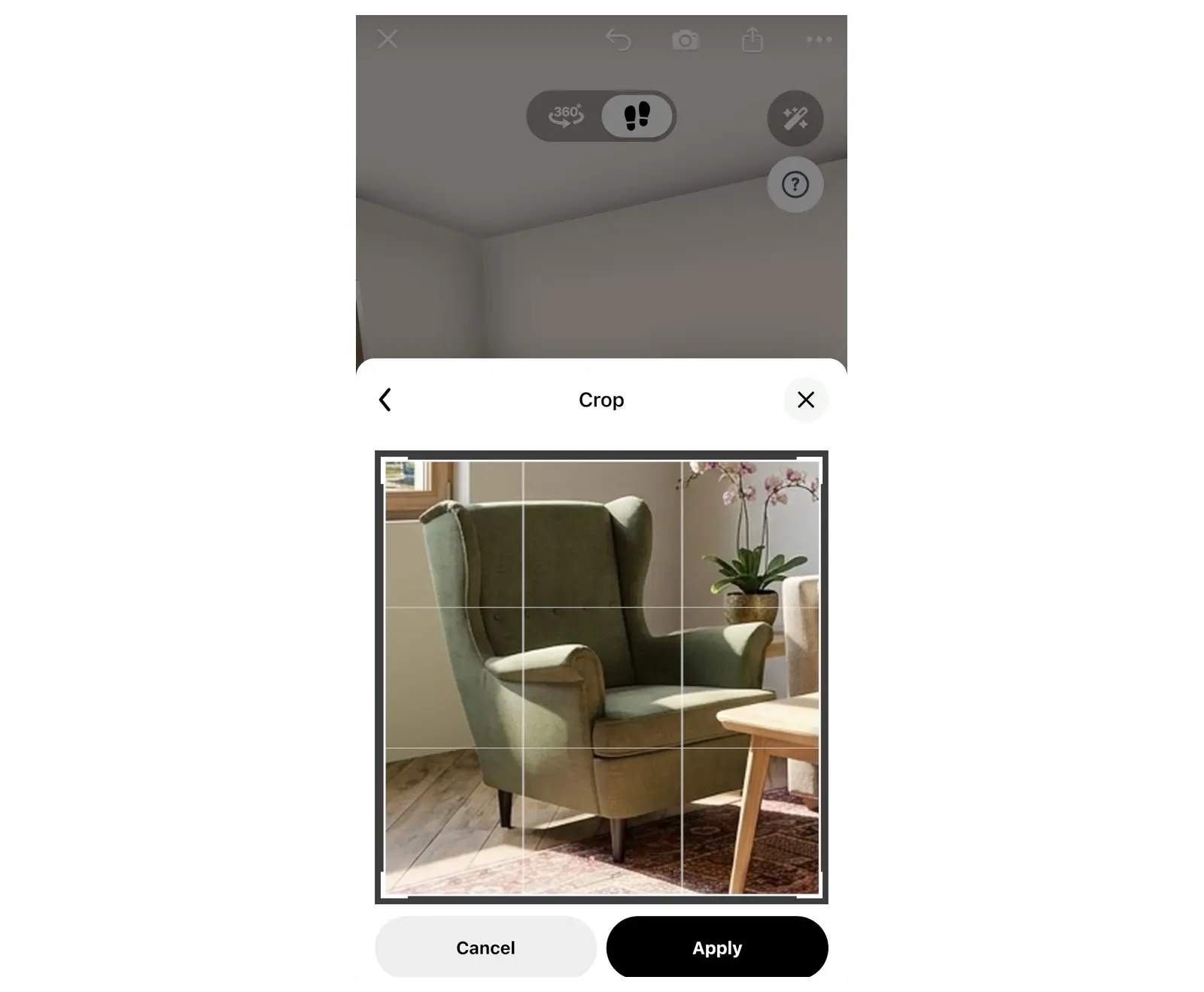
- The Adjust photo screen opens. To keep only one item, select Crop, move the frame around the item and select Apply. Then select Continue.
- Wait while Home Planner compares the photo with the catalog. On a slow connection this takes longer: keep the app open until the results appear on the Search by Photo screen.
No results, or nothing like your photo? Check your internet connection and search again. The tips at the end of this guide help you get better matches.
Try the furniture in your room
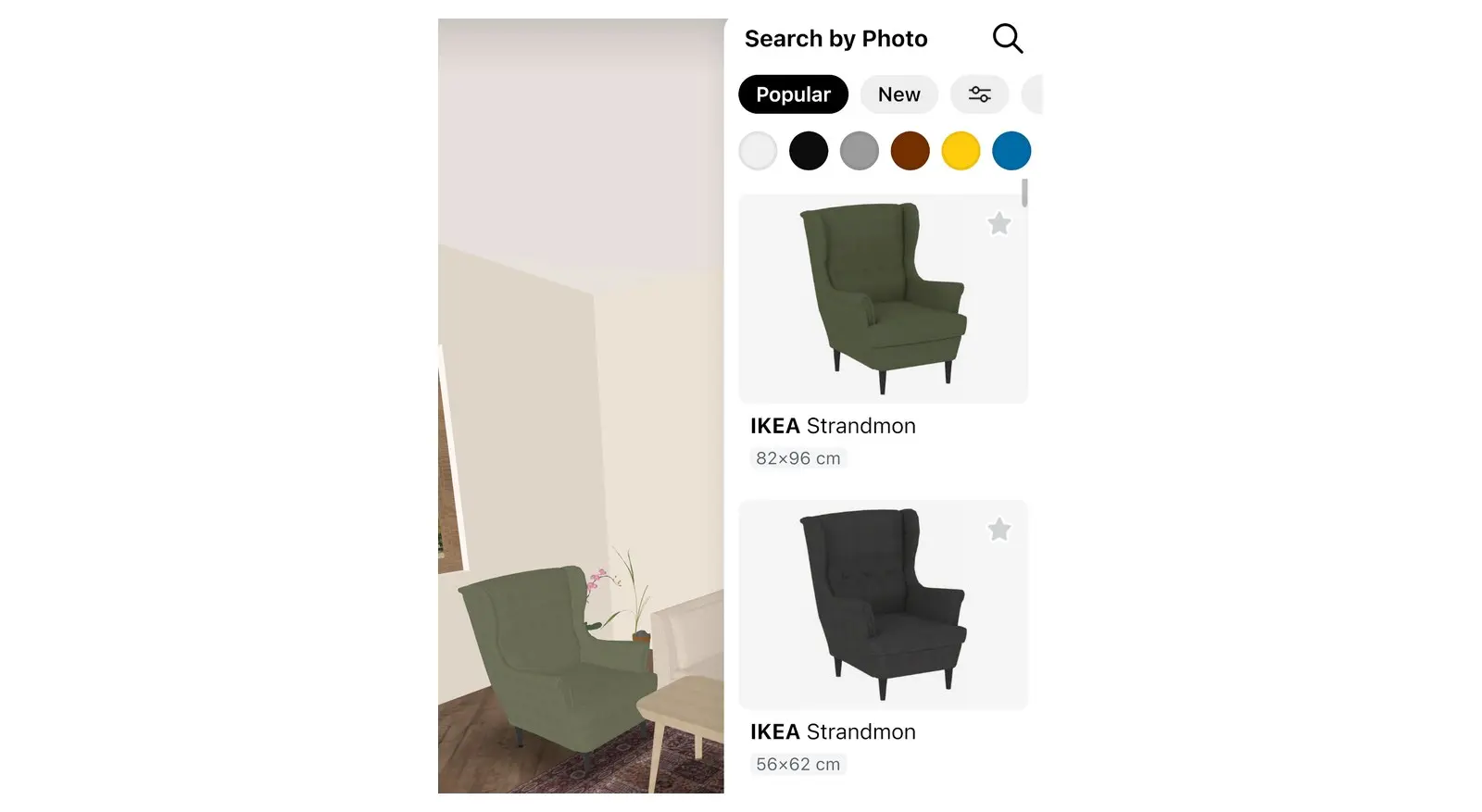
The results on the Search by Photo screen are normal catalog items: you add them to your room the same way as any other furniture.
Add it to the plan
- Look through the results. Use the filters above them, for example the colour dots, to narrow them.
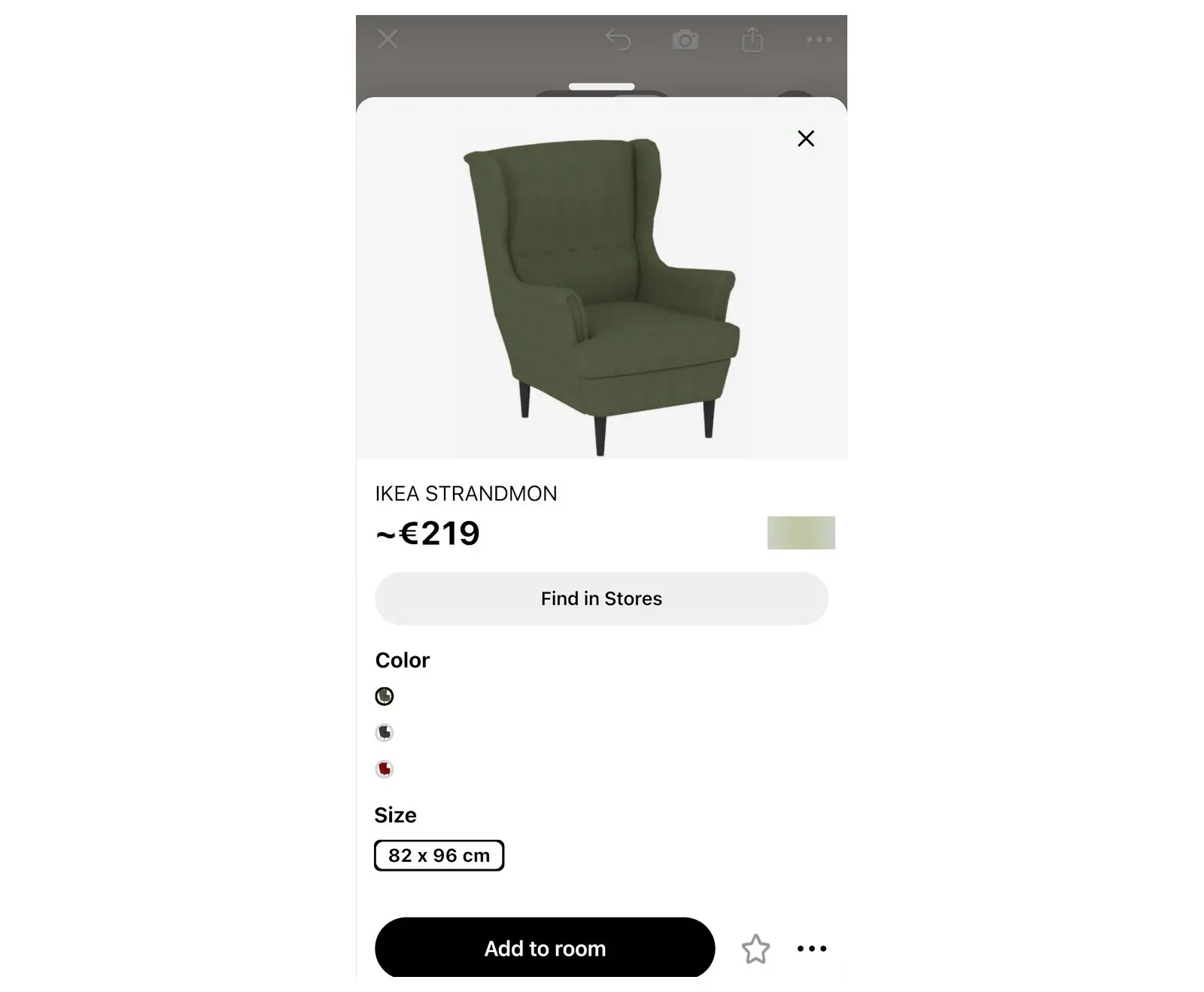
- Select the item that looks most like your photo. Its card opens.
- Select Add to room. A floor item such as a sofa is added in the current view. For some wall or ceiling items Home Planner asks Switch to 3D view to add item?: select Switch to 3D.
Place it in your room
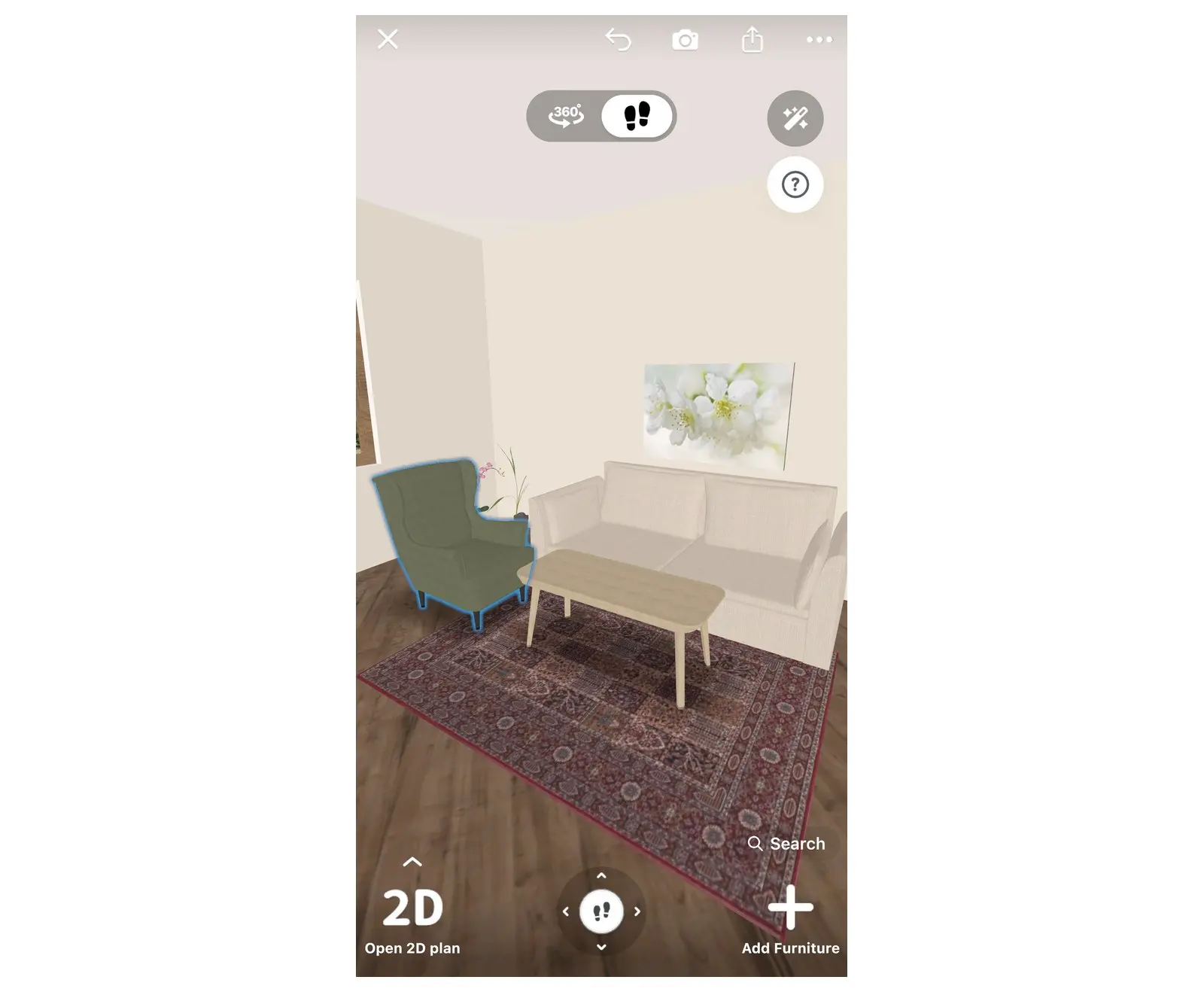
- Drag the item to put it where it will stand. To turn it, drag the round rotate button that appears next to the selected item.
- If you are not in the 3D view yet, switch to it, for example with Open 3D plan in the editor toolbar, to see the item with your walls, floor and other furniture.
- Not quite right? Choose another result from the search. To change the colour or material of the item you added, select it, then the colour swatch in its toolbar.
Find where to buy furniture from a picture
To find where to buy furniture from a picture, use Lens Local Product search. It searches online stores, not the 3D catalog, and shows similar products, with prices where the store shows them.
- Go back to the Home Planner home screen, outside a project, and select More, the last button in the row with Create and My Designs. On a narrow screen, scroll that row. The Helpful tools window opens.
- Select Lens Local Product search.
- Choose a photo and select Continue on the Adjust photo screen, the same way as in the catalog search.
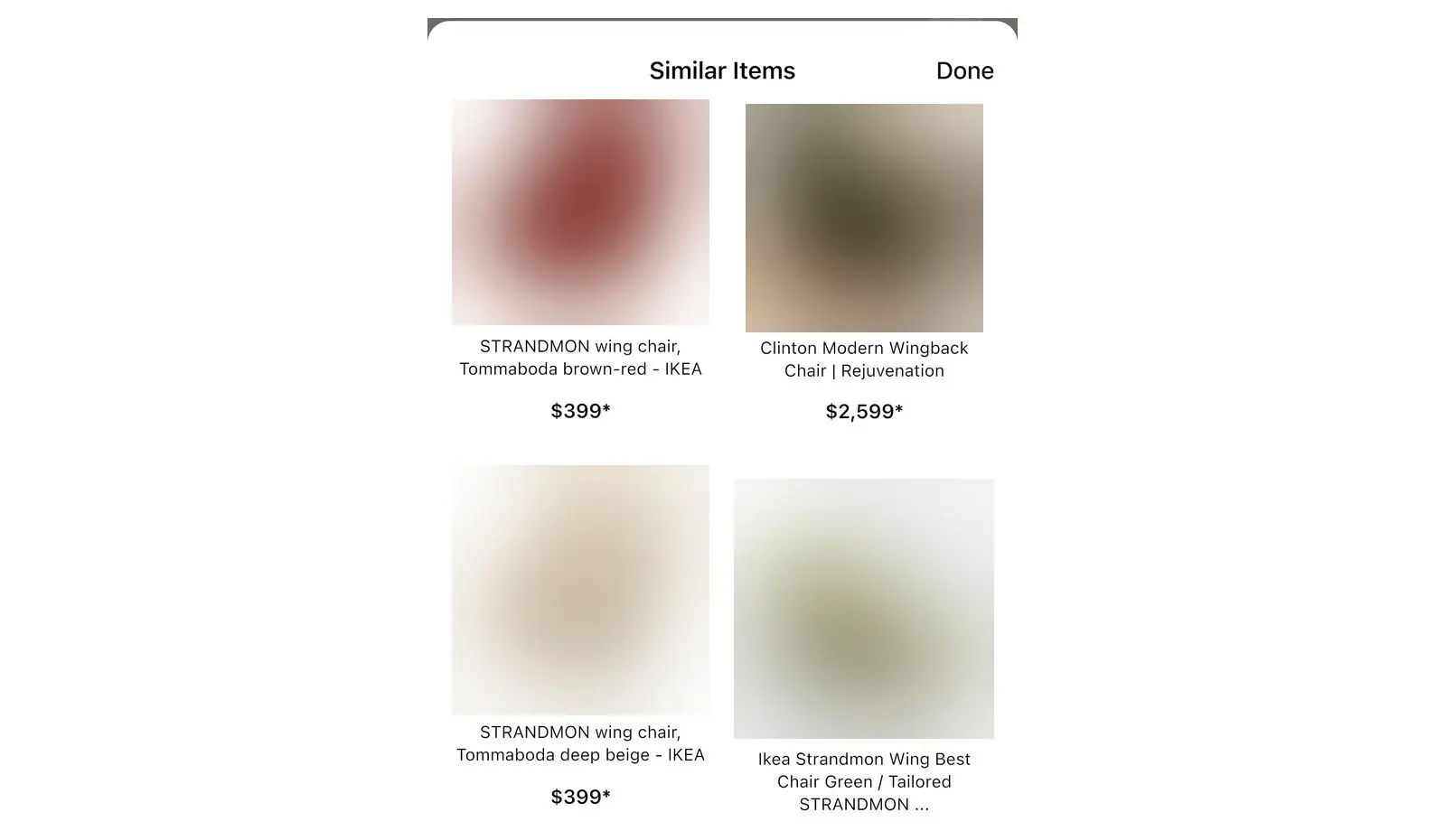
- In the Similar Items list, look at the products and prices.
- Select a product to open its store page, in an in-app browser or in your browser.
For this search, Home Planner sends a reduced copy of the photo to its server, which passes it to an image search service.
You can also search stores for a catalog item: open its card and select Find in Stores. Each result shows the store and its price.
Tips for better matches
The best results come from a sharp photo of one item, taken from the front or at a slight angle.
- Use Crop on the Adjust photo screen to remove other furniture, people and pets.
- Your photo shows a whole room? Search once per item: crop to the sofa, search, then crop the same photo to the lamp and search again.
- Use daylight or a bright room. Dark photos lose colour and shape.
- Take the photo from about the height of a person, as you see the item in a shop.
- A screenshot of a product page from a shop website works well: the item is usually on a plain background.
- If no result looks right, try a second photo from another angle, or type the item name in the Search Furniture window and select Search.
Trademark notice. Home Planner is not affiliated with, endorsed or sponsored by Apple Inc., Google LLC, Microsoft Corporation or Inter IKEA Systems B.V.; their names and marks belong to their owners. iPhone, iPad and Mac are trademarks of Apple Inc., registered in the U.S. and other countries. Android is a trademark of Google LLC. IKEA is a trademark of Inter IKEA Systems B.V. Other trademarks are the property of their respective owners.
Try it on your own project
Free app for iPhone, iPad, Mac, Android and Windows.