How to Design a Patio Layout and Backyard in 3D

Draw your patio or backyard to scale in Home Planner, set the type Yard or Patio, split it into zones with their own floor and add open passages.
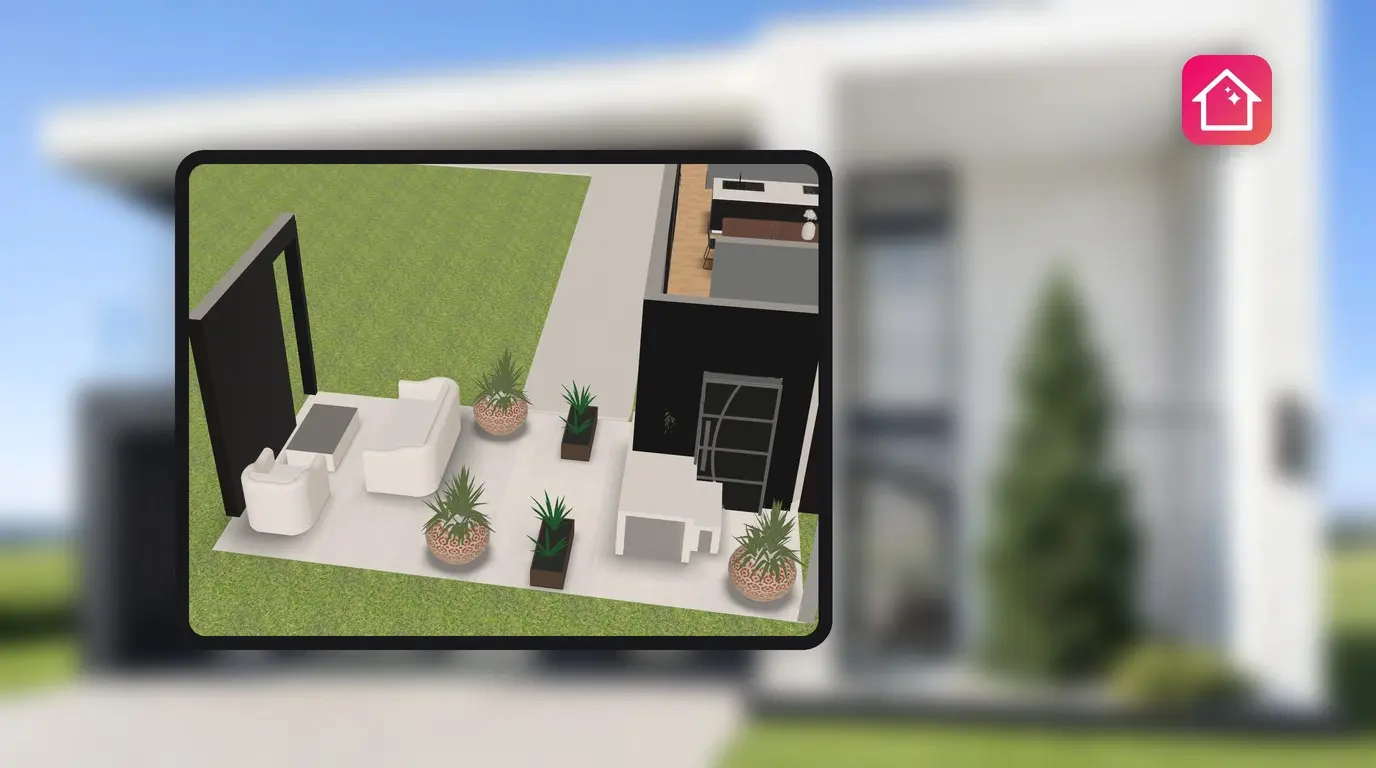
You want a dining area by the kitchen door, a path to the gate and a lawn for the children, all in one yard. Before you order pavers, you want to know where each part goes. Here is how to design a patio layout in Home Planner and walk through the result in 3D.
In Home Planner, a patio or a backyard is an area you draw around or next to the house, like a room. You give it the type Yard or Patio, split it into zones with their own floor, and leave openings where people walk through.
How it works
- Draw the outdoor area in 2D, around or next to the house.
- Set its type to Yard or Patio.
- Split it into zones, choose a floor for each, and add openings.
Before you start
| You need | Why |
|---|---|
| Home Planner on iPhone, iPad, Android, Mac or Windows | The steps are almost the same on every device. |
| A design with the house, or an empty design | The yard is drawn in the same 2D editor as the rooms. |
| The size of the yard and of each zone | A patio layout is only useful when it's drawn to scale. |
| PRO for exact lengths | On the free plan, walls snap to a 1 m (3 ft) grid. Typing an exact length needs PRO. |
| PRO for the full catalog and all materials | On the free plan, part of each catalog category and part of the materials in each tab carry a PRO badge. |
To draw the yard to scale, see how to draw your plan to scale.
How do I design a patio layout in Home Planner?
Draw the patio as a room, then set its type to Yard or Patio. The type is what makes Home Planner treat the area as outdoor space.
- Open the design in 2D and select Edit Walls.
- Draw the outline of the patio or the whole yard, around the house or next to it.
- Select the floor of the new area. A Select room type button appears under the selection. Select it, and Set Type & Name opens.
- Select the Room type row. In the Select room type grid, select Yard or Patio.
- Open the 3D view to check the result.
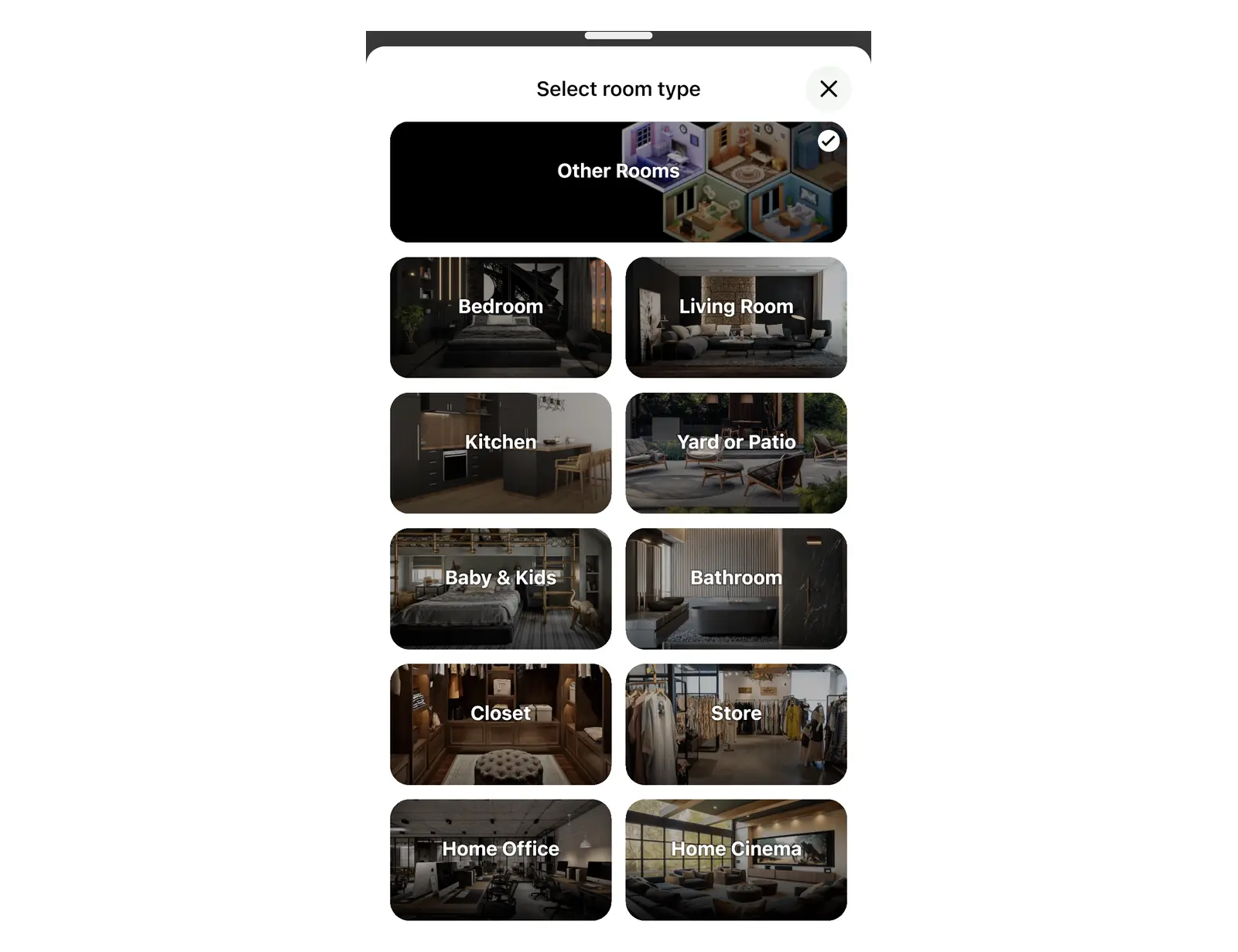
Select room type is only in 2D. In Edit Walls, it is a button under the selected floor. Outside Edit Walls, open the three-dot menu (More) to find it. In 3D, switch back to 2D first.
Why does the floor flicker in my yard?
Because the area still has an indoor type. Set its type to Yard or Patio and the flicker stops.
A yard drawn around the house overlaps the floors of the rooms inside it. With the type Yard or Patio, Home Planner places the yard floor just below the room floors, so the house floors stay on top. With any other type, the two floors lie at the same height, and in 3D they flicker where they overlap.
Common mistake: you draw walls all around the house and expect a yard. Closing walls around the house does not turn the area into a yard. Set the type yourself.
How do I design a backyard layout with separate zones?
Draw a wall across the yard, then hide it. The wall splits the yard into separate parts, each with its own floor, and the hidden wall becomes an open passage.
- In Edit Walls, draw a wall across the yard where one zone ends and the next begins, for example between the terrace and the lawn. The yard splits into two parts.
- Only the larger part keeps the type Yard or Patio. Select the floor of the smaller part, then Select room type under the selection. Select the Room type row, then Yard or Patio.
- Select the new wall and open the three-dot menu (More).
- Select Hide wall. The wall is no longer drawn in 3D.
- Select the floor of a zone, then select the round color swatch, the first button of the small toolbar that appears with the selection. In the palette that opens, choose a material, for example on the Stone, Tile or Wood tab. Repeat for each zone.
To show a hidden wall again: in 2D, a hidden wall shows as a gray dashed line. Select it, and it turns into a blue dashed line. A small toolbar appears just above the wall. Select the round gray button with a crossed-out eye. It has no label. Or open the three-dot menu (More) and select Hide wall again.

Use the same steps for the outer edge. A yard with a fence on one side and open ground on the others keeps one wall and hides the rest. For decking materials and their trade-offs, see decking design ideas.
How do I add an open passage?
Add an opening to the wall. Home Planner offers doorless openings for this, and you can add them in two ways.
| Where | What to select | What you get |
|---|---|---|
| Catalog | Windows and Doors → Openings or Arches | An opening or an arch to place on a wall |
| A wall in 2D | Select the wall, then Add Opening | An arch in that wall; the same dialog also offers Hide wall |
In Windows and Doors, Openings and Arches are separate groups next to Doors. They are not inside Doors. If you look for a doorless opening under Doors, you will not find it.
Where are outdoor plants and patio furniture?
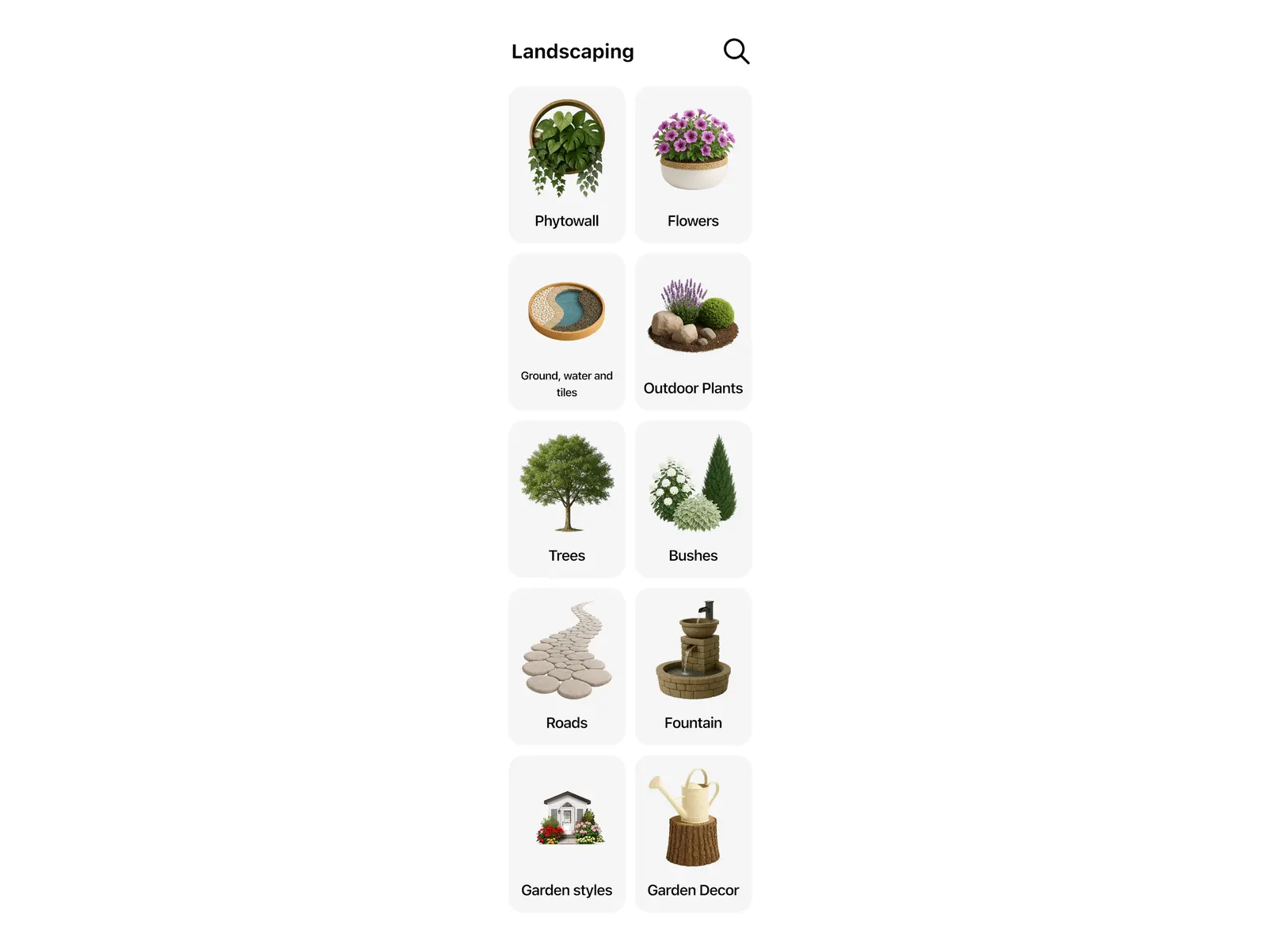
In the catalog category Yard or Patio, named the same as the room type. Plants, stones and garden decor are inside Landscaping. Patio sofas and armchairs are under Seating Furniture → Outdoor Furniture. Patio tables and dining sets are under Tables and Chairs → Outdoor Furniture.
| What you need | Where to find it |
|---|---|
| Plants, flowers, trees and bushes | Yard or Patio → Landscaping → Outdoor Plants, Flowers, Trees or Bushes |
| Ground covers, water and tiles | Yard or Patio → Landscaping → Ground, water and tiles |
| Roads and paths | Yard or Patio → Landscaping → Roads |
| Stones, fountains and sculptures | Yard or Patio → Landscaping → Stones, Fountain or Sculpture |
| Green walls | Yard or Patio → Landscaping → Phytowall |
| Garden ornaments | Yard or Patio → Landscaping → Garden Decor |
| Items for one garden style, for example Mediterranean or Asian Zen | Yard or Patio → Landscaping → Garden styles |
| Outdoor sofas, armchairs and seating sets | Seating Furniture → Outdoor Furniture |
| Patio tables, chairs and dining sets | Tables and Chairs → Outdoor Furniture |
| Swimming pools | Yard or Patio → Swimming Pool |
| Fences and other garden structures | Yard or Patio → Garden Structures |
| Sunbeds and loungers | Seating Furniture → Sunbed |
Garden styles is a filter, not a ready-made garden. It shows the items of one style, and you place them yourself.
On the free plan, part of the items in each category carry a PRO badge, in Yard or Patio too. Select one, and Home Planner opens the plan offer. The other items are free.
Is there a free patio design app?
Home Planner is free to start. On the free plan you can draw a patio, set its type and see it in 3D. Walls then snap to a 1 m grid (3 ft in feet and inches). Exact lengths to the centimeter need PRO. In the catalog and in the floor materials, items with a PRO badge need PRO too. Plain colors are always free.
Measured your yard? Draw it in Home Planner and try two patio layouts on the same plan before you buy a single paver.
Trademark notice. Home Planner is not affiliated with, endorsed or sponsored by Apple Inc., Google LLC or Microsoft Corporation; their names and marks belong to their owners. iPhone, iPad and Mac are trademarks of Apple Inc., registered in the U.S. and other countries. Android is a trademark of Google LLC. Other trademarks are the property of their respective owners.
Try it on your own project
Free app for iPhone, iPad, Mac, Android and Windows.


