Home Planner App Login: How to Sign In and Find Your Account

Home Planner app login without a password: sign in with Google, Apple, Facebook or an email link, find the account you used before and see your synced designs.

Home Planner app login is passwordless: choose Google, Apple, Facebook or your email address, confirm, and you're in. Your profile and your synced designs belong to the account, so they follow you to every device where you sign in (cloud sync needs a paid plan).
If your account seems to have disappeared, you have most likely signed in to a second account with a different email. This guide shows how to sign in, how the email link works, how to tell which account you used and what happens when an account is deleted.
How it works
- Open the sign-in window in Home Planner.
- Choose one of the four sign-in options.
- Confirm in the provider's window, or with the link Home Planner sends to your email.
Before you start
| You need | Why |
|---|---|
| Home Planner on your phone, tablet or computer | The sign-in window is the same on every device. |
| The email or account you used before | Home Planner finds your account by its email. The same email always opens the same account. |
| An internet connection | You need to be online to sign in. |
| For email sign-in: access to your inbox | The sign-in link arrives by email. Open it within about 10 minutes. |
How do I sign in to Home Planner?
Open Profile Settings, select Sign in and choose one of four options. Home Planner has no passwords: Google, Apple, Facebook or an email link confirms it's you.
- Select the three-dot button (⋯), then Profile Settings, then Sign in. Home Planner also opens the sign-in window when a feature needs an account.
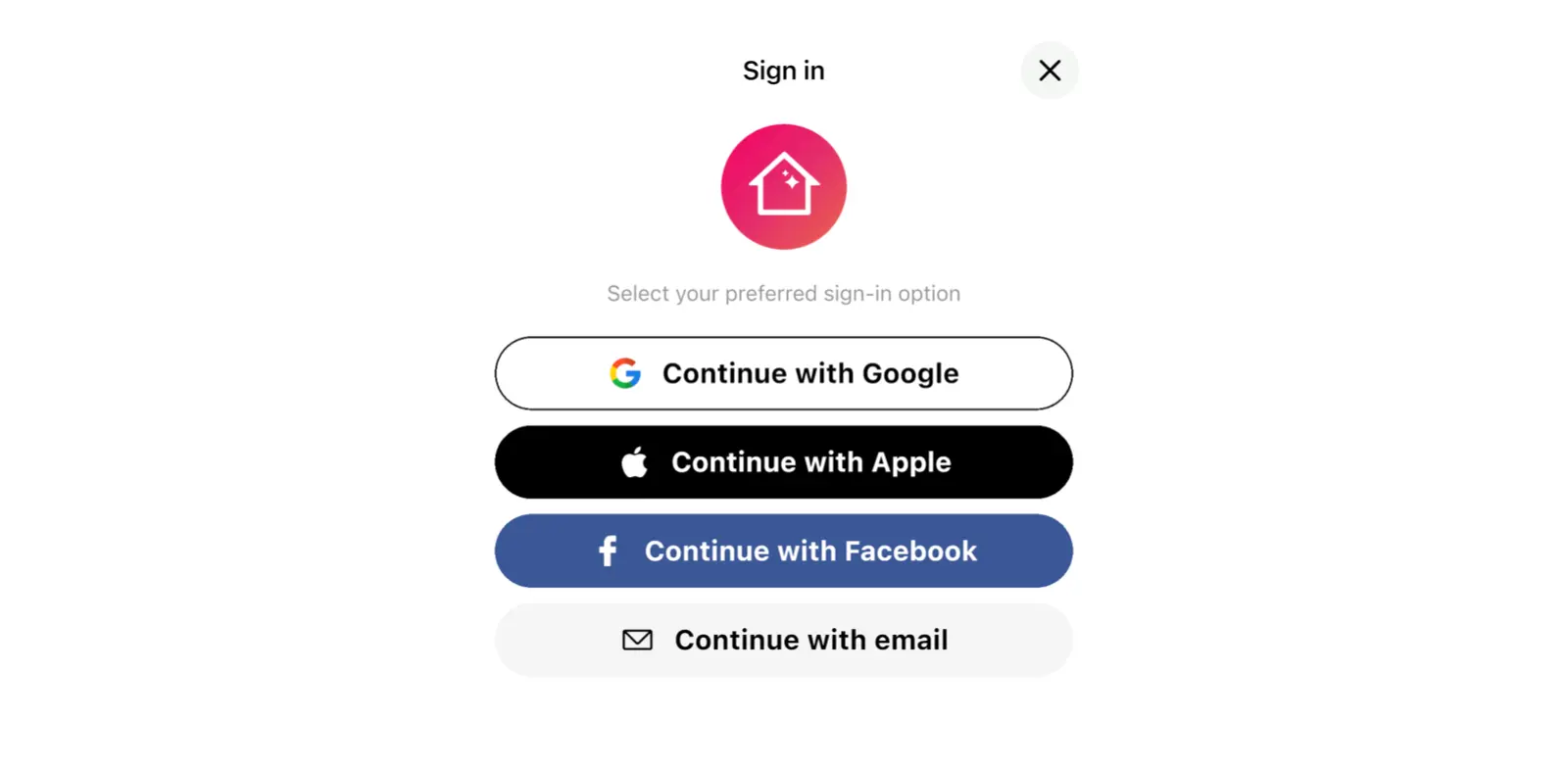
- The window says Select your preferred sign-in option. Choose Continue with Google, Continue with Apple, Continue with Facebook or Continue with email.
- Confirm in the window that opens. On a computer, the sign-in page may open in your browser and then return you to Home Planner.
| Option | What happens | Good to know |
|---|---|---|
| Continue with Google | You confirm in a Google sign-in window. | Home Planner finds your account by the email of your Google Account. |
| Continue with Apple | You confirm with your Apple Account. | If you hide your email, Apple gives Home Planner a relay address. Home Planner treats that address as a separate account. |
| Continue with Facebook | You confirm in a Facebook sign-in window. | Home Planner finds your account by the email of your Facebook account. |
| Continue with email | Home Planner sends a one-time sign-in link. | No password. Open the link within about 10 minutes, on any device. |
How does the email sign-in link work?
Home Planner emails you a one-time link instead of a password. Open it within about 10 minutes on any device, even your computer. The Home Planner app that requested the link then signs you in automatically.
- Select Continue with email.
- Enter Your email address and select Continue.
- Home Planner shows Message sent to and your address. Select Open email app, or open the email on another device.
- Follow the link in the email. On the same phone, return to Home Planner: it finishes the sign-in. If you open the link on another device, keep Home Planner open on the device that asked for it.
No email? Check the spam folder. When the countdown on Resend ends, select it. If the address was wrong, select Change email. An expired link shows This sign-in link has expired. Request a new one.
Why are my designs missing after I signed in?
You're most likely signed in to a different account. Home Planner matches accounts by email: the same email opens the same account through any option, and a different email opens a different account.
- Same email, different option. You used the email link before and now choose Google with the same address: you get the same account.
- Different email. A second Google Account, another Apple Account or a hidden relay address: you get a different account, or a new one if it didn't exist before.
- Already signed in. Home Planner says You have already signed in. Sign out first to sign in with another account. Sign out, then sign in with the email you used before.
Designs you made before you signed in stay on the device. Home Planner shows You have N designs that haven't been saved to an account yet. Select Save to my account to keep them in the account you signed in to.
A paid plan syncs all your designs to your other devices, and the free plan backs up one of them. Read how to move your designs to a new device and, for a design you deleted, how to restore a deleted design.
How do I find my old Home Planner profile?
Search for it in Explore, then send its link to support. With the link, support knows which account your question is about.
- Open Explore and select Search users.
- Try the name you used on your old profile, then open the profile in the results.
- Open the profile's three-dot menu (⋯) and select Share Profile. Copy the link or send it to yourself.
- Select ⋯, then Help and Feedback, then Report a Problem, then Contact via Email. Paste the link into the email and say what you need.

Can I restore a deleted Home Planner account?
No. Deleting an account removes its designs, photos, chats and comments permanently. If you sign in again with the same email, Home Planner creates a new account.
You delete an account in Help and Feedback → Report a Problem → Delete Account, while you're signed in. Your subscription is separate from your account. Home Planner warns that deleting the account doesn't stop a subscription billed through your app store, and names the store. Cancel the subscription there first.
Signed in and ready? Open your designs in Home Planner and continue.
Trademark notice. Home Planner is not affiliated with, endorsed or sponsored by Google LLC, Apple Inc. or Meta Platforms, Inc.; their names and marks belong to their owners. Other trademarks are the property of their respective owners.
Try it on your own project
Free app for iPhone, iPad, Mac, Android and Windows.