How to Move Your Designs to a New Phone, Tablet or Computer

Got a new phone, tablet or computer? Move your Home Planner designs with cloud sync: one account, a paid plan and Sync now on the old device.

Got a new phone, tablet or computer? Your designs can come with you: Home Planner's cloud sync brings them to every device where you sign in. Sign in to the same account on both devices, and your designs appear on the new one.
Cloud sync comes with every paid plan, starting with PRO. On the free plan, Home Planner backs up one design to the cloud, and the rest stay on the device where you made them. This guide shows how to sync, what to check on the new device and what to do before you give the old one away.
How it works
- Sync your designs on the old device.
- Sign in to the same account on the new device.
- Open My Designs on the new device: your synced designs download there.
Before you start
| You need | Why |
|---|---|
| A paid Home Planner plan (PRO or higher) to move all your designs | Cloud sync is part of the paid plans. The free plan backs up one design. |
| One Home Planner account, signed in on both devices | Sync links your devices through the account. Use the same email on both. |
| An internet connection on both devices | Designs upload from the old device and download to the new one. |
| The old device, if you still have it | A design you made on the old device can only be uploaded from that device. |
How do I move my designs to a new phone, tablet or computer?
Select Sync now on the My Designs screen of the old device, wait until it shows Updated and synced, then sign in to the same account on the new device.
With a paid plan, Home Planner syncs by itself while you're signed in. Sync now starts it right away, so you can be sure everything is uploaded before you switch.
On the old device
- Open My Designs.
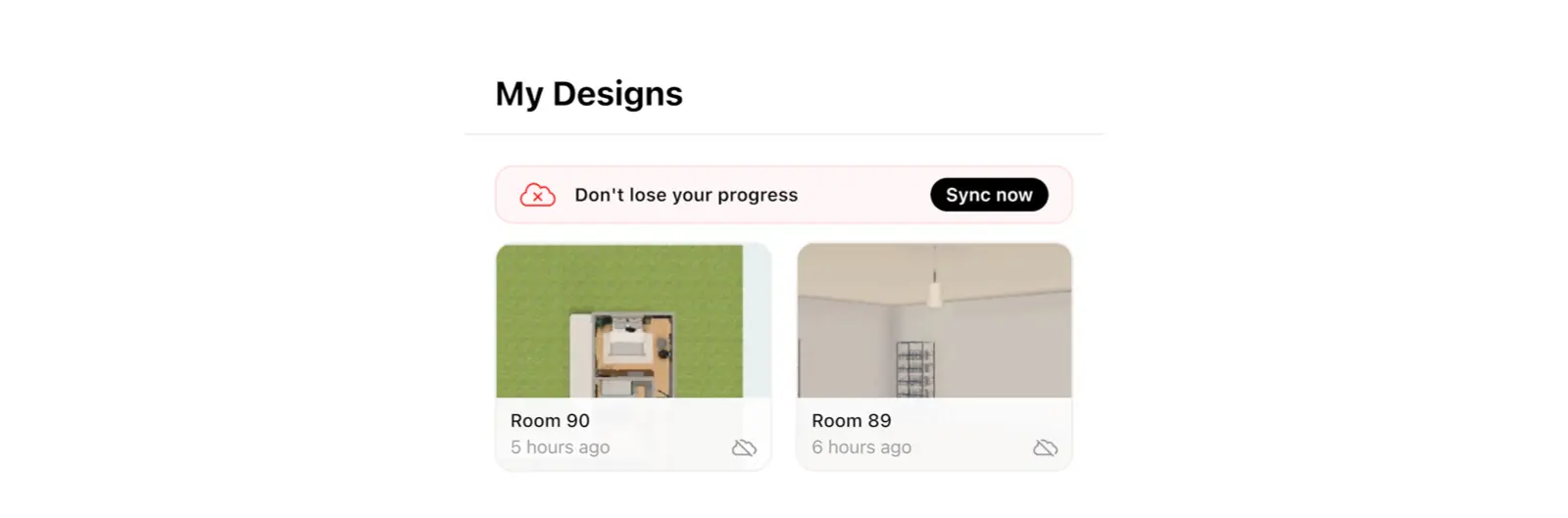
- Find the Don't lose your progress panel and select Sync now. If you aren't signed in, Home Planner asks you to sign in first. If the panel already shows Updated and synced, your designs are in the cloud.
- Wait until the panel shows Updated and synced. While it works, it shows Update in progress and a count, for example Uploading (3 of 12).
On the new device
- Install Home Planner and open it.
- Select the three-dot button (⋯), then Profile Settings, then Sign in. Choose the same sign-in option and the same email as on the old device.
- Bought your plan in the same store as this device (for example, the App Store on both iPhones)? Don't buy it again: select ⋯ → Help and Feedback → Report a Problem, then Restore Purchase in the Support window. Restore Purchase is also at the bottom of the plan offer. Bought it on another platform? Signing in to the same account (step 2) links the plan.
- Open My Designs. Your synced designs download, and the panel shows Updated and synced when they're all there. If Sync now still opens the plan offer, don't buy again: contact support (⋯ → Help and Feedback → Report a Problem → Contact via Email).
Designs missing on the new device? You most likely signed in to a different account. A different email address opens a different account, even with the same sign-in option. Sign out and sign in with the email you used before. Read how to find your Home Planner account.
Can I move designs without a subscription?
Yes, one design. On the free plan, Home Planner backs up one design to the cloud while you're signed in: a design you have worked on for at least an hour. Sign in to the same account on the new device, and that design comes back.
The sync panel on My Designs shows what is backed up. Design backed up means your only design is in the cloud. With more designs, it shows a count such as 1/4 designs backed up and The rest are only on this device. Back up all opens the plan offer.
The share button in the right toolbar of the 3D view doesn't move a design to your other device. By default, its link invites other people into the same design, so you can work on it together.
Before you remove the app, sync every design on a paid plan. On the free plan, only the backed-up design comes back. The others can't be restored once they're removed from the device.
What if I lost the old device?
If you were signed in on the old device, sign in to the same account on the new one. With a paid plan, make sure your plan is active there (step 3 above): your synced designs are in your account. On the free plan, your backed-up design comes back. Otherwise, your designs were stored only on that device.
Ready to continue on the new device? Open Home Planner there and sign in.
Trademark notice. Home Planner is not affiliated with, endorsed or sponsored by Apple Inc.; its names and marks belong to their owner. iPhone is a trademark of Apple Inc., registered in the U.S. and other countries. App Store is a service mark of Apple Inc. Other trademarks are the property of their respective owners.
Try it on your own project
Free room planner and interior design app