How to Keep Home Planner Fast on Big Projects

Home Planner slow on a big project? Split it into separate designs, see when the large-project warning appears and what the graphics settings change.

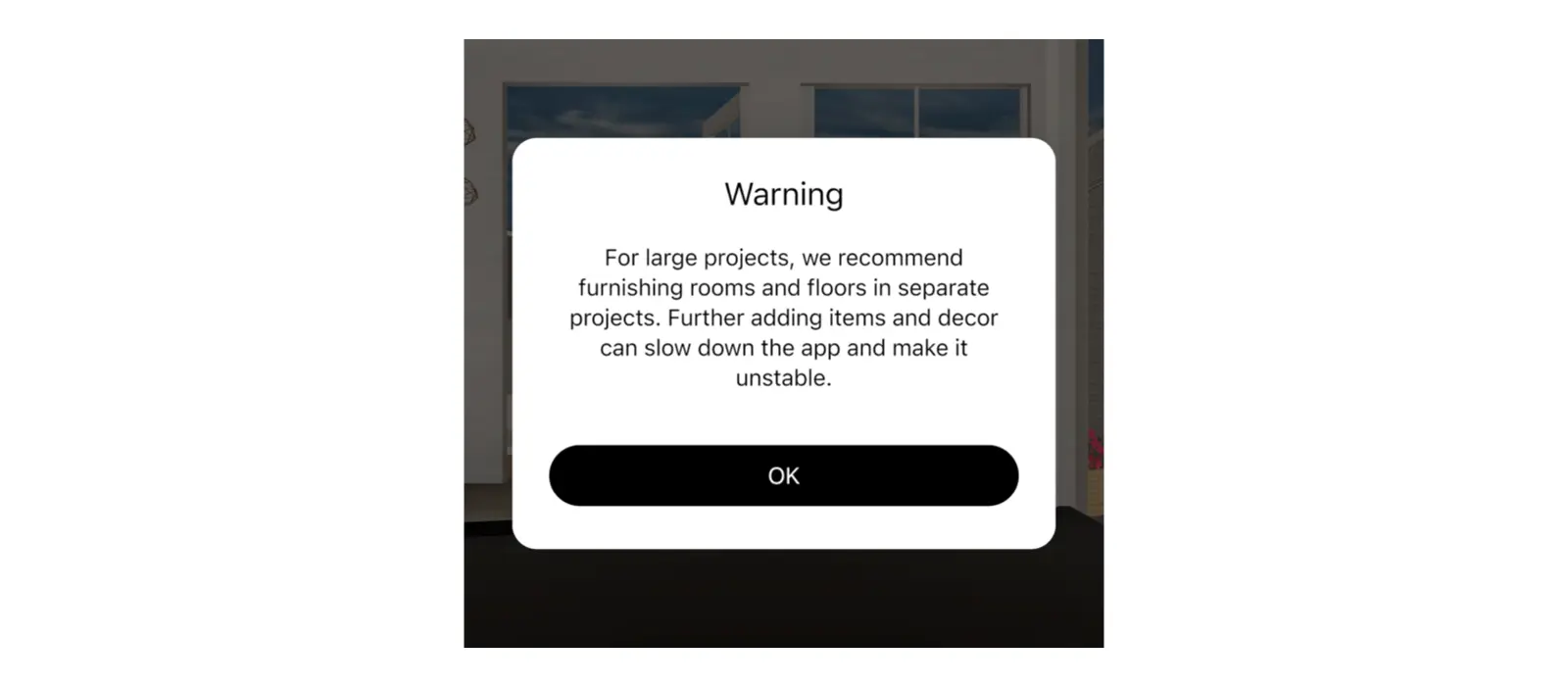
A whole house with furnished rooms on every floor is a big job for a phone. The fix is to split it into separate designs: one floor or one room in each. When a design grows too large, Home Planner warns you: For large projects, we recommend furnishing rooms and floors in separate projects. Further adding items and decor can slow down the app and make it unstable.
Graphics settings can make the app run smoother, but they don't increase the number of items a design can hold. This guide explains when the warning appears and how to split a big design. It also covers Battery saver mode and Maximum graphics quality, why mirrors sometimes look plain, and when a computer is the better tool.
How it works
- Watch for the warning: Home Planner shows it when a design has more items than your device handles well.
- Split a big design into smaller ones, for example one design per floor.
- Lower the graphics in Profile Settings if your device gets hot.
Before you start
| You need | Why |
|---|---|
| The device you work on | The item limit depends on the device's graphics memory. |
| Profile Settings in Home Planner | Battery saver mode and Maximum graphics quality are there. |
| A free design slot for each copy | Splitting a design makes copies. Each copy is a separate design: 10 on the free plan (more if you have bonus designs), 20 on PRO, no limit on PRO+. |
When does Home Planner show the large-project warning?
When a design has more items than your device's graphics memory handles well: about 275 items for every gigabyte. A phone with 2 GB of graphics memory gets the warning at about 550 items in the design, or about 330 on one floor. On a computer with more graphics memory, the limit is higher.
| What counts | How much |
|---|---|
| Furniture and decor in rooms | 1 item each |
| Items on walls | 1 item each |
| Doors and windows | Half an item each |
| Openings in floors | Not counted |
Home Planner shows the warning each time you open such a design. It also asks when you clone a room or select Copy Level and the result would pass the limit; choose Cancel or Continue. The warning blocks nothing and does not change the graphics. It tells you that more items may make the app slow or unstable.
What if the room planner app keeps crashing on a big project?
Make each design smaller. Keep the full house as a plan with walls, doors and windows, and furnish each floor or group of rooms in its own copy.
- Open the big design.
- In the 3D view, select the share button in the right toolbar, then Save a Copy. Make one copy for each floor or group of rooms.
- Open each copy and delete the floors and furniture it does not need.
- In the original, keep the walls, doors and windows, and remove most of the furniture.
Does the app close while the big design opens? On a phone or tablet, choose Always on in Battery saver mode and open it again. If it still closes, contact support with the name of the design.
Common mistake: waiting until the app is already struggling before you split the design. Split as soon as the warning first appears; a design with fewer items opens faster and is easier to work with.
Graphics settings change heat, battery use and frame rate, not the item limit. If a phone or tablet gets hot, choose Always on in Battery saver mode and turn off Maximum graphics quality.
Does the app close even on a small design? Contact support: ⋯ → Help and Feedback → Report a Problem → Contact via Email. Home Planner adds your device details to the email.
What does Battery saver mode change?
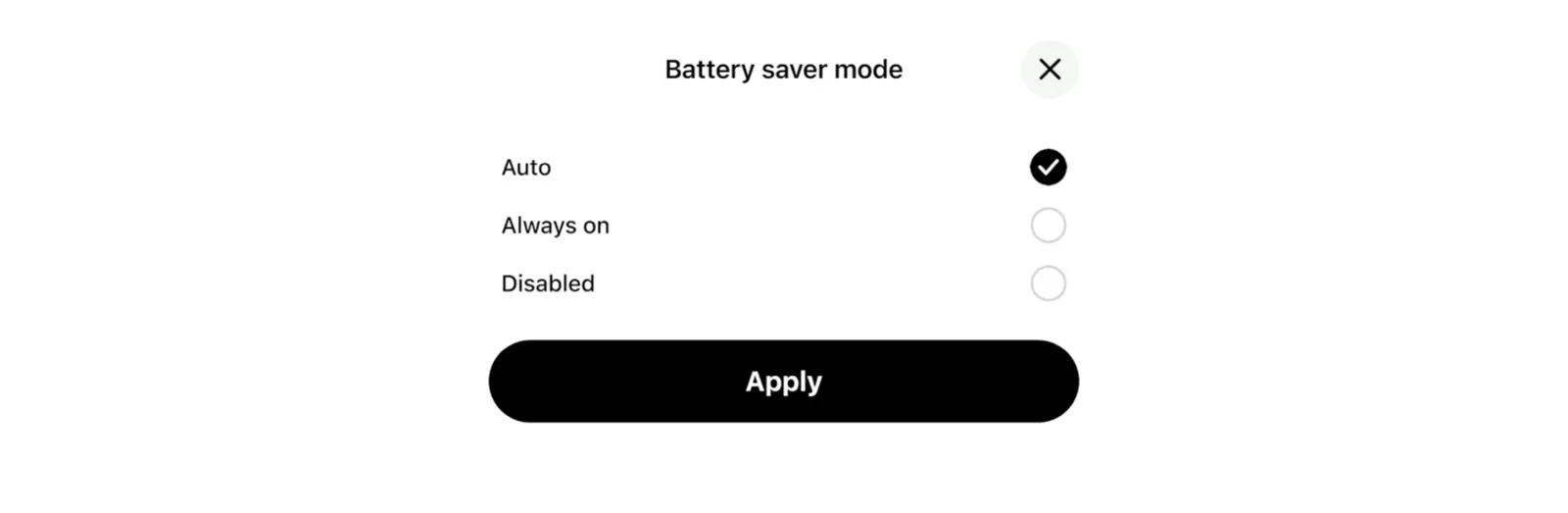
Battery saver mode lowers the graphics to save power and keep the device cool. It's available on phones and tablets: select ⋯, then Profile Settings, then Battery saver mode (Reduces graphics and heat). It has three options.
| Option | When it works | What it changes |
|---|---|---|
| Auto (the default) | Only while the device's own battery saver is on: Low Power Mode on iPhone and iPad, battery saver on Android | Live mirror reflections go off and the frame rate stays at 45 frames per second or lower. |
| Always on | All the time | Live mirror reflections and edge smoothing go off, the frame rate stays at 30 frames per second or lower and the top quality level is off. |
| Disabled | Never | The graphics stay at your device's normal level, even when the device's battery saver is on. |
In Auto, when the device's battery saver turns on, Home Planner shows Battery saver activated and Graphics simplified. When it turns off, Home Planner shows Battery saver deactivated and Graphics restored.
When the device overheats, Home Planner lowers the graphics whatever your setting and shows Device overheated, graphics reduced. When the device cools down, Home Planner restores the graphics by itself and shows Device cooled, graphics restored. In Always on, the graphics stay low.
What does Maximum graphics quality do?
It switches Home Planner to its highest graphics level: shadows, live mirror reflections and motion at up to 60 frames per second. The setting is in Profile Settings, described as Shadows and mirrors. Reflections go off in battery saver.
The fastest phones, tablets and computers already use this level, so they do not show the setting. The trade-off: the device works harder, so it gets warmer and the battery drains faster. Maximum graphics quality does not override Battery saver or overheating protection.
Why do mirrors look simpler in Home Planner?
Live mirror reflections take a lot of graphics power, so Home Planner shows them only at its top graphics level. Mirrors look simpler when Battery saver is on, when the device overheats, and on devices below the top level unless you turn on Maximum graphics quality.
Your design does not change: the mirror and everything around it stay as you placed them.
Should I use a computer for a big project?
If you have one, yes. The item limit grows with graphics memory, so a computer with a strong graphics card handles much bigger designs before the warning appears. Home Planner runs on Mac and Windows as well as on phones and tablets. To move a design there, read how to move your designs to a new device (cloud sync, paid plans).
Trademark notice. Home Planner is not affiliated with, endorsed or sponsored by Apple Inc., Google LLC or Microsoft Corporation; their names and marks belong to their owners. iPhone, iPad and Mac are trademarks of Apple Inc., registered in the U.S. and other countries. Android is a trademark of Google LLC. Other trademarks are the property of their respective owners.
Try it on your own project
Free room planner and interior design app