Room Planner to Scale: Set the Plan Scale and Exact Wall Lengths

Draw your room to scale in Home Planner: set the plan scale from one measured wall, type exact wall lengths with PRO and resize a room.

Your living room is 4.2 m (13 ft 9 in) long, and the sofa you like is 2.4 m (7 ft 10 in) wide. A room planner to scale tells you before delivery day whether the two fit. In Home Planner, every wall can have its exact length, and the whole plan can be scaled from one wall you measured.
This guide shows how to set the plan scale, resize a room, type exact wall lengths and fix the corners with measured diagonals. It also explains which side of the wall the numbers measure, so your plan matches your tape measure.
How it works
- Open your design in 2D and select Edit Walls.
- Set the scale or the room size with Resize, or type the exact length of a wall (PRO).
- Check the corners with Diagonal and the room in 3D.
Before you start
| You need | Why |
|---|---|
| Home Planner on iPhone, iPad, Android, Mac or Windows | The steps are almost the same on every device. |
| A design with at least one room | The Resize button appears only when the floor has walls or rooms. |
| Your measurements, taken inside the room | Home Planner shows the length of each wall on the room side. See the section on inner lengths below. |
| PRO for exact lengths | On the free plan, walls snap to a grid. Typing an exact length or setting the scale needs PRO. The first scale of an imported plan and the Diagonal mode are free. |
How do I set the scale of a floor plan?
Select Resize in 2D, choose Change plan scale, then give one wall its real length. Home Planner scales the whole plan from that wall, so every other length changes in proportion.
Setting the scale needs PRO. On the free plan you can set the scale of an imported plan once.
- Open the design in 2D and select Edit Walls.
- Select Resize in the bottom toolbar.
- Select a point inside a room. Home Planner asks Change room size or floor plan scale?
- Select Change plan scale. The Change Scale mode opens.
- If your design has more than one floor, choose Change for current floor or Change for all floors.
- Select the length label of a wall you measured and enter its real length. The plan scales to match.

Use the longest wall you measured. A 1 cm error on a 5 m wall is a 0.2% scale error. On a 1 m wall, it's 1%.
Imported a plan from a photo or a PDF? Home Planner hides the wall lengths until you set the scale of the image, and this first scale is free on every plan. The import itself is covered in how to convert a 2D floor plan to 3D.
How do I change the size of one room?
Use Change room size when one room is wrong and the rest of the plan is right. It resizes only the room you selected.
- In Edit Walls, select Resize.
- Select a point inside the room you want to change.
- Select Change room size. The Room Size block opens.
- Select the row you want to change and enter the new value. You only need to change one value. Each row opens its own number pad.
| Row | What it changes | Free plan |
|---|---|---|
| Room Length | The inner length of the room | PRO |
| Room Width | The inner width of the room | PRO |
| Room area | The floor area of the room | PRO |
| Ceiling Height | The height of the room | Free |
| Walls Thickness | The thickness of the room walls | PRO |
If you select Resize while the whole floor is in view, without a room, Home Planner goes straight to the scale mode.
How do I enter exact wall dimensions?
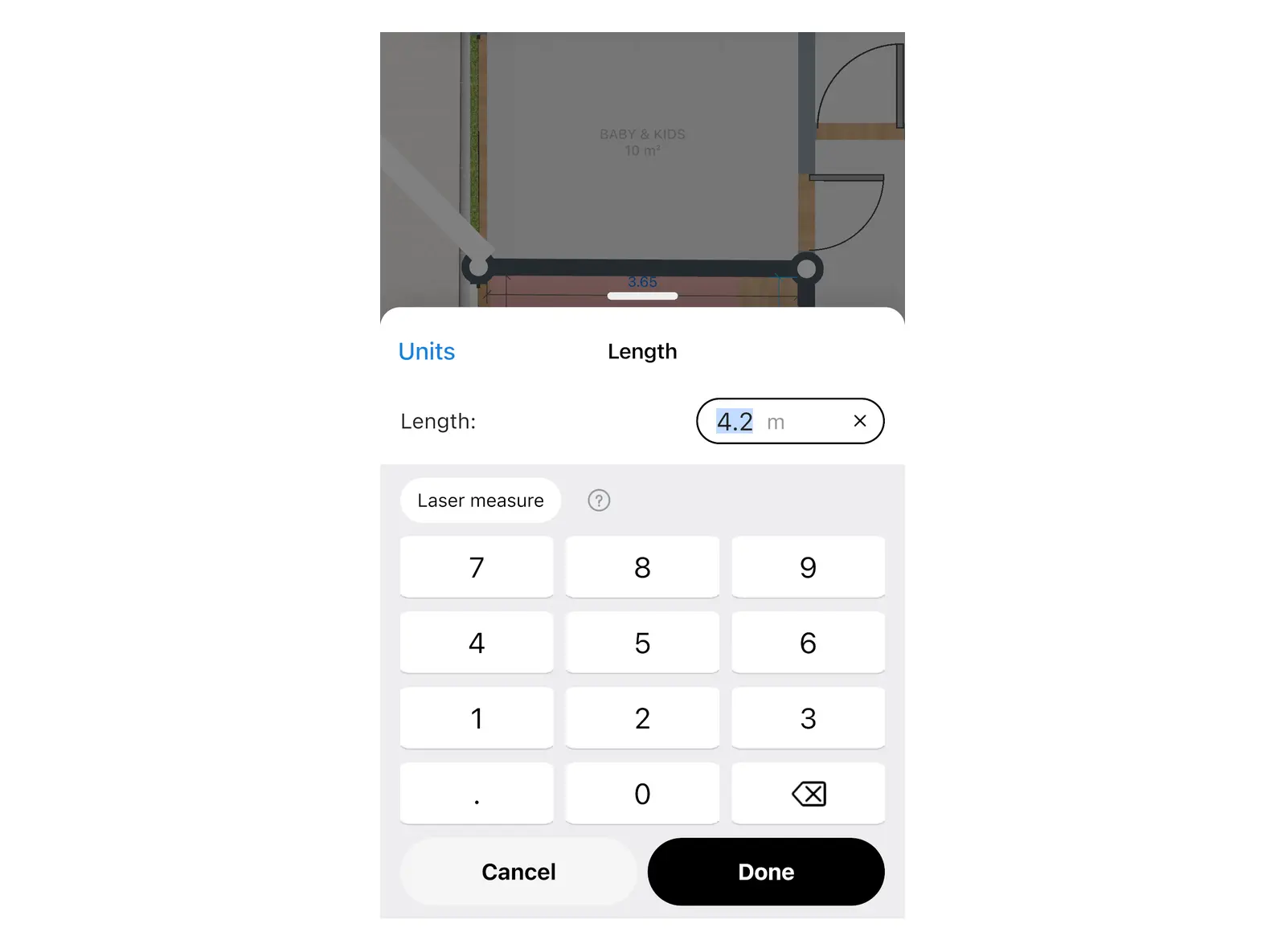
Select the length label on a wall in 2D and type the length. Home Planner changes the wall and adjusts the walls joined to it. Typing an exact length needs PRO.
- Open the design in 2D and select Edit Walls.
- Select the length label on the wall.
- Enter the length you measured and confirm.
- If Home Planner asks Adjusting this wall will update other wall lengths. Continue?, select Continue to accept the new lengths of the walls next to it.
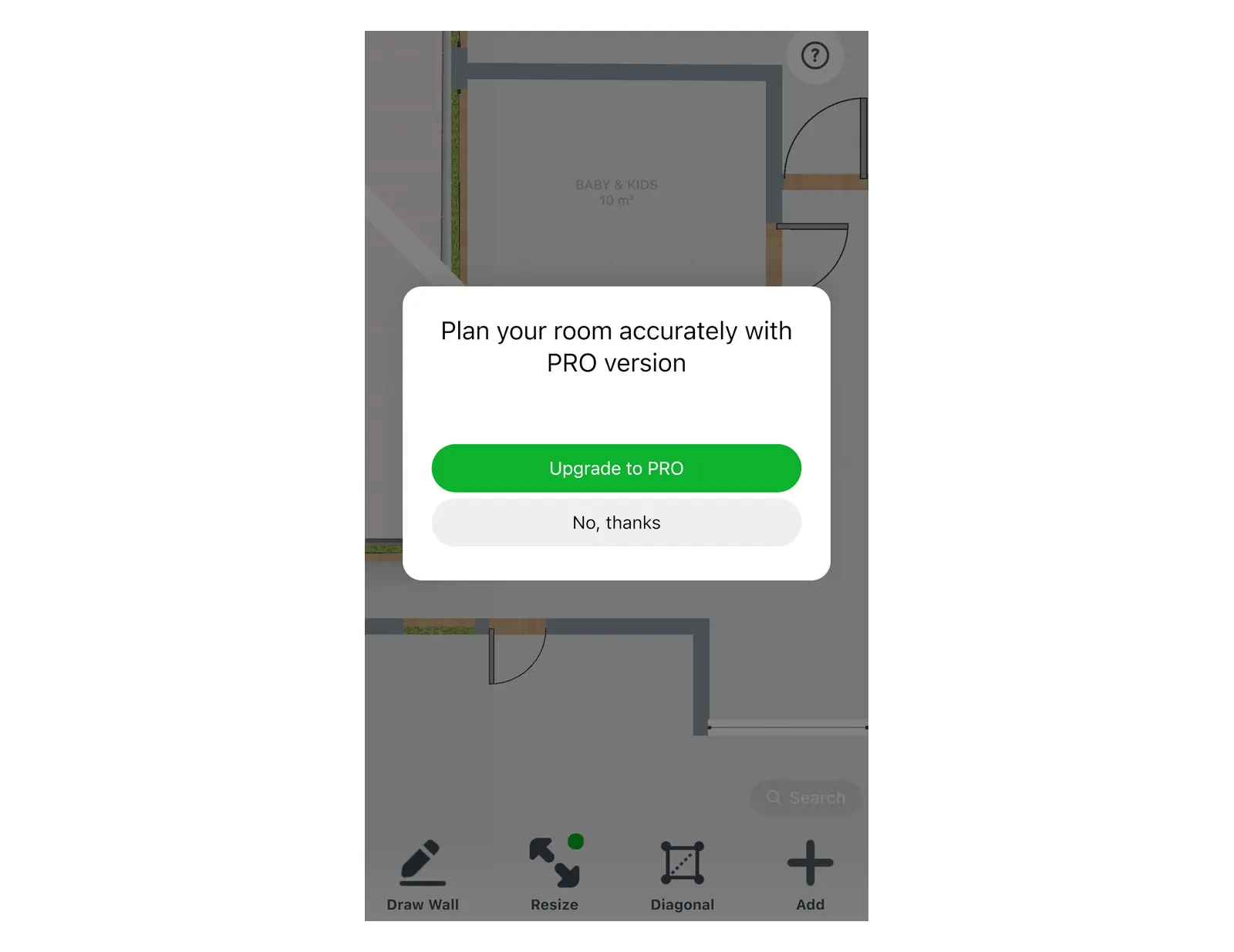
On the free plan, you can't type an exact length. When you select a length label, Home Planner shows Plan your room accurately with PRO version. Choose Upgrade to PRO to see the plans, or No, thanks to go back to the plan.
Without PRO you can still draw to scale with the grid. Each grid cell is 1 m, or 3 ft when the design uses feet and inches. After a few drags, Home Planner offers PRO for smoother drawing.
How do I fix the corners of a room that isn't square?
Measure the room's diagonals and enter them in Diagonal mode. Home Planner keeps the wall lengths and moves the corners to match. The Diagonal mode is free.
Real rooms are rarely exactly square. Four correct wall lengths can still give the wrong shape, because the corners may not be exactly 90°. One diagonal, measured from corner to corner, fixes the shape of a four-wall room.
- Open the design in 2D and select Edit Walls.
- Select Diagonal in the bottom toolbar. Home Planner numbers the corners of the room. Don't see Diagonal? Select a corner and choose Diagonal from here: that corner becomes the first one.
- Select the first corner, then the opposite corner.
- Enter the diagonal you measured inside the room, from corner to corner, and confirm. Home Planner moves the corners and keeps every wall length.
The room needs at least four corners. If Home Planner says These lengths can't form a triangle. Check the measurements, measure the walls and the diagonal again.
Why does Home Planner ask «Exact size or position will be lost»?
Because the wall is locked. A wall locks itself as soon as you give it an exact length, so a later drag can't change it by accident.
When an edit would move a locked wall or opening, Home Planner asks Exact size or position will be lost. Continue?
| You choose | What happens |
|---|---|
| Continue | Home Planner unlocks the wall or opening and applies your edit. |
| Cancel | Home Planner undoes the edit. The exact length stays. |
Common mistake: you type in the lengths of all four walls, then drag a corner to tidy the shape and select Continue. The exact lengths are gone. Enter lengths last, after the shape is right, and fix the corners with Diagonal instead of a drag.
Which side of the wall do the numbers show?
The room side. Each label shows the inner length of the wall, measured along the face you see from inside the room, not along the middle of the wall.
- Measure each wall from inside the room, corner to corner, and type that number.
- On an outer wall, the label sits outside the wall, but the number is still the inner length.
- A wall that stands on its own in the room can show a second label for its other side, when the two sides differ by more than 1 cm.
- Change room size also works with the inner size of the room.
Wall height is a separate setting: see how to change ceiling height.
Have your tape measure ready? Draw your room in Home Planner to scale and check that the sofa fits before you order it.
Trademark notice. Home Planner is not affiliated with, endorsed or sponsored by Apple Inc., Google LLC or Microsoft Corporation; their names and marks belong to their owners. iPhone, iPad and Mac are trademarks of Apple Inc., registered in the U.S. and other countries. Android is a trademark of Google LLC. Other trademarks are the property of their respective owners.
Try it on your own project
Free app for iPhone, iPad, Mac, Android and Windows.