How to Delete Your Home Planner Account

Delete your Home Planner account in the app or on homeplannerapp.com. Cancel a store subscription first: deleting the account does not stop store billing.
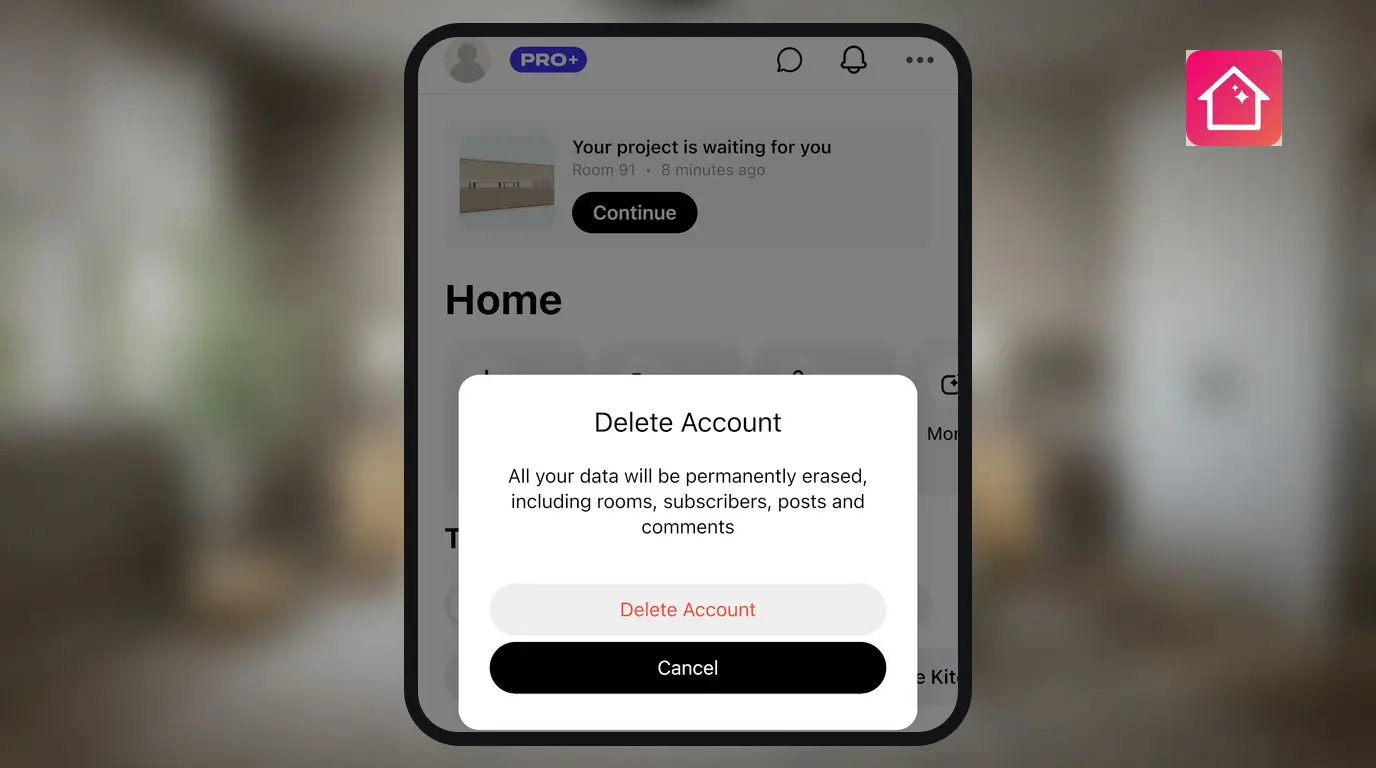
Deleting your Home Planner account permanently erases your designs and all account data. It cannot be undone.
You can delete the account in Home Planner on iPhone, iPad, Android, Mac or Windows, or on homeplannerapp.com. If you pay for PRO through the App Store, Google Play, Steam or the Microsoft Store, cancel that subscription first: deleting the account does not stop the store from billing you.
How it works
- Cancel your store subscription, if you have one.
- Open Delete Account in Home Planner or on homeplannerapp.com.
- Confirm the deletion.
Before you start
| Before you delete | Why |
|---|---|
| Sign in to the account you want to delete | Delete Account appears only when you are signed in. |
| Save images or PDFs of the designs you want to keep | Your designs are erased with the account and cannot be restored. |
How do I delete my Home Planner account?
In Home Planner, open the three-dot menu (⋯), select Help and Feedback, then Report a Problem, and select Delete Account. Confirm twice.
In Home Planner
- On the Home screen, select the three-dot button (⋯) at the top, then Help and Feedback.
- Select Report a Problem. The Support window opens.
- Select Delete Account.
- Read the warning and select Delete Account. If you have a store subscription, the warning names the store and offers a button to its subscription page, for example Open App Store subscriptions.
- Select Delete Account again to confirm. Home Planner deletes the account, signs you out and shows Done.
You can also start from your profile: select your avatar, then Edit profile and Delete Account at the bottom. Steps 4 and 5 are the same.
On the website
- Open homeplannerapp.com/app/account and sign in to the same account you use in the app.
- Open Manage Account Deletion.
- Select each checkbox to confirm.
- Select Delete Account.
Do I need to cancel my subscription first?
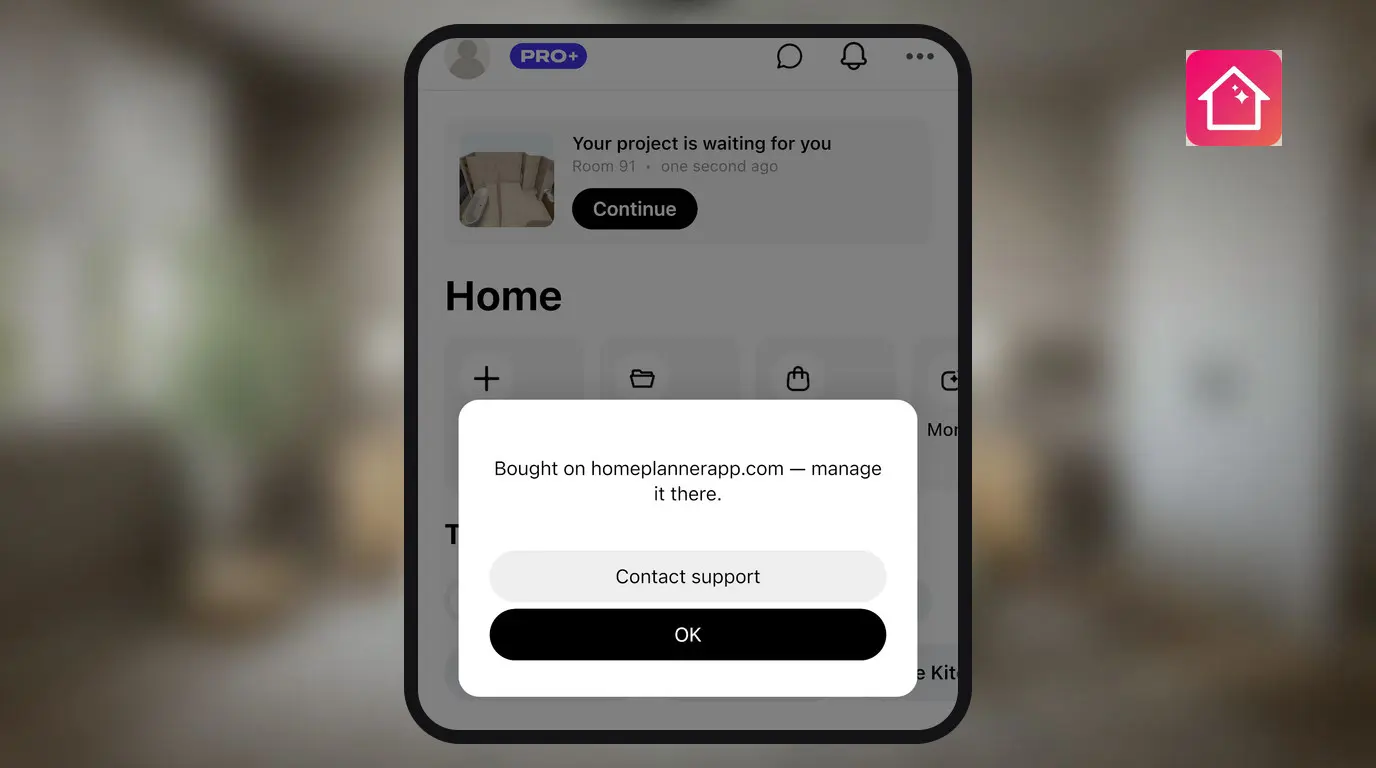
Yes, if a store bills you. Deleting the account does not cancel a subscription bought in the App Store, Google Play, Steam or the Microsoft Store. A plan bought on homeplannerapp.com stops renewing when you delete the account.
| Where you bought PRO | What to do before you delete the account |
|---|---|
| App Store — iPhone, iPad or Mac | Cancel the subscription in the App Store. |
| Google Play — Android | Cancel the subscription in Google Play. |
| Steam — Windows | Cancel the subscription in Steam. |
| Microsoft Store — Windows | Cancel the subscription in your Microsoft account. |
| homeplannerapp.com | Nothing. The renewal stops when you delete the account. |
Step-by-step instructions for each store: How to Cancel Your Home Planner PRO Subscription.
What happens after you delete your account?
- Your designs, AI gallery, profile, chats, posts, comments, likes and followers are erased.
- PRO and any discounts on the account end.
- You are signed out. The account cannot be recovered.
Can't open the app or the website? Email [email protected] from the email address linked to your account and ask us to delete it. How we handle your data: Account Deletion and Data Removal.
Trademark notice. Home Planner is not affiliated with, endorsed or sponsored by Apple Inc., Google LLC, Valve Corporation or Microsoft Corporation; their names and marks belong to their owners. iPhone, iPad and Mac are trademarks of Apple Inc., registered in the U.S. and other countries. Android is a trademark of Google LLC. Other trademarks are the property of their respective owners.
Try it on your own project
Free room planner and interior design app