How to Change the App Language in Home Planner

Home Planner's interface works in 30 languages. On Android you change the language inside the app; on iPhone, iPad, Mac and Windows you change it in the system settings. Here is where each setting lives and when the system asks for a restart.
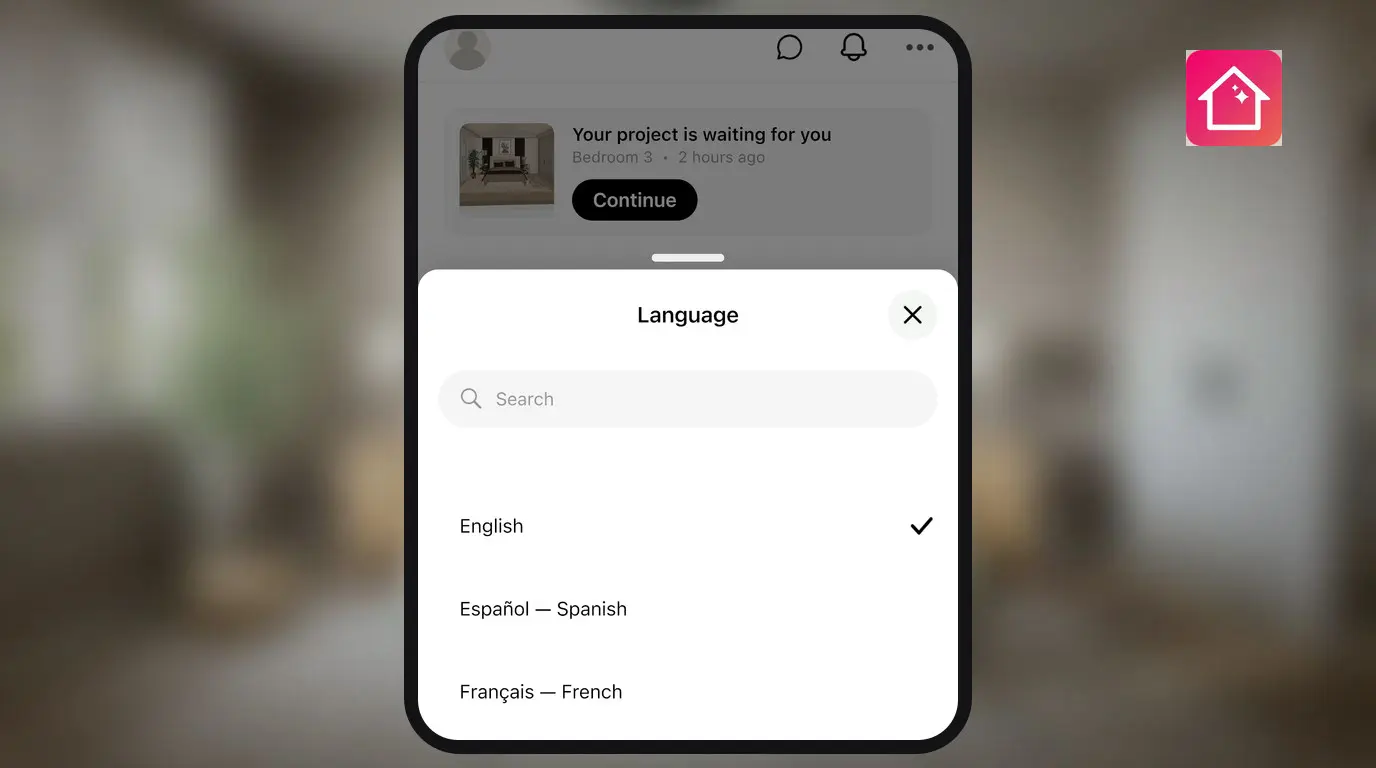
Home Planner's interface works in 30 languages. Where you change the app language depends on your device: inside Home Planner on Android, in Settings on iPhone and iPad, and in the system settings on Mac and Windows.
On Mac and Windows, Home Planner has no language switch of its own: both builds follow the language of the system.
How it works
- Find your platform in the list below.
- Open the language setting for that platform and choose the language.
- Restart Home Planner or the system when the step asks for it.
Before you start
| You need | Why |
|---|---|
| Home Planner installed on an iPhone, iPad, Android device, Mac or Windows PC | Each platform keeps the language setting in a different place. |
| The language you want available on the device | If the list does not show it, add it first — the steps below say where. |
How do I change the app language in Home Planner?
The setting lives in the system on every platform except Android, where Home Planner has its own language picker.
On iPhone and iPad
- Open Settings and swipe down to reveal the search field.
- Search for Home Planner and open it.
- Select Preferred Language.
- Select Language, then the language you want.
- Open Home Planner again. The interface appears in the new language.
Shortcut: in Home Planner, open Profile Settings and select Language. Home Planner opens the same page in Settings.
If Home Planner is not in the Settings list: change the device language instead. Open Settings → General → Language & Region, select Add Language, choose the language, then choose it as the primary language. The whole device switches, Home Planner included.
On Android
Home Planner has its own language picker on Android, so you can change the language without leaving the app.
In Home Planner:
- Open Profile Settings and select Language.
- Select the language you want, or Auto to follow the phone.
- Select OK in the Please restart window. Home Planner closes — open it again.
Cancel in that window keeps the previous language.
In Android settings:
- Open Settings → System → Language & region.
- Select Preferred Language → Add a language, choose the language, then drag it to the top of the list.
- To change the language for Home Planner only, open More language settings → App languages, select Home Planner and choose the language.
On older Android versions, open Settings → Personal → Languages & input → Languages, select Add a language, then drag the language to the top.
On Mac
Home Planner on Mac uses the language of macOS and has no language setting of its own.
- Open the Apple menu and select System Settings.
- Select General, then Language & Region.
- Under Preferred Languages, select +, choose the language, then select Add.
- Drag the language to the top of the list.
- Select Restart Now when macOS asks.
Open Home Planner after the restart: the interface is in the new language.
On Windows
Home Planner on Windows uses the Windows display language and has no language setting of its own.
- Open Settings.
- Select Time & language, then Language & region.
- Select the language you want in the Windows display language list.
- If the language is not in the list, select Add a language, install its language pack, then select the language in the Windows display language list.
- Sign out of Windows and sign back in.
Open Home Planner after the sign-in: the interface is in the new language.
Which language setting applies to your device?
The table shows where each platform keeps the setting, what changes and whether a restart is needed.
| Platform | What changes | Where | Restart needed |
|---|---|---|---|
| iPhone, iPad | Home Planner only, or the whole device | Settings → Home Planner → Preferred Language → Language; for the device: Settings → General → Language & Region | Open Home Planner again |
| Android | Home Planner only, or the whole phone | Profile Settings → Language in Home Planner; Settings → System → Language & region for the phone | Select OK in Please restart, then open Home Planner again |
| Mac | The whole system | System Settings → General → Language & Region | Restart Now |
| Windows | The whole system | Settings → Time & language → Language & region | Sign out and back in |
What happens after you change the language?
Home Planner shows its menus, buttons and messages in the language you chose. On Android, the Auto option keeps Home Planner on the phone's language and follows it when you change the phone.
Related: Canceling PRO happens in the store where you bought it, not in Home Planner: How to Cancel Your Home Planner PRO Subscription.
Trademark notice. Home Planner is not affiliated with, endorsed or sponsored by Apple Inc., Google LLC or Microsoft Corporation; their names and marks belong to their owners. iPhone, iPad and Mac are trademarks of Apple Inc., registered in the U.S. and other countries. Android is a trademark of Google LLC. Other trademarks are the property of their respective owners.
Try it on your own project
Free room planner and interior design app