How to Cancel Your Home Planner PRO Subscription

Cancel Home Planner PRO in the store where you bought it — the App Store, Google Play, Steam, the Microsoft Store or homeplannerapp.com. PRO stays active until the end of the paid period.
You can cancel Home Planner PRO at any time. PRO stays active until the end of the paid period, and you are not charged again.
Where you cancel depends on where you bought PRO: the App Store, Google Play, Steam, the Microsoft Store or homeplannerapp.com. Each store cancels only the subscriptions bought through it.
How it works
- Find where you bought PRO.
- Open that store's subscription page.
- Cancel the subscription there.
Before you start
| You need | Why |
|---|---|
| The store where you bought PRO | Home Planner itself cannot cancel a subscription. |
| The account you used for the purchase | The subscription appears under that account. |
Where did you buy Home Planner PRO?
Open Home Planner and go to Profile Settings → Manage plan. The screen names the store that bills you: Billed through the App Store, Billed through Google Play, Billed through Steam or Billed through the Microsoft Store.
- Open Profile Settings.
- Select Manage plan.
- Read the billing line and select Cancel subscription. Home Planner opens the subscription page of that store.
If the plan was bought in another store, the screen shows a link to that store instead, for example Open Google Play subscriptions.
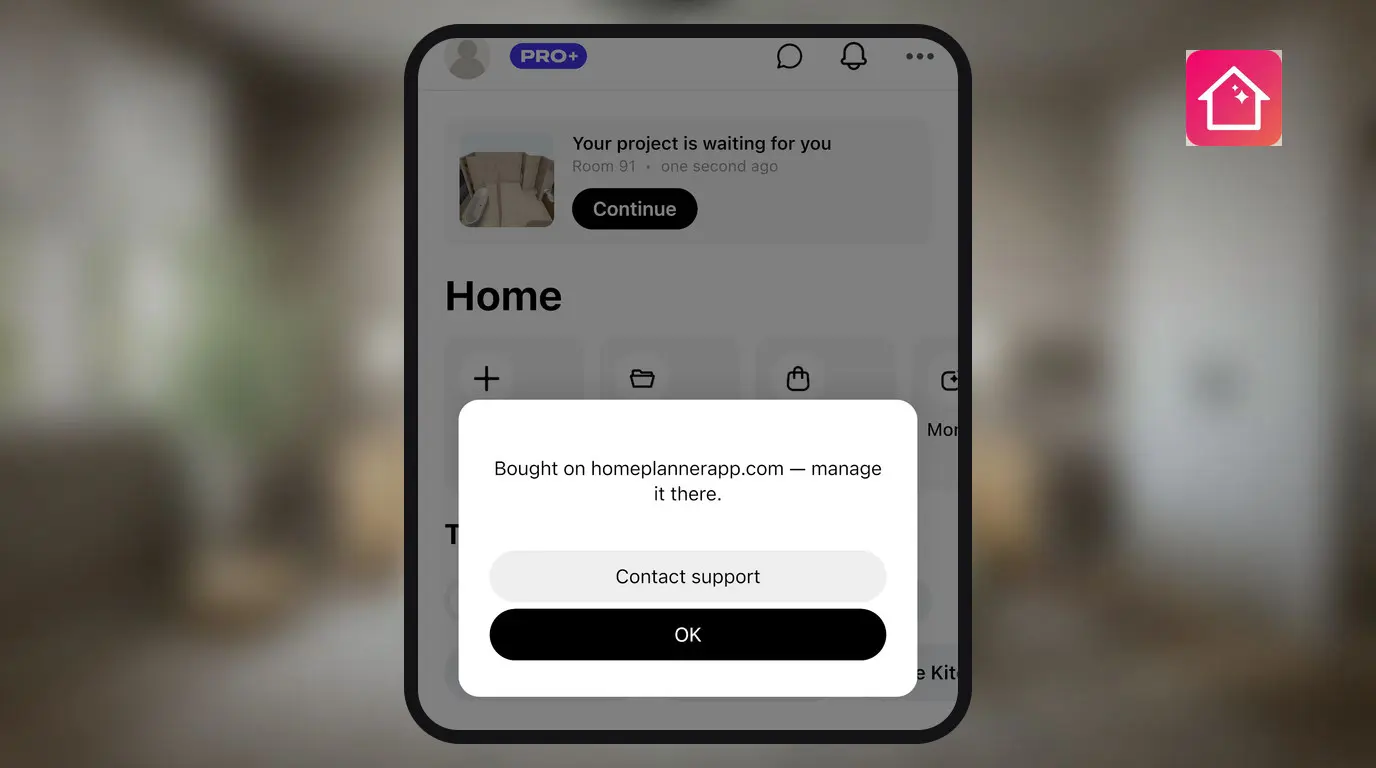
If you bought PRO on homeplannerapp.com, Home Planner does not link to the page where you cancel it. The screen says Bought on homeplannerapp.com — manage it there. Use the website steps below.
How do I cancel my Home Planner PRO subscription?
Cancel PRO in the store where you bought it. Open the section for your store below.
App Store — iPhone, iPad or Mac
On iPhone or iPad:
- Open Settings and select your name.
- Select Subscriptions.
- Select Home Planner, then Cancel Subscription. If the button is not visible, scroll down.
On Mac:
- Open the App Store and select your name at the bottom of the sidebar.
- Select Subscriptions.
- Select Home Planner, then Cancel Subscription.
Apple's own instructions: Cancel a subscription from Apple.
Google Play — Android
- Open the Google Play Store and go to your subscriptions.
- Select Home Planner.
- Select Cancel subscription.
- Follow the instructions on the screen.
Google's own instructions: Cancel, pause, or change a subscription on Google Play.
Steam — Windows
- Sign in to Steam and open store.steampowered.com/account/subscriptions.
- Select Manage subscriptions.
- Select Edit next to Home Planner PRO.
- Select Cancel my subscription, then Apply.
Microsoft Store — Windows
- Open account.microsoft.com/services and sign in with the Microsoft account you used to buy PRO.
- Find Home Planner PRO in the list.
- Select Manage.
- Select the option that stops the subscription from renewing, then confirm.
Home Planner website
If you bought PRO on homeplannerapp.com, cancel it on the website. The app does not link there.
- Open homeplannerapp.com/app/account and sign in with the email you used at checkout. The site sends a sign-in link to that email.
- Find the Subscription row and select Manage.
- Select Cancel auto-renewal.
- Confirm with Cancel renewal.
PRO stays active until the date shown in the confirmation. Resume subscription turns auto-renewal back on while PRO is still active. To update your card or download invoices, select Payment method and invoices.
Which store holds your subscription?
The table shows where to cancel PRO for each place you can buy it.
| Where you bought PRO | Open | Cancel with |
|---|---|---|
| App Store — iPhone, iPad or Mac | Settings → your name → Subscriptions; on Mac: App Store → your name → Subscriptions | Cancel Subscription |
| Google Play — Android | Google Play, your subscriptions | Cancel subscription |
| Steam — Windows | store.steampowered.com/account/subscriptions | Edit → Cancel my subscription → Apply |
| Microsoft Store — Windows | account.microsoft.com/services | Manage, then the option that stops renewal |
| homeplannerapp.com | Account → Subscription → Manage | Cancel auto-renewal → Cancel renewal |
What happens after you cancel?
PRO stays active until the end of the paid period. The next charge does not happen, and the current period is not refunded.
On the App Store, if there is no Cancel Subscription button or you see a red expiration message, the subscription is already canceled.
On Google Play, uninstalling Home Planner does not cancel PRO.
Trademark notice. Home Planner is not affiliated with, endorsed or sponsored by Apple Inc., Google LLC, Valve Corporation or Microsoft Corporation; their names and marks belong to their owners. iPhone, iPad and Mac are trademarks of Apple Inc., registered in the U.S. and other countries. Android is a trademark of Google LLC. Other trademarks are the property of their respective owners.
Try it on your own project
Free room planner and interior design app