Wall Panel Visualizer: Try Panels, Wall Materials and Floors in 3D

Try wall panels, wallpaper, bricks and floors on your own room in Home Planner, use a photo of a sample as a material and set the exact height of a shelf on a wall.
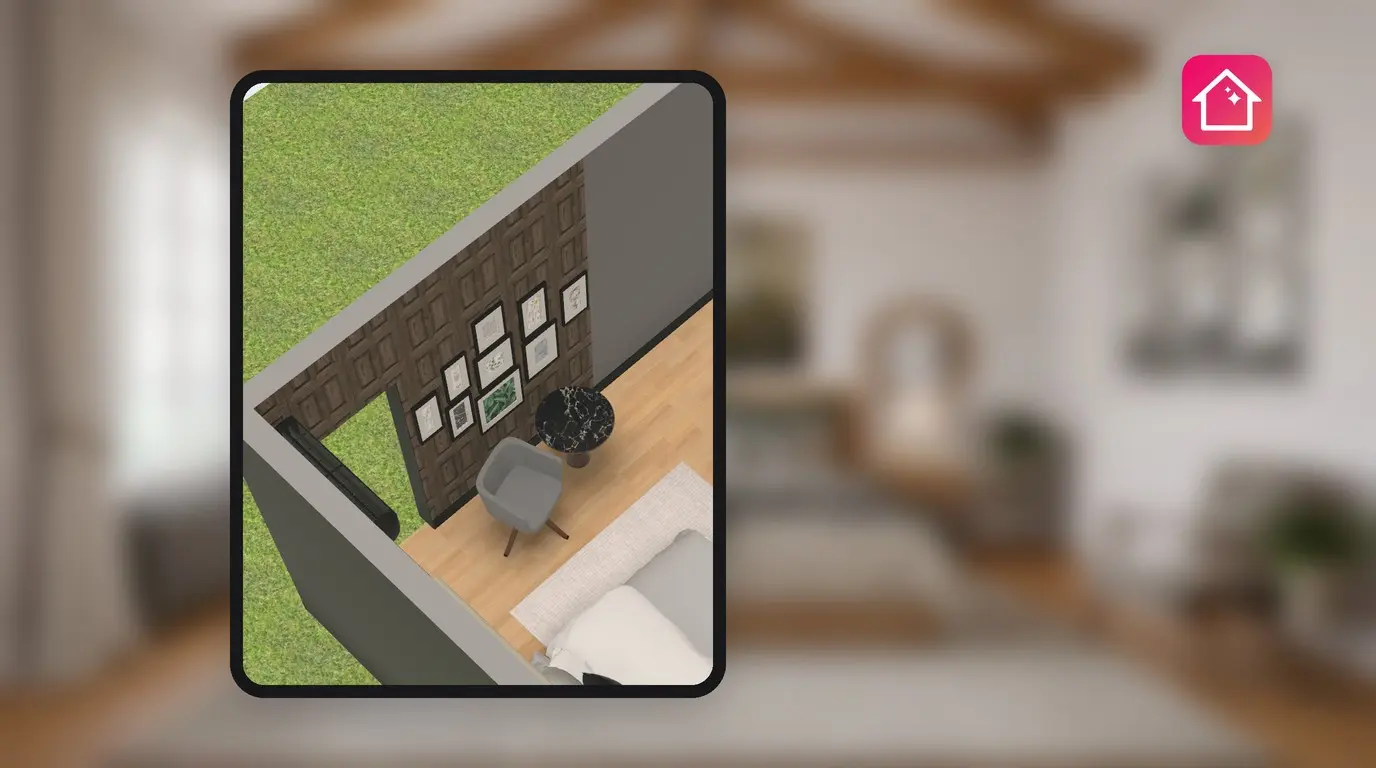
Wood slats behind the bed, or bricks? A sample board in the shop does not show how either looks on a 3.5 m wall with your window in it. Home Planner works as a wall panel visualizer for your own room: put panels, wallpaper or bricks on one wall and walk around it in 3D.
The same palette changes floors, room by room. If a shelf has to hang in one exact spot, you can set its position on the wall too. This guide walks you through each step.
How it works
- Select one side of a wall in the 3D view.
- Choose a material from Paneling, Wallpaper, Bricks, or your own photo.
- Look at the room in 3D, then try the next option on the same wall.
Before you start
| You need | Why |
|---|---|
| Home Planner on iPhone, iPad, Android, Mac or Windows | The steps are almost the same on every device. |
| A design with the room drawn | Materials go on the walls, floors and ceilings of your plan. |
| A photo of the panel or wallpaper you like (optional) | You can turn a photo into a material with Select a photo. |
| PRO for every material (optional) | On the free plan, part of the materials in a tab can carry a PRO badge. Plain colors are always free. |
How do I try wall panels on my wall?
Select the wall side in 3D, select the color swatch and choose a material on the Paneling tab. The material covers only the side you selected, so the other walls stay as they are.
- Open the design in the 3D view.
- Select the side of the wall you want to change.
- Select the color swatch: the round first button of the small toolbar that appears with the selection. It has no label; it shows the current color or material of the wall. The palette opens. On a phone in portrait, its header reads Apply to all (N), Change Color and Done. On other devices and screens, the title can be Color.
- Choose a tab in the strip at the top of the palette: Recent and My Materials first, then tabs such as Colors, Bricks, Wallpaper, Paneling and Tile.
- Select a material. The wall changes at once.

On the free plan, part of the materials in a tab can carry a PRO badge. Select one, and Home Planner opens the plan offer. The other materials in the tab are free, and plain colors are always free.
The tabs sit in one horizontal strip. If you do not see Paneling or Bricks, scroll the strip sideways. Recent keeps the materials you used last, so you can switch between two options quickly.
Painting only one wall works the same way, which makes the palette an accent wall visualizer too. For pattern ideas, see modern wallpaper ideas.
Can I use a photo of my own panel or wallpaper?
Yes. Select Select a photo in the palette and choose a photo of the panel, the tile or the wallpaper you found. Home Planner puts it on the wall as a material. Quick Apply is free on walls and floors. On a ceiling, it needs PRO.
- Select the wall side, then the color swatch.
- Select Select a photo.
- Choose the photo from your device.
- Home Planner asks How would you like to use this material? Choose Quick Apply to put it on the wall now, or Save to My Materials to keep it.
Common mistake: you choose Quick Apply and look for the photo in My Materials later. It is not there: a quick-applied photo stays only in Recent. To keep it, choose Save to My Materials. This needs a signed-in account, and the button shows how many of your saved materials are used.
How do I turn a wall material into a panel?
Select the surface, then the Create panel button that appears under the toolbar. Home Planner adds a separate panel, 1 × 1 m and 1 cm thick, with the material of that surface. Create panel is free. The panel is an item: you can move it and change its size like other items.
Create panel appears when you select a wall side, a floor or a ceiling with a normal material or a plain color. It does not appear for a photo stretched over the whole surface, or while you are resizing. The surface itself does not change.
Can I have different flooring in different rooms?
Yes. Each room has its own floor, and you change it the same way as a wall: select the floor of one room and choose a material. The other rooms keep their floors.
- In the 3D view, select the floor of the room.
- Select the color swatch and choose a tab, for example Wood, Tile or Carpet.
- Select the material, then select the next room and repeat.
How do I set the height of a shelf on a wall?
Select the shelf and open Position. Then select the row Bottom and type the distance from the shelf down to the floor. A wall shelf has no Height above floor field.
- Select the shelf.
- Select the height icon in the row of buttons under the small toolbar, left of the rotation control. Or open the three-dot menu (More) and select Position (on some items it is Position & Rotation).
- Select the row Bottom and enter the distance down to the floor. If an item stands below the shelf, for example a sideboard, Bottom measures to the top of that item. Top, Left and Right set the distance on the other sides.
- To move the shelf away from the wall, enter a value in Distance from the wall.
| The item is placed on | What you see in Position |
|---|---|
| The floor | Height above floor |
| A wall | Distance from the wall, and the rows Top, Bottom, Left and Right |
| The ceiling | Distance from the ceiling |
Common mistake: you look for the height under the size of the item, next to width and depth. It is not there: the size sets how big the item is, the position sets where it hangs. If the height icon is missing, the camera looks down too steeply. Tilt the view a little and it comes back.
Choosing between two panels? Draw your room in Home Planner and put both on the same wall before you buy either.
Trademark notice. Home Planner is not affiliated with, endorsed or sponsored by Apple Inc., Google LLC or Microsoft Corporation; their names and marks belong to their owners. iPhone, iPad and Mac are trademarks of Apple Inc., registered in the U.S. and other countries. Android is a trademark of Google LLC. Other trademarks are the property of their respective owners.
Try it on your own project
Free app for iPhone, iPad, Mac, Android and Windows.