How to Not Get Lost in 300,000 Models: A Quick Guide to Finding Furniture in a Huge Catalog

Five tips to find furniture fast in the Home Planner catalog: Other Rooms tab, styles, brands, themed collections, favorites and branded catalogs.

When I first opened the furniture catalog in the Home Planner app, I panicked. There was everything — from compact nightstands to canopy beds. Over 300,000 items. And all I wanted was a chair.
Why a huge furniture catalog can be overwhelming
At first, it seems like more options mean better results. But without a clear plan or experience, you can end up scrolling for hours, comparing items, forgetting what you were looking for… and finally settling for something random.
Sound familiar?
But the truth is: a big 3D furniture catalog is not a problem — it’s a powerful tool. And if you know how to use it, picking furniture becomes fun instead of frustrating.
How the Catalog Adapts to Your Room
When you create a room in Home Planner, the furniture catalog automatically adjusts to show the most relevant items.
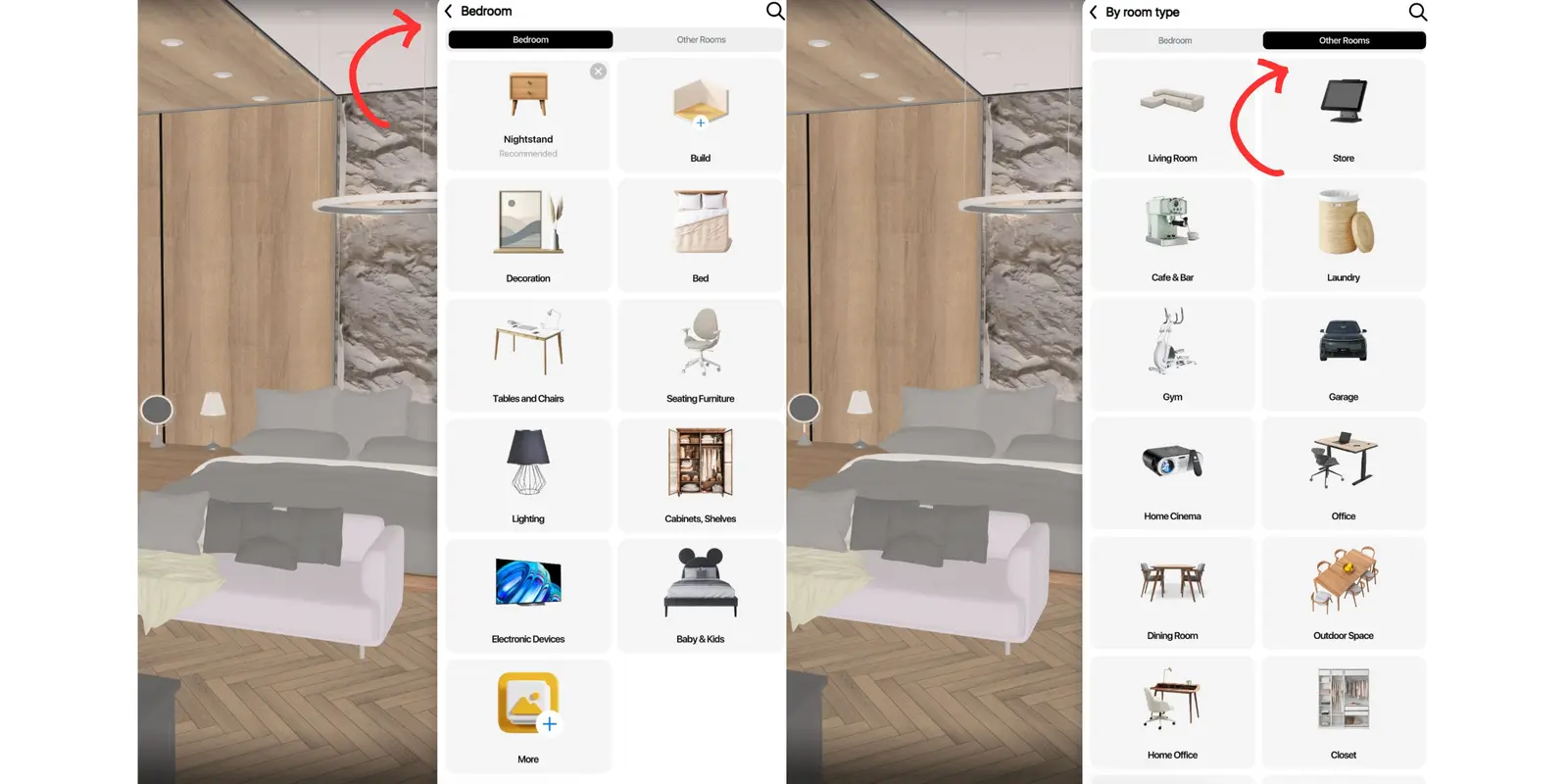
So if you're designing a bedroom, you'll instantly see beds, nightstands, wardrobes, lamps, and decor suited for that space.
But what if you want to add a desk, or something for a different area — like a kitchen chair or hallway shelf?
Just tap the "Other Rooms" tab in the catalog menu.
There, you'll find all the furniture categories from other room types — so you can freely mix and match styles or combine zones (for example, bedroom + workspace, or living room + dining area).
This structure keeps your workspace clean and focused — but still lets you browse the whole catalog at any time.
How to find furniture fast: 5 tips that save me hours
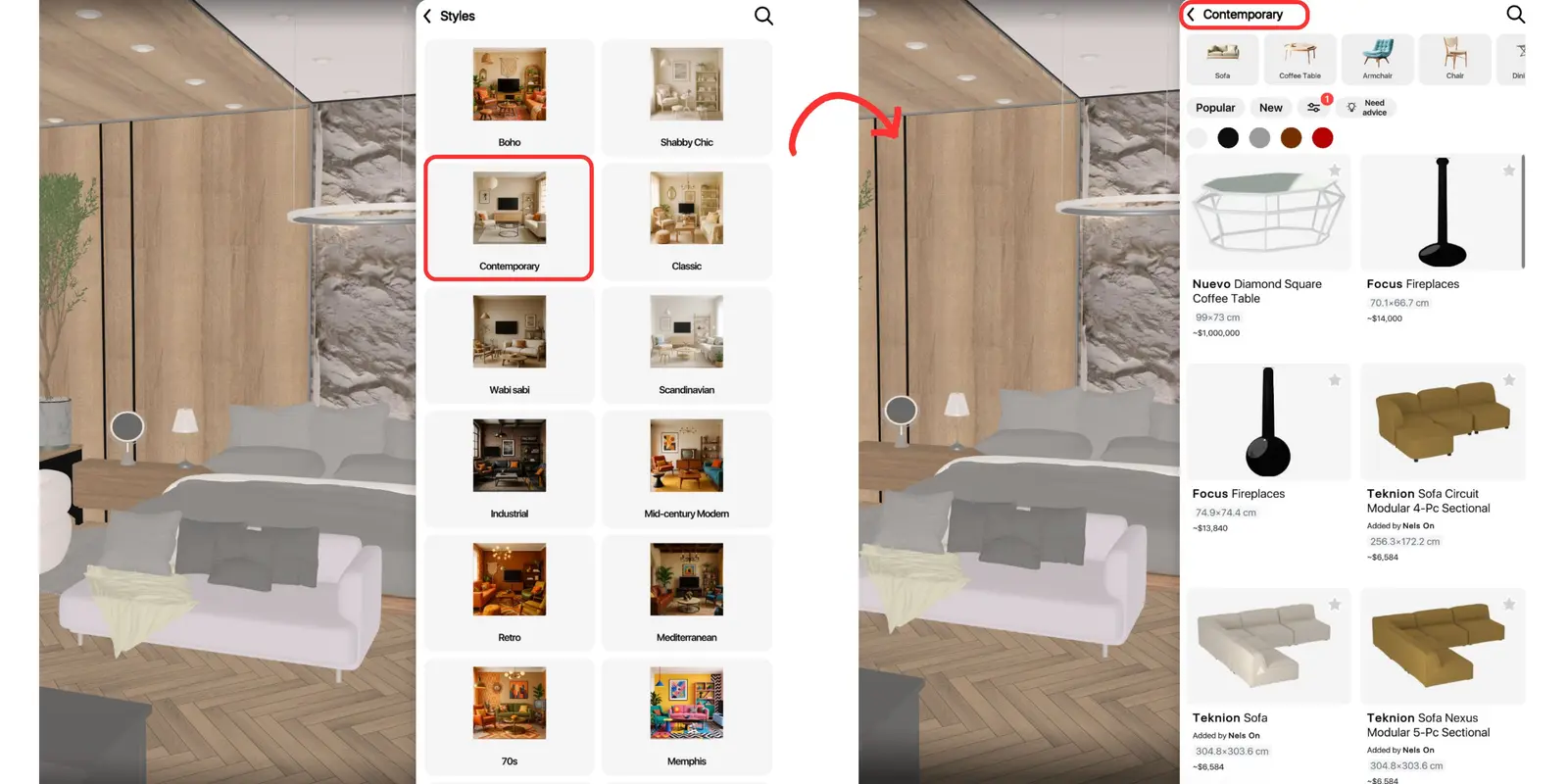
1. Use filters not just by category, but by style
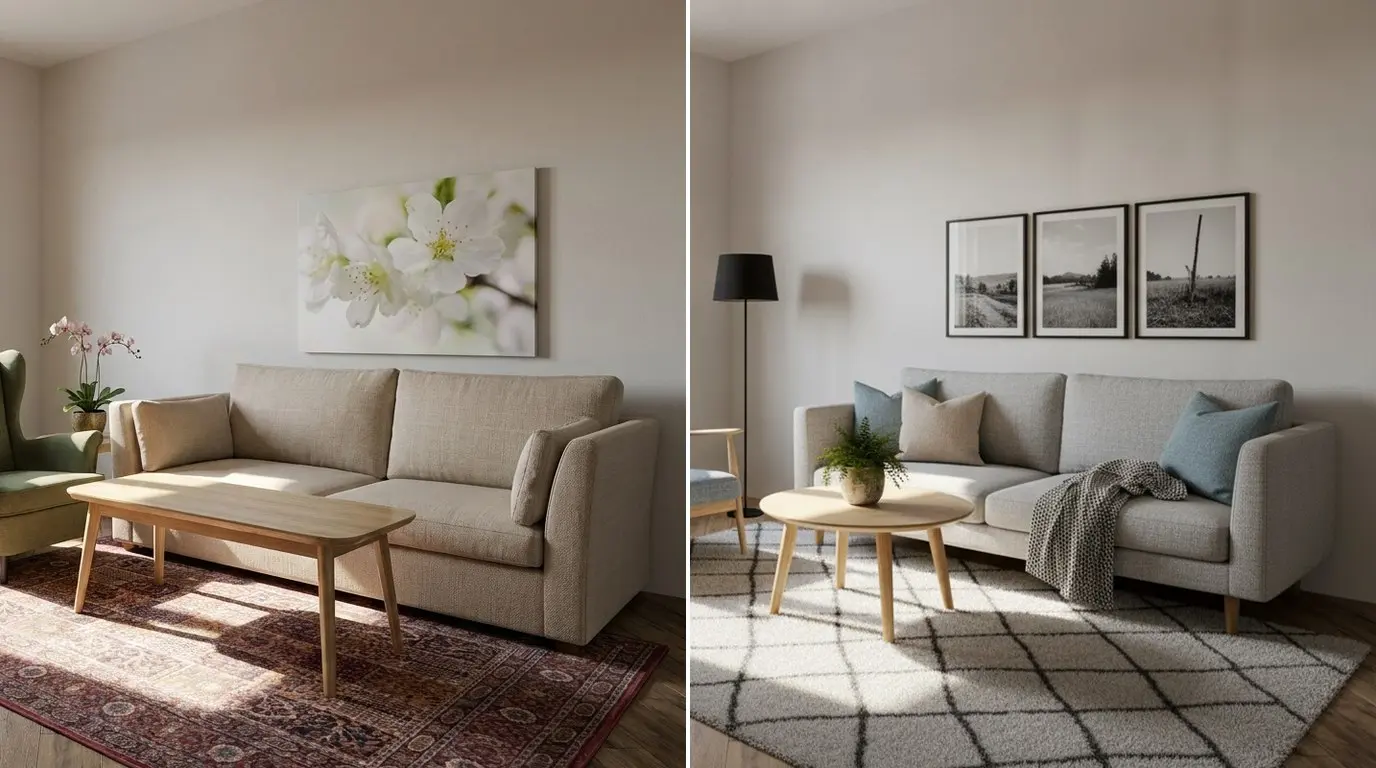
Looking for a sofa? Great. But let it be a Scandinavian sofa with wooden legs and light fabric. That narrows it down from 5,000 to 50 options instantly.
Go to Catalog → More → Styles, select a style, and refine your search using filters.
2. Search by furniture brands
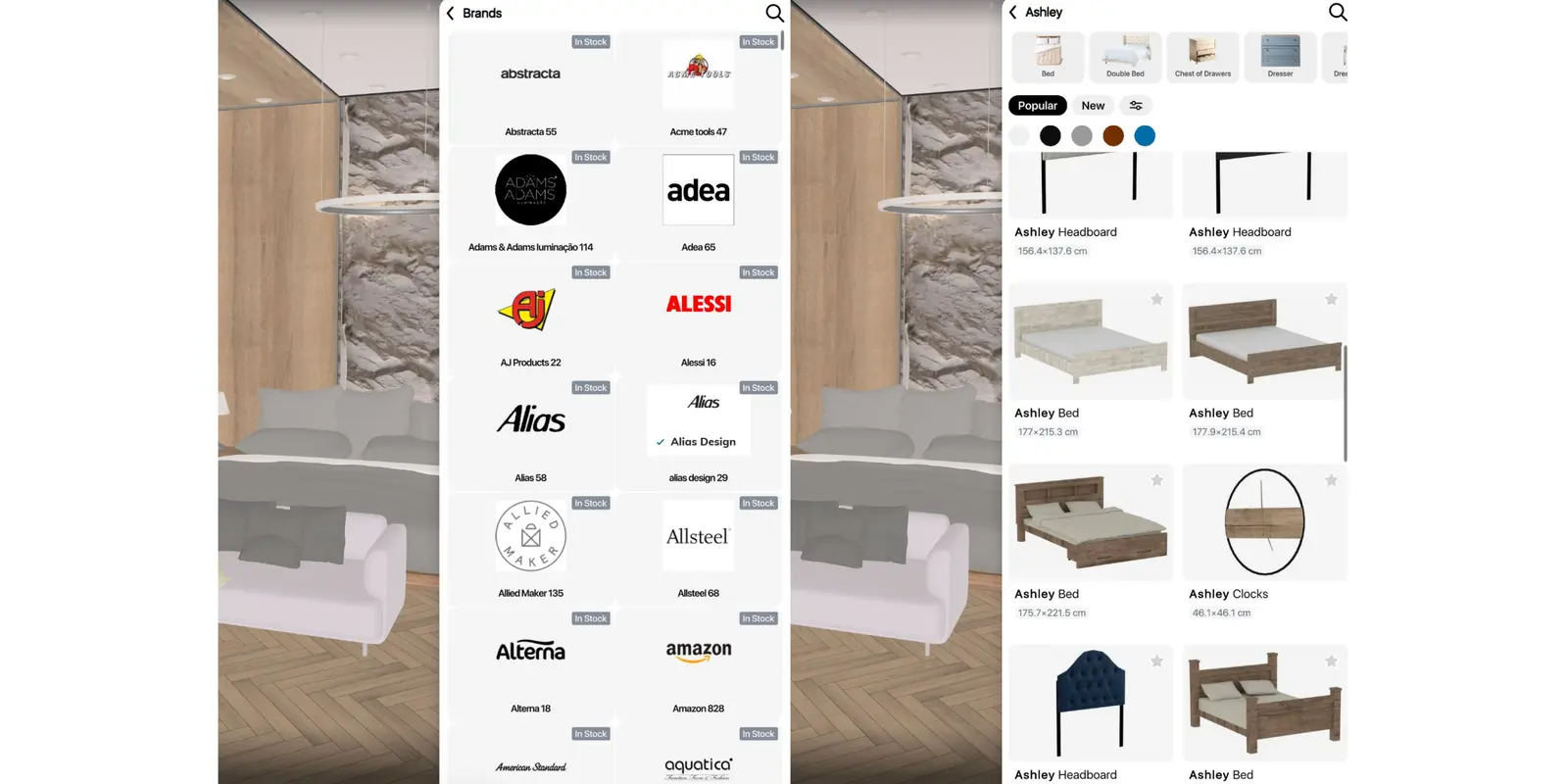
There are over 2,000 real furniture brands in the Home Planner catalog. I often shop by brand — because I know their style, quality, or materials. It’s like browsing a familiar store inside your interior design app.
Go to Catalog → More → Brands (alphabetically sorted), select a brand, and refine your search using filters.
3. Explore curated collections
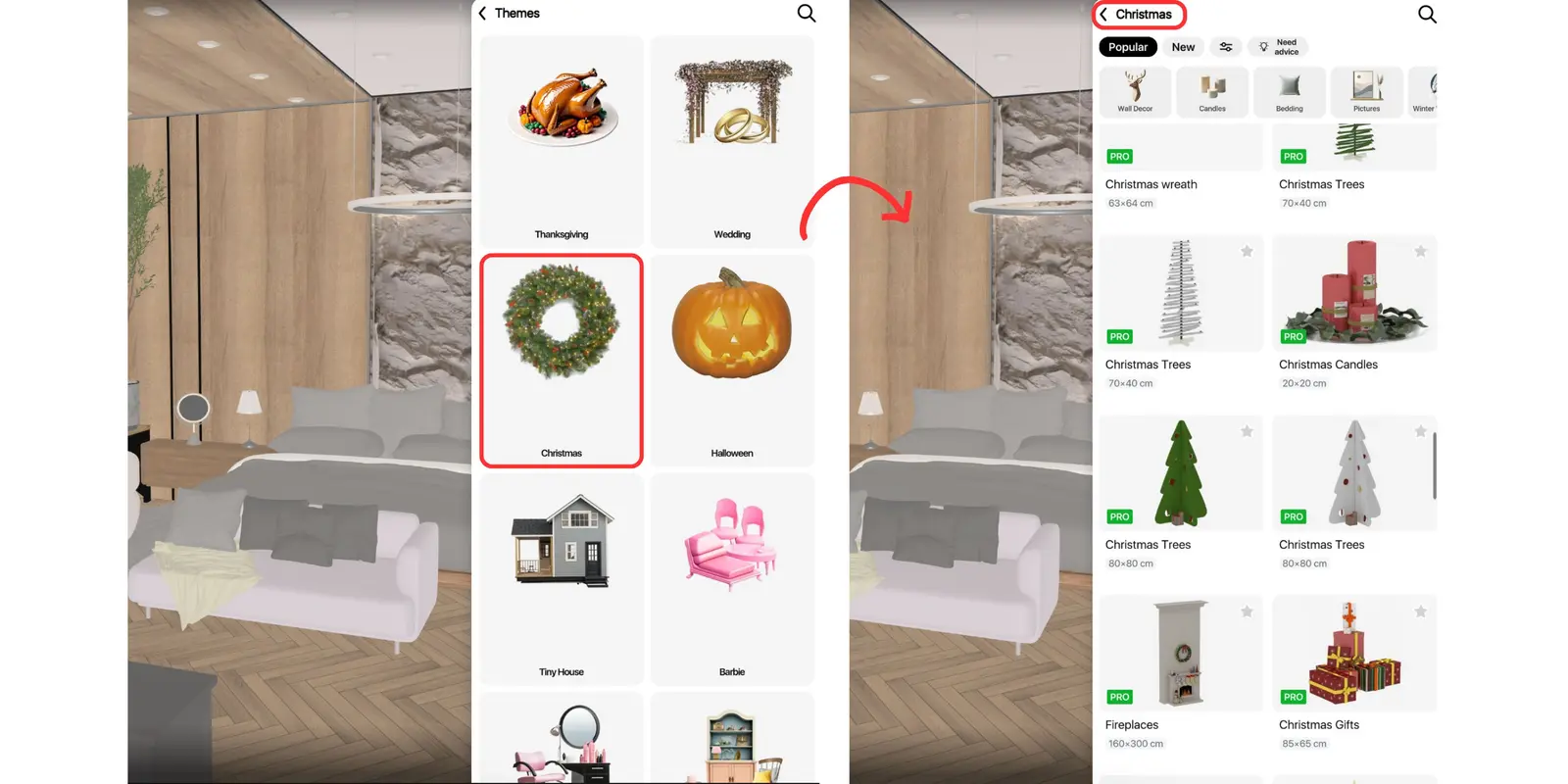
When I don’t feel like thinking too hard, I open themed collections. For example: cozy bedrooms, small balcony ideas, or natural wood furniture. It’s like Pinterest inside the app.
Go to Catalog → More → Themes, select a collection, and refine your search using filters.
4. Save your favorites to avoid starting over
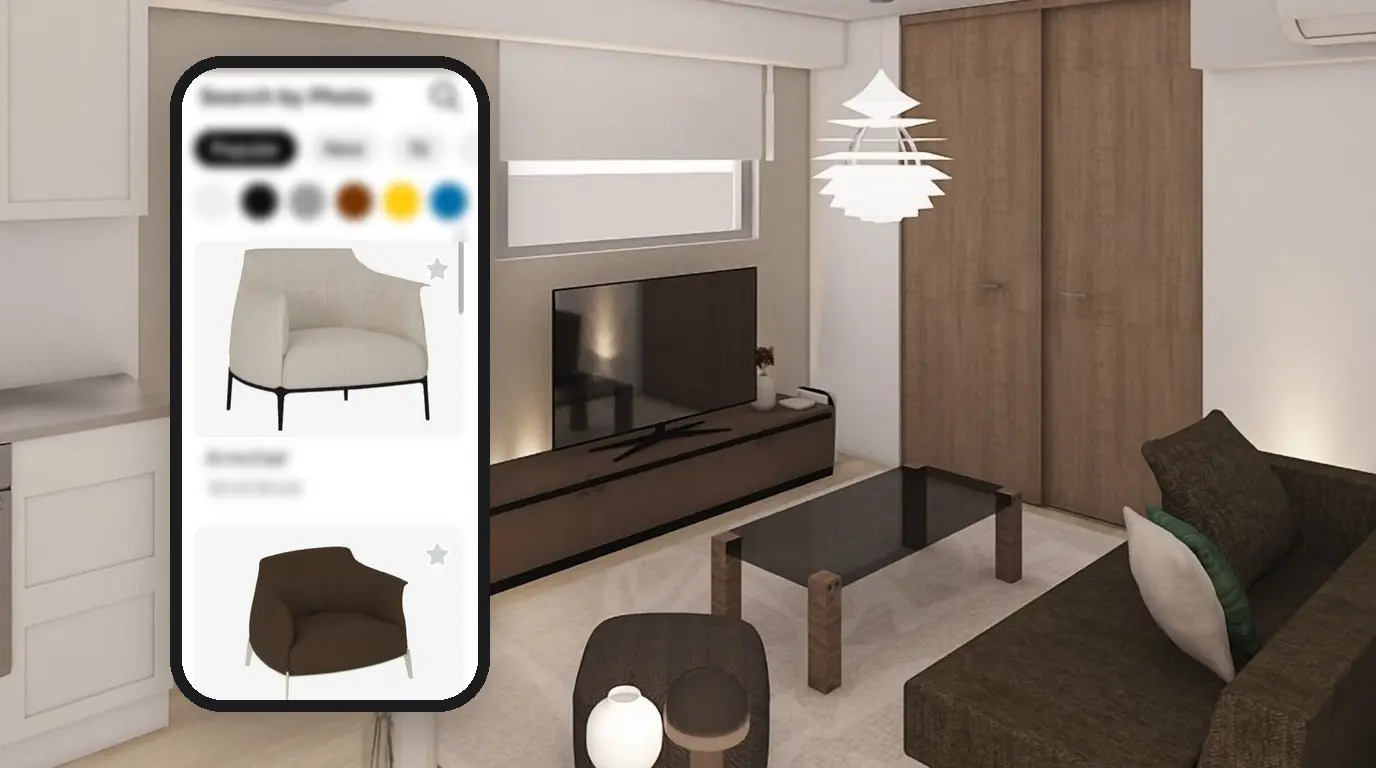
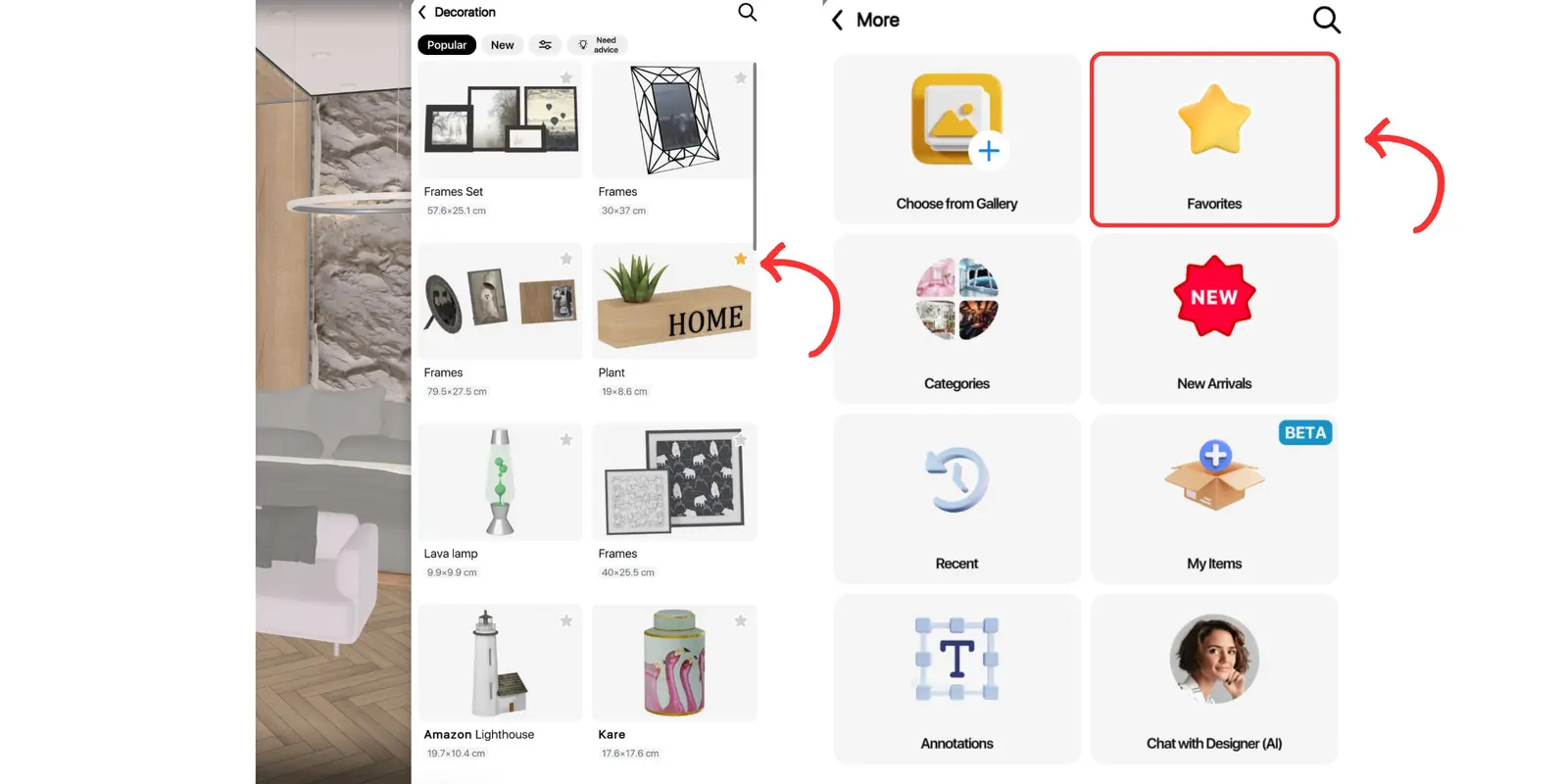
If I like something, I add it to my favorites. This way I can compare options later in one place — no more losing that perfect woven lampshade I forgot to bookmark.
As you explore the catalog, you can tap the little star icon in the corner of any item to save it to your Favorites.
It’s the easiest way to keep track of pieces you like — without having to remember where you saw them.
To view all your saved items, go to:
Catalog → More → Favorites
Perfect for comparing options, planning a look, or just collecting ideas as you go.
5. Browse branded catalogs within the app
Some stores have full catalogs integrated into Home Planner — you can explore their collections just like a storefront. Thanks to this white-label system, the 3D furniture catalog keeps growing with fresh models.
Why I’m no longer afraid of a huge selection
Because I don’t scroll aimlessly anymore. I search smart. Choosing furniture shouldn’t feel like a test of patience — it should feel like building the life you want. And the right tools help you get there.
How do you find furniture?
Do you scroll endlessly or use filters like a pro?
Try the best interior design app Home Planner
Design your dream space in seconds! Use AR to scan your room, let AI redecorate your photos with stunning interiors, and get smart tips from your personal design assistant. Create 2D/3D floor plans, furnish with real brands, and bring your vision to life — fast, easy, and fun with Home Planner.
Trademark notice. The brand names and logos shown in the catalog screenshots, such as Alessi, Amazon and Ashley, are trademarks of their respective owners and are shown only to identify products available in the catalog. Home Planner is not affiliated with, endorsed or sponsored by these companies. Other trademarks are the property of their respective owners.

Try it on your own project
Free app for iPhone, iPad, Mac, Android and Windows.