Room Planner with Real Furniture: How to Find Any Item Fast

Find the piece you need among 560,000+ items from 30,000+ brands: the Other Rooms tab, styles, brands, themes, favorites and store catalogs.

You open the furniture catalog to add one chair. The catalog shows you everything from compact nightstands to canopy beds. Home Planner is a room planner with real furniture: 560,000+ items from 30,000+ brands. That is a lot to scroll past on the way to one chair.
This guide shows the shortcuts that take you from the whole catalog to a short list.
You need: Home Planner on iPhone, iPad, Android, Mac or Windows, and a project with at least one room. Cost: Home Planner is free to start. Some catalog items need a PRO plan.
Why is an interior design app with real furniture hard to browse?
Because more choice does not give a better result by itself. Without a plan, you scroll for hours, compare items, forget what you came for, and settle for something random.
The size of the catalog is not the problem. It is a tool. Once you know where the shortcuts are, choosing furniture becomes fun instead of frustrating.
How does a 3D room planner with furniture know what to show?
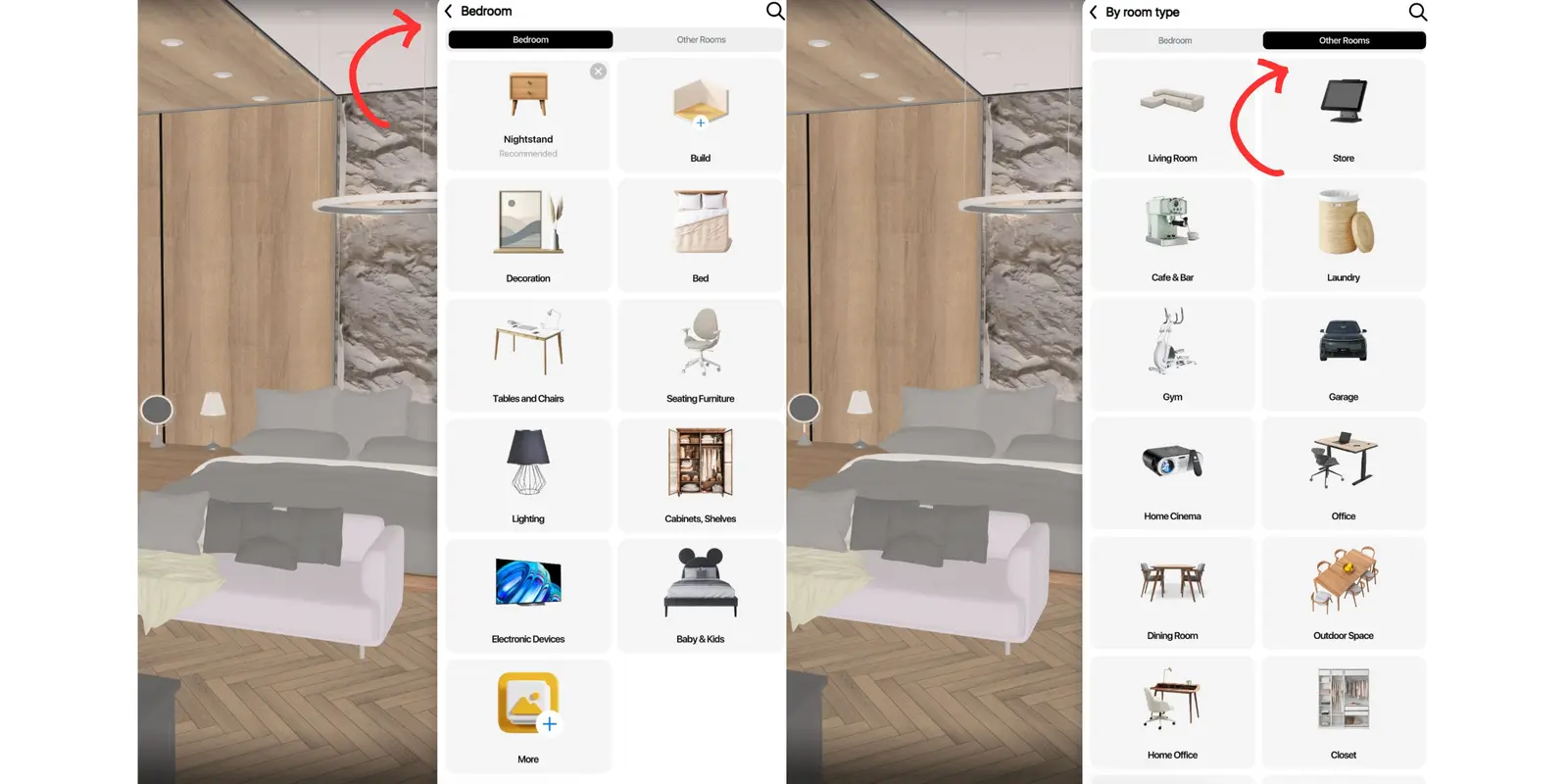
It starts from the room type. When you create a room in Home Planner, the catalog shows the items that fit that room first. In a bedroom, you see beds, nightstands, wardrobes, lamps and decor for a bedroom.
You may need something from another room: a desk, a kitchen chair or a hallway shelf. Open the Other Rooms tab in the catalog. It holds the categories of all other room types, so you can mix styles and combine zones, for example a bedroom with a workspace, or a living room with a dining area.
The catalog stays focused on your room, and the rest of it is one tab away.
What is the fastest way to search a room planner with furniture?
Narrow the catalog by style, brand or theme, and save what you like to Favorites. All four shortcuts are under More in the catalog. A fifth one, store catalogs, works like a shop inside the app.
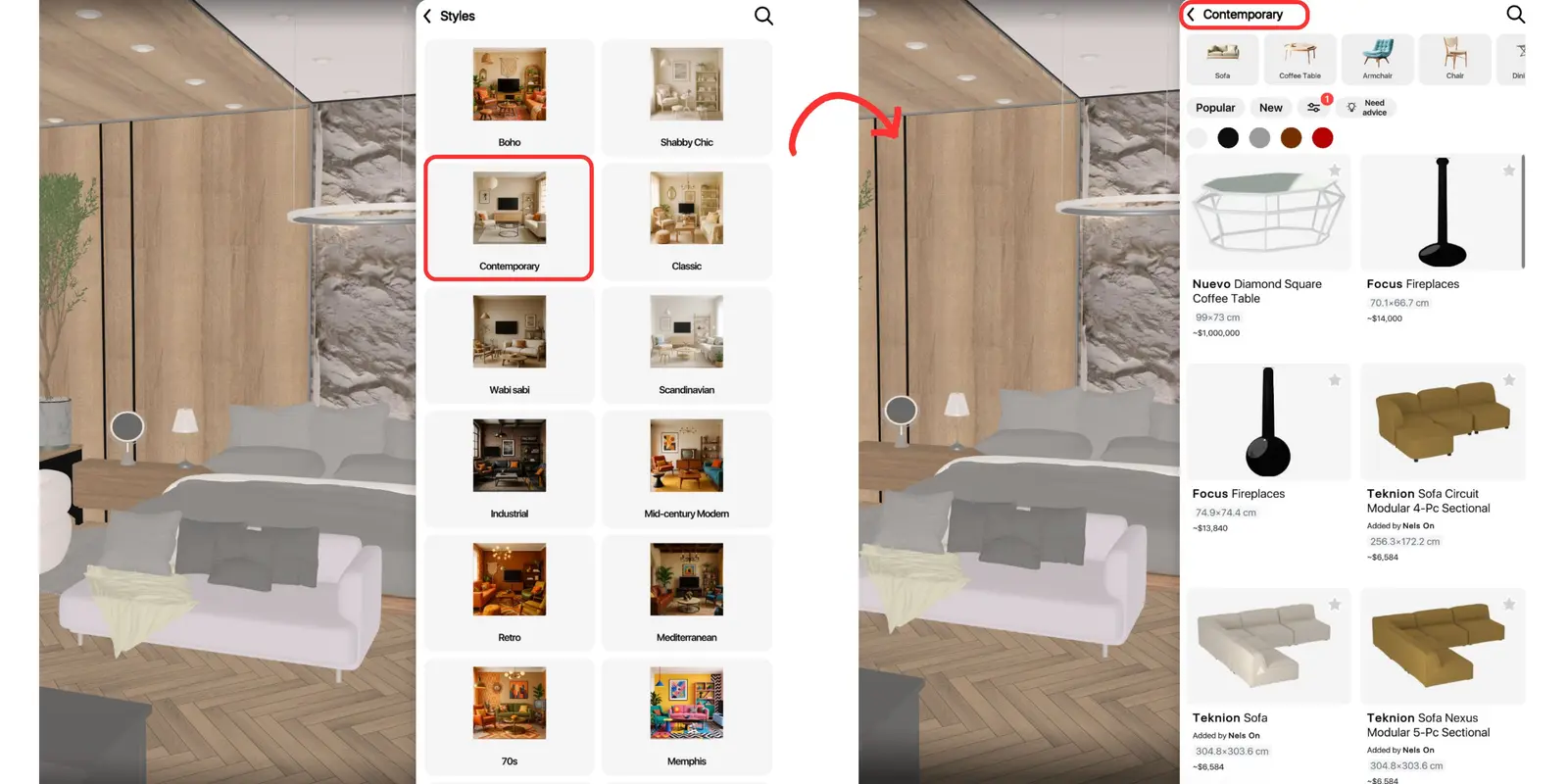
1. Filter by style, not only by category
A category alone is too wide. Do not look for "a sofa". Look for a Scandinavian sofa with wooden legs and light fabric. A request like that narrows 5,000 options to 50.
Open Catalog → More → Styles and choose a style, such as Scandinavian, Boho or Industrial. Then refine the results with filters.
2. Search by brand
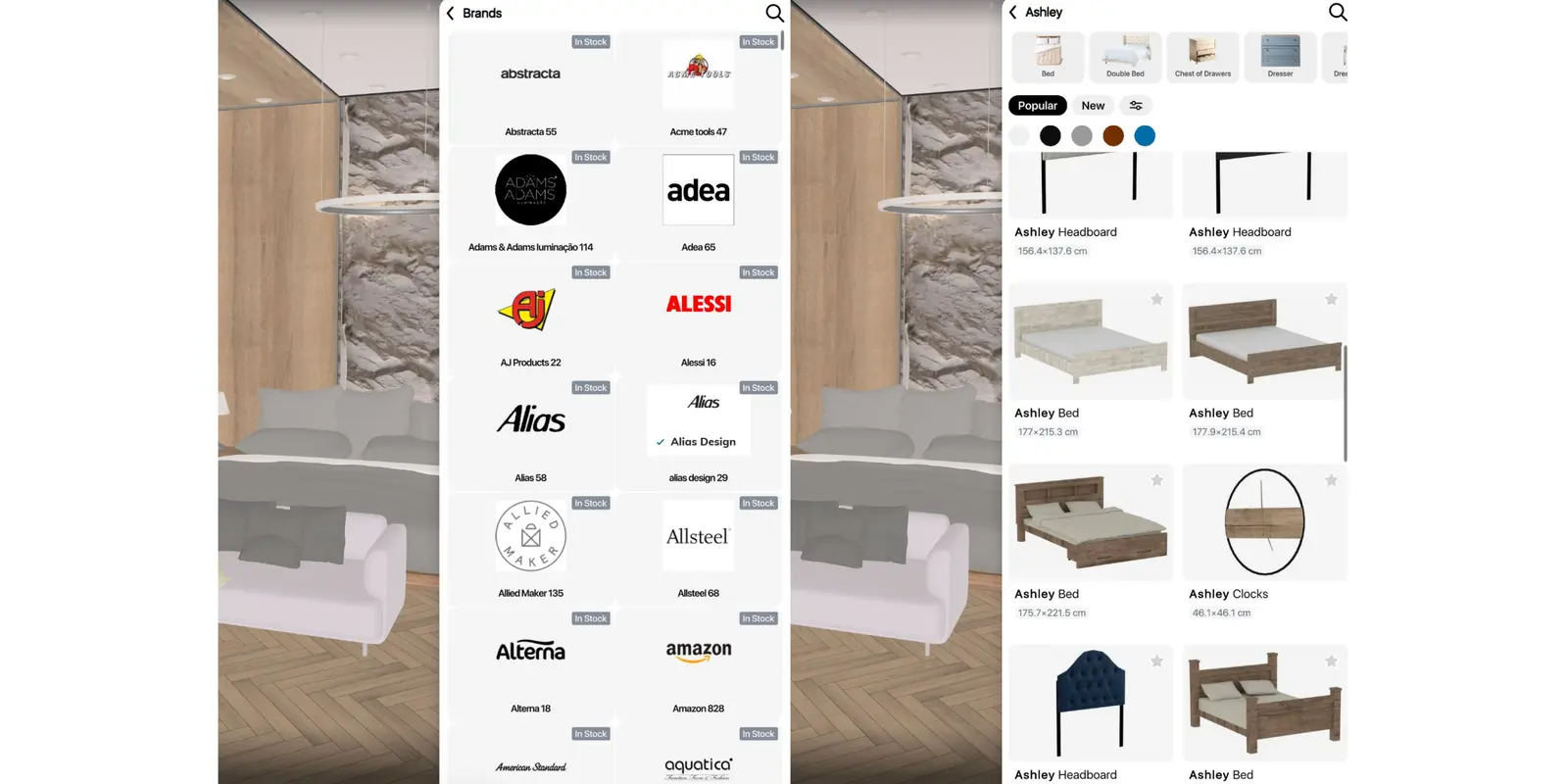
Shopping by brand helps when you already know a brand's style, quality or materials. It works like a familiar store inside your interior design app.
Open Catalog → More → Brands. The list is in alphabetical order. Choose a brand, then refine the results with filters.
3. Open a themed collection
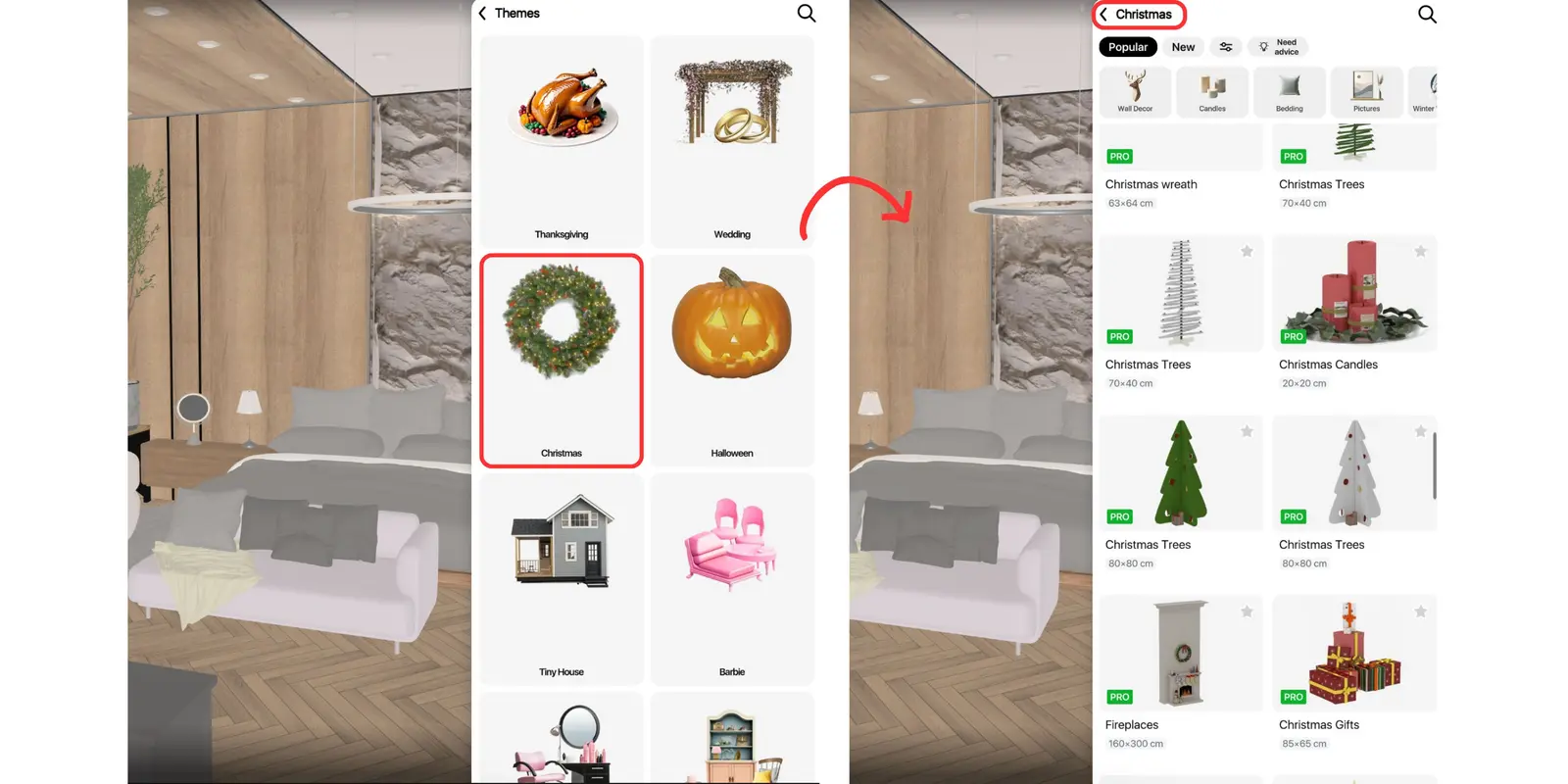
When you do not want to think too hard, start from a ready collection. Themes include Christmas, Cottagecore and Tiny house.
Open Catalog → More → Themes, choose a collection, then refine the results with filters.
4. Save favorites so you do not start over
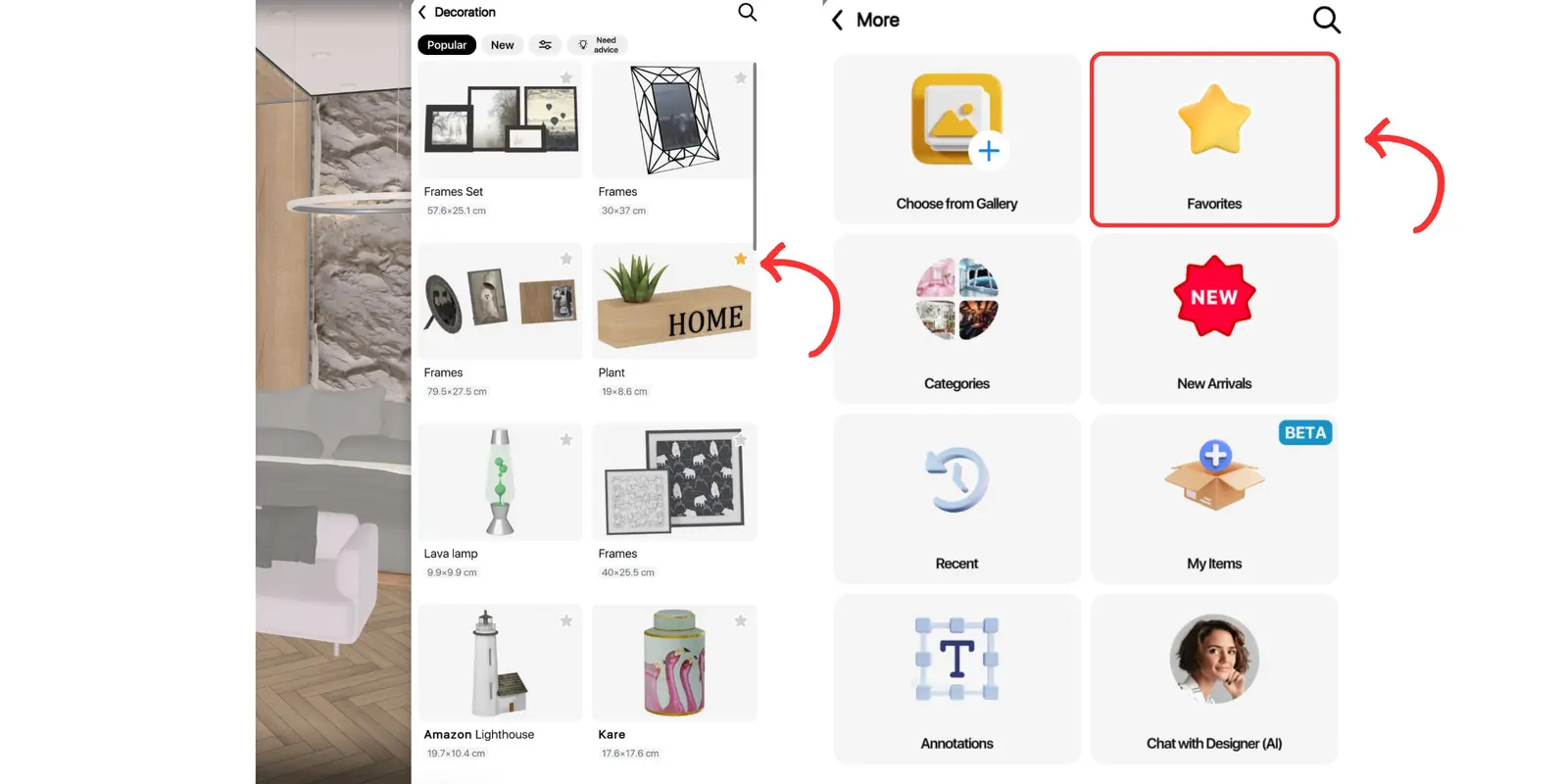
When you like an item, select the small star icon in its corner. The star turns gold, and the item goes to your Favorites. You do not have to remember where you saw it, and you will not lose that woven lampshade you forgot to bookmark.
To see everything you saved, open Catalog → More → Favorites. Use it to compare options in one place, plan a look, or collect ideas as you go.
5. Browse store catalogs inside the app
Some stores have their full catalogs in Home Planner. You can explore their collections like a storefront. These store catalogs are one reason the 3D furniture catalog keeps growing with new models.
What changes when you search this way
You stop scrolling without a goal and start with one: a style, a brand, a theme or your own list of favorites. Choosing furniture then stops being a test of patience.
How do you find furniture?
Do you still scroll, or do you start with a filter? A short list is easier to judge in your own room than in a long catalog. Open your project in Home Planner, choose one style or one brand, and add the first item to the plan. In the same app, you can scan your room with AR, create 2D and 3D floor plans, furnish them with real brands, and redesign a photo of your room with AI.
Trademark notice. The brand names and logos shown in the catalog screenshots, such as Alessi, Amazon and Ashley, are trademarks of their respective owners and are shown only to identify products available in the catalog. Home Planner is not affiliated with, endorsed or sponsored by these companies. Other trademarks are the property of their respective owners.

Try it on your own project
Free app for iPhone, iPad, Mac, Android and Windows.