How to Measure a Room with Your Phone: AR and LiDAR Scan

Scan a room with your iPhone, iPad or Android phone and get its walls, doors and windows to scale in 3D. LiDAR makes it faster; AR works without it.

The tape slips from the corner. You squint at the small marks, write the number on a scrap of paper, and lose the paper before you get home.
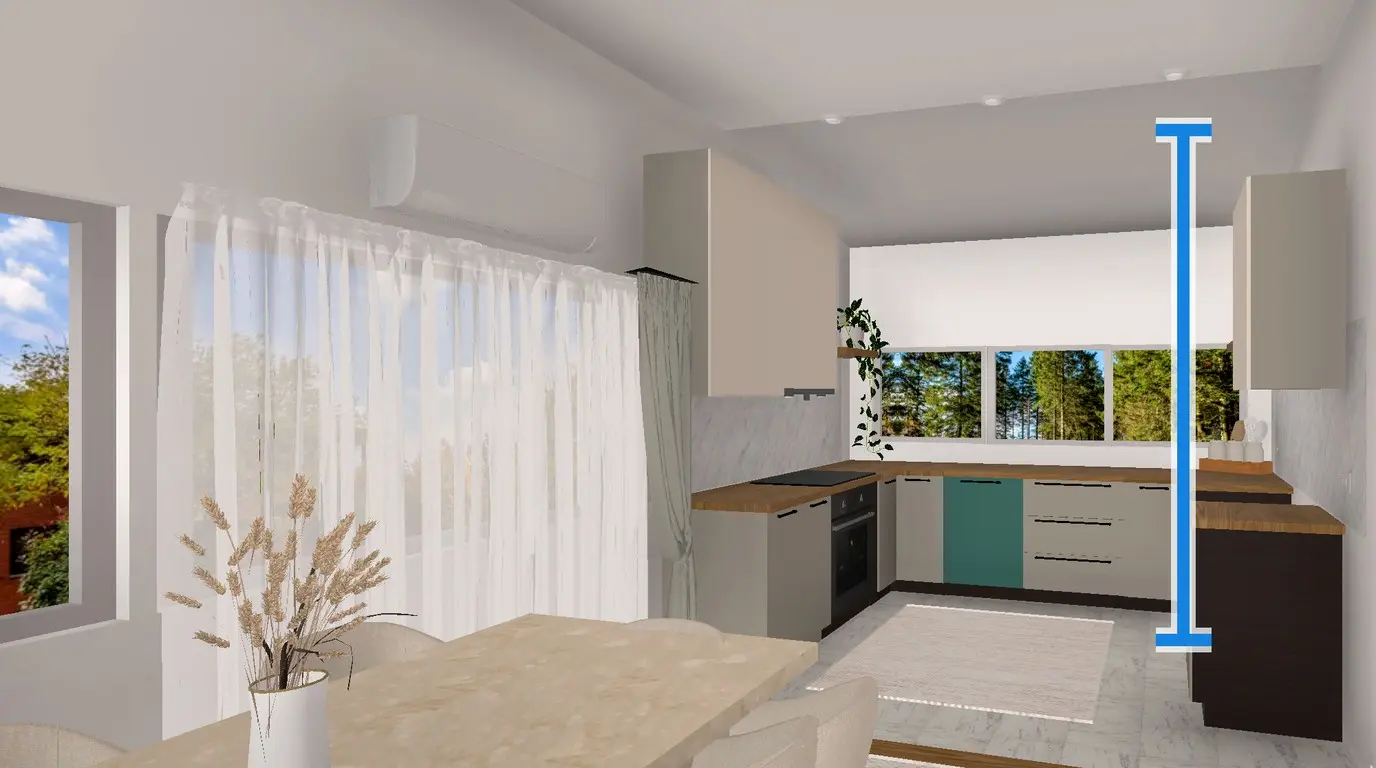
Your phone can do this job. Here is how to measure a room with your phone in Home Planner: the camera finds the walls, the app builds the room to scale, and you get a 3D model you can furnish.
AR or a LiDAR room scanner: what is the difference?
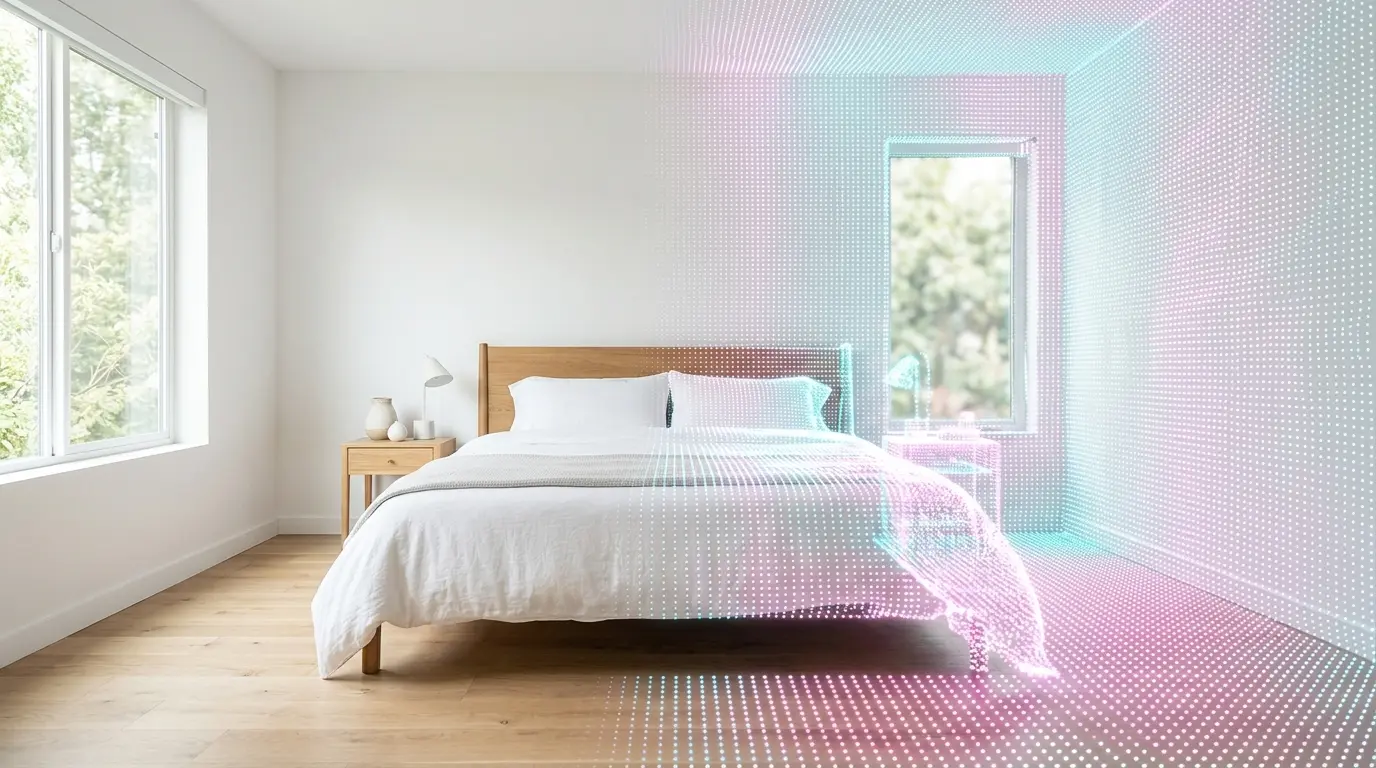
A LiDAR room scanner is more precise and needs less work from you, but only some devices have one.
- AR (augmented reality): uses the camera and the motion sensors to estimate distance. It works on iPhones and on Android phones with AR support. Low light and plain white walls can confuse it.
- LiDAR (Light Detection and Ranging): a sensor in Pro models of iPhone and iPad. It sends out invisible laser pulses to map the room. It does not need visual contrast, so it finds the shape of a room even in the dark.
Home Planner uses the LiDAR scan when your device has the sensor, and the AR scan on other devices.
How to measure a room with iPhone or iPad LiDAR
- Prepare the room. You do not need to clear it. Open the curtains, turn on the lights and clean the camera lens, so the scanner can tell walls from furniture.
- Open the scanner. Start a new design in Home Planner and select Room Scan. If the app asks for a scan mode, choose Room layout only or With furniture & materials.
- Sweep slowly. Start in one corner and move the phone slowly across the walls, the floor and the ceiling. White lines appear on the surfaces as the app recognises them.
- Stop at the openings. Pause at each window and door. The app recognises them and adds them to the room.
- Finish. Select Go to planning. Home Planner turns the scan into a 3D model of the room, to scale.
Can you measure a room with an Android phone?
Yes. On an Android phone with AR support, and on an iPhone without LiDAR, Home Planner uses the AR scan: you mark the floor corners and add doors and windows with buttons.
- Hold the phone vertically. Point at a corner of the floor and tap the screen to add it, then move to the next corner.
- Raise the phone to set the ceiling height.
- Add each window and door: point at its opposite corners. Then finish the scan.
Common mistake: you finish without doors or windows. Home Planner asks whether you are sure. Select Add window or door.
Home Planner marks Room Scan as a PRO feature.
What do you get from a room measuring app?
A rough estimate is an expensive mistake in a renovation.
- Order what you need. Home Planner shows the floor area and the wall area of each room. Use them to work out how much flooring or tile to buy, instead of three extra boxes "just in case".
- Check the furniture fit. Place real products from a catalog of 560,000+ items in the scanned room. You see whether a king-size bed leaves enough room for the nightstands.
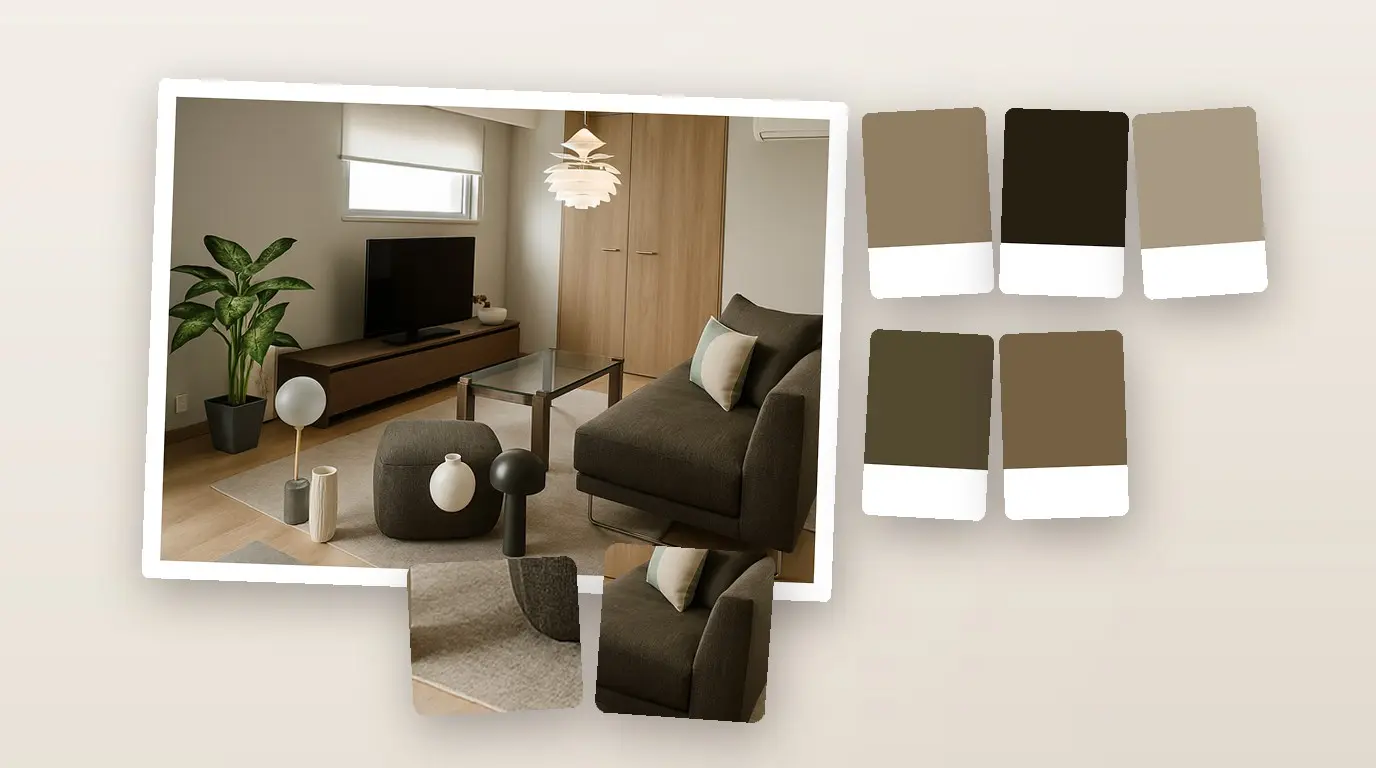
- Try a new style. Use AI Redesign to see your room in another style.
The tape measure can stay in the drawer. Scan one room in Home Planner and see your real walls in 3D.

Try it on your own project
Free app for iPhone, iPad, Mac, Android and Windows.