Home Planner App Tutorial: 6 Free Video Lessons

Six free video lessons on Home Planner: room design, doors and windows, the catalog, materials, photos and panoramas, export and sharing.
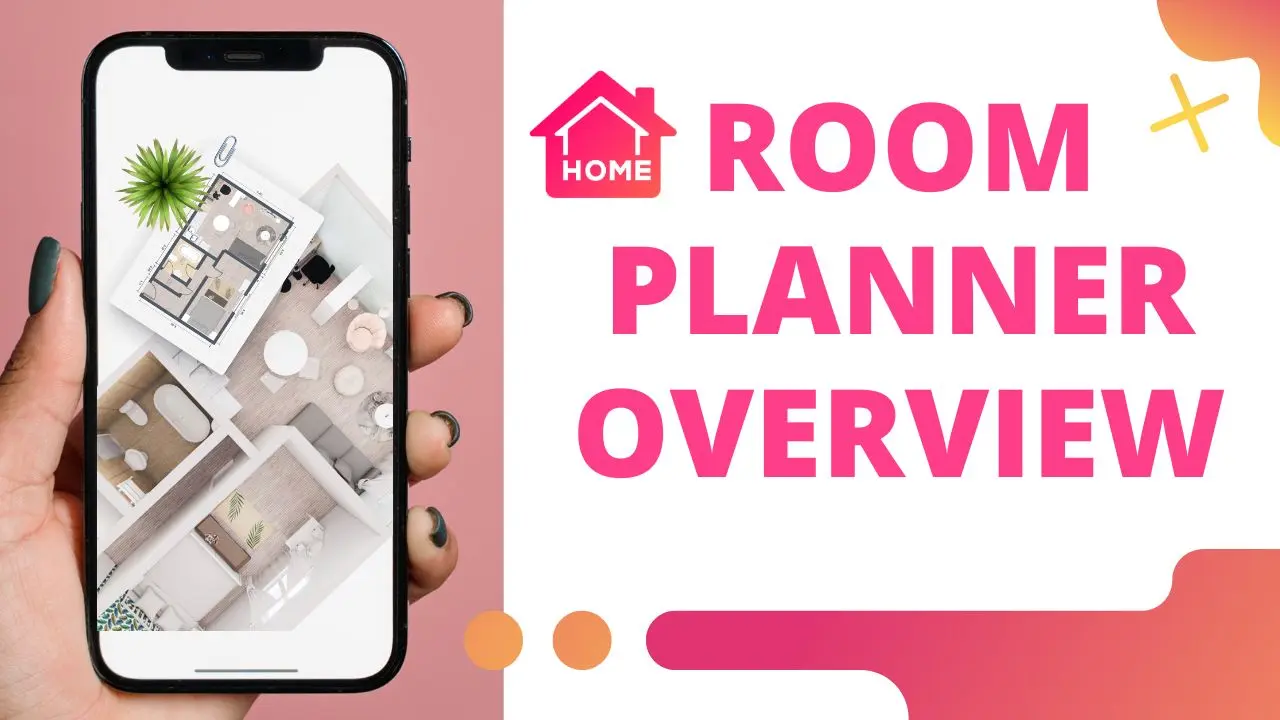
You installed Home Planner, opened an empty plan and do not know where to start. This Home Planner app tutorial has six free video lessons, from the first wall to the shared design. Watch one lesson, repeat it on your own home, then go to the next.
How do you use the Home Planner app?
Draw the room, add doors and windows, furnish it from the catalog, change the materials, then take photos and share. The lessons follow that order, because each step needs the one before it: furniture needs walls, and photos need furniture.
You also measure your space, get 2D and 3D floor plans, use furniture from world-famous brands and borrow ideas from ready-made bedroom, bathroom and living room layouts. You do not need to learn everything at once. One room with walls, a door and a window is already a plan you can furnish.
Which home planner tutorial is first?
Lesson 2, Room design: the series on this page starts there. It is the right start if you begin with an empty plan. If you start from a ready-made layout instead, the walls are already there, so Lesson 4 on the catalog is the next one you need.
Lesson 2: Room design
The first step is the shape of the room. You draw the walls, set their length, and see the room in 2D and in 3D. Take the measurements of your real room before you start, so the plan matches your home and the furniture you add later fits.
Lesson 3: Doors and windows
Doors and windows decide where furniture can stand. A wardrobe cannot block a door, and a desk works better near a window. Add them before the furniture, and check that each door opens into free space.
Lesson 4: Catalog
The catalog holds more than 560,000 items from over 30,000 brands. Add a sofa, a bed or a lamp, then move and turn it on the plan. Because the items have real sizes, you see at once if a sofa is too long for the wall.
Lesson 5: Materials
Here the room gets its colours. Select a wall, a floor or a ceiling and choose a new colour or texture. You can apply it to one surface or to all similar ones in the room, which is the quick way to compare two wall colours before you buy paint.
Lesson 6: Photos and panoramas
When the room is furnished, take photos of it, and 360° photos that let you look around the whole room. Photos show the design the way a guest would see it, which is easier to judge than a plan from above. Some photo types depend on your plan.
Lesson 7: Export and share
The last lesson shows how to export the plan and share the design with your family or a builder. A shared design answers many questions before the work starts: where the sockets go, which wall is painted, how much space is left.
Common mistake: furnishing first and measuring later. If the walls are a few centimetres off, every piece of furniture is off with them. Measure first, then follow the lessons in order.
Is it a Room Planner app tutorial?
Yes. Room Planner is the old name of Home Planner, so the lessons cover the same app. Some videos may still show the old name, and some screens may look different today, but the order of the steps is the same. The Video Tutorials item in the app's Helpful tools opens the same series.
Then open Home Planner, draw one room of your home and repeat Lesson 2 on it.
Try it on your own project
Free app for iPhone, iPad, Mac, Android and Windows.