

AI tools in your browser
Pick a style for a room, garden, house front or outdoor space. Sign in to see your result; your images stay in your account.
- AI Redesign
- AI Interior for empty rooms
- AI Home Staging
- AI Swap
- AI Lighting
- AI Recolor
From your own photo
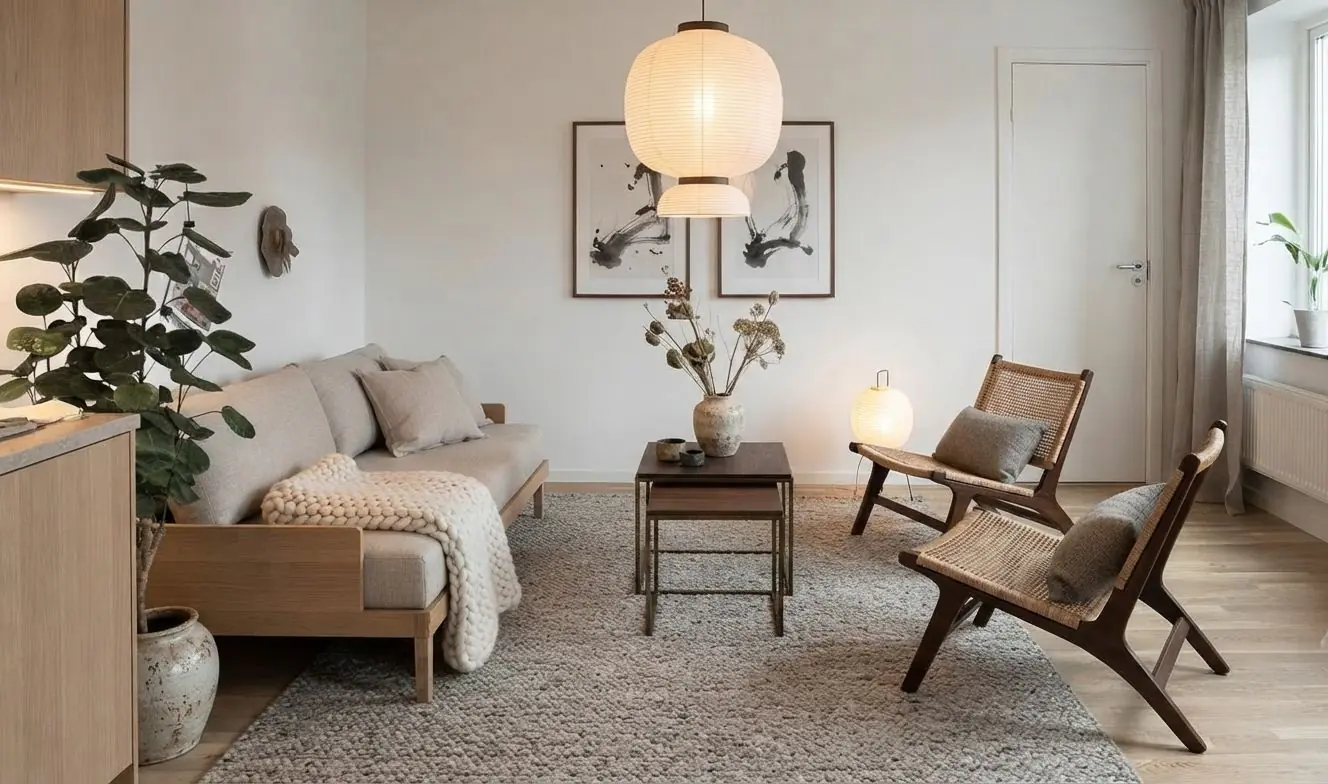
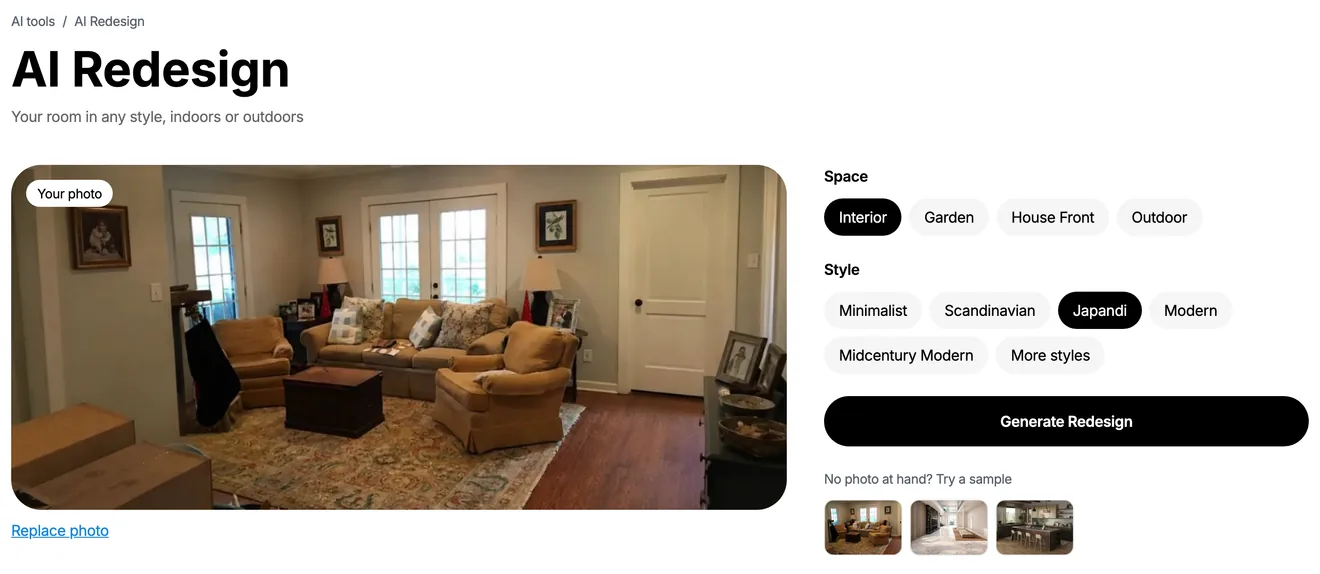
AI interior design for your own room: upload a photo and see it in a new style. Change the colors, light, floor or one sofa. When you like the look, plan it in 3D with real furniture.
AI images to try free in your browser: 3, after you sign in with Google, Apple, Facebook or email. In the app, your first redesigns need no account. Your photos are not public unless you publish them.
Upload a photo of your room or pick a sample, then choose a style. You sign in before the result. Until then, your photo stays in this browser.
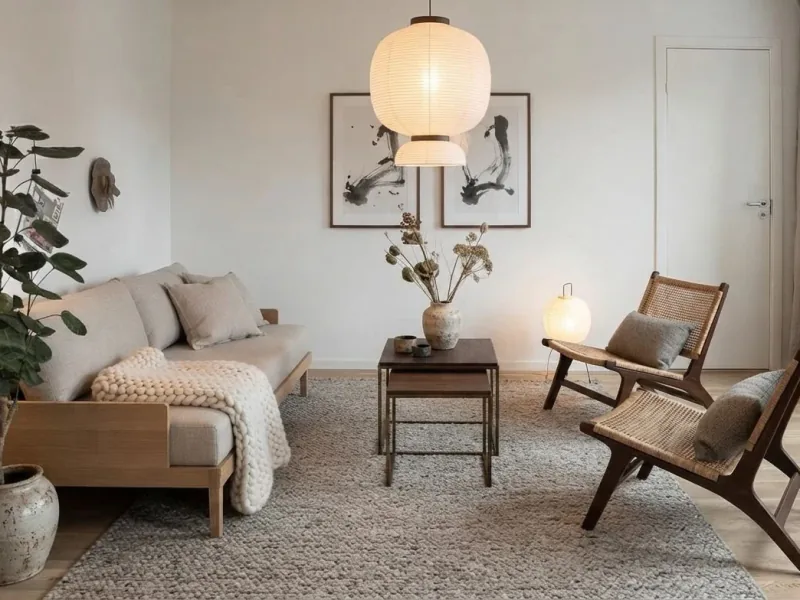
Pick a style and the AI redesigns your own photo. Furniture, colors and decor change; you still see your own room. Try Japandi, then Industrial, then Coastal on the same photo.
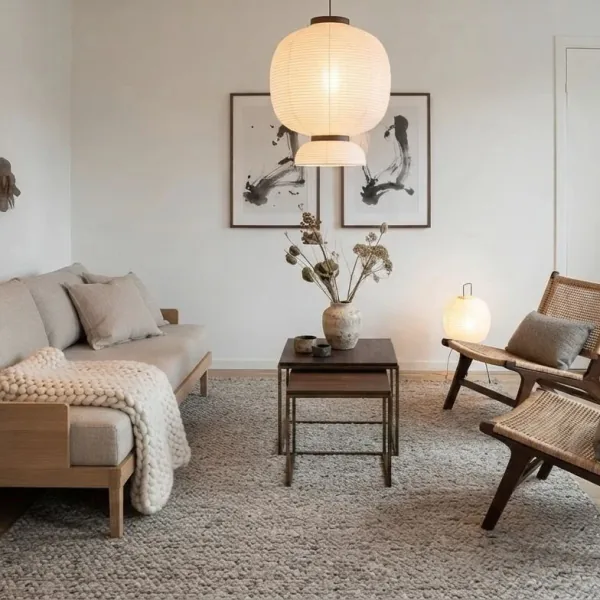
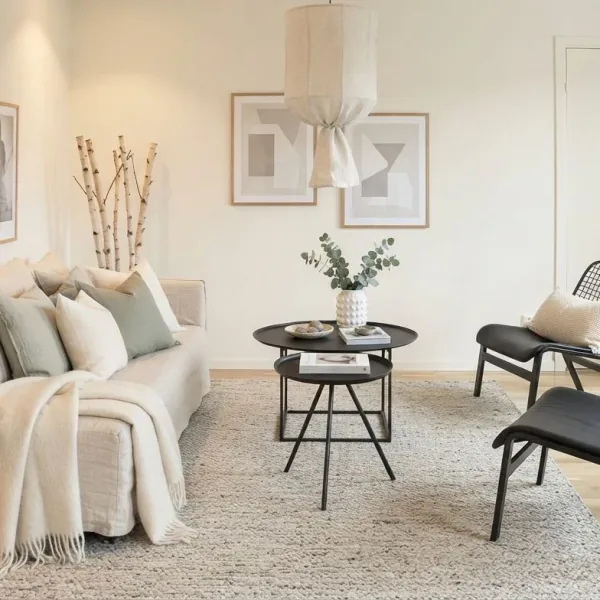
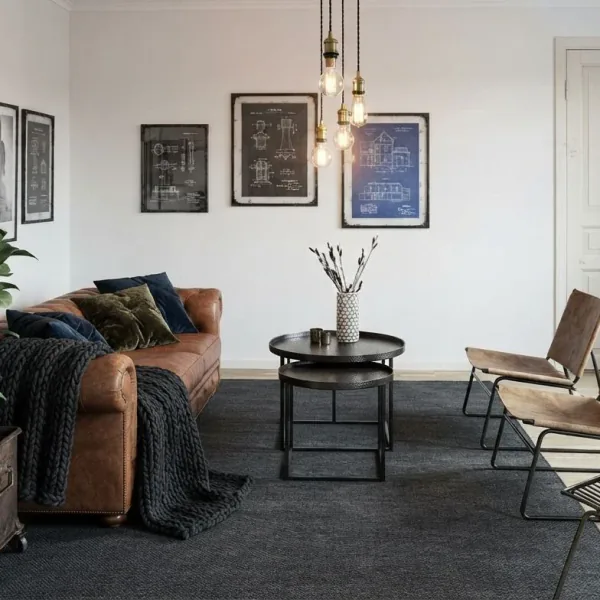

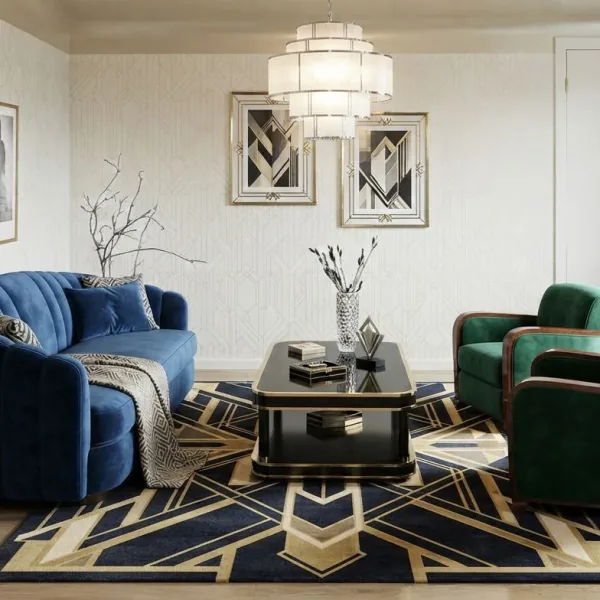
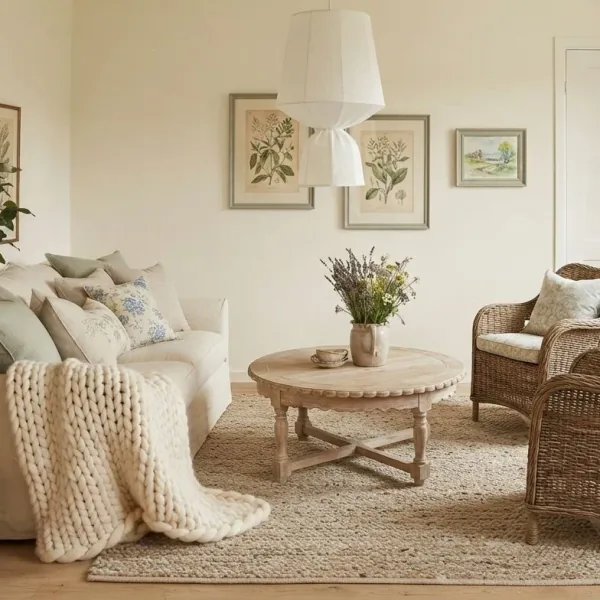
Boho Chic, Mid-Century Modern, Rustic and more. How to redesign a room from a photo
In the Home Planner app, a new style is one option. Keep the furniture and repaint the walls, see the room at sunset, or clear the clutter before you plan.
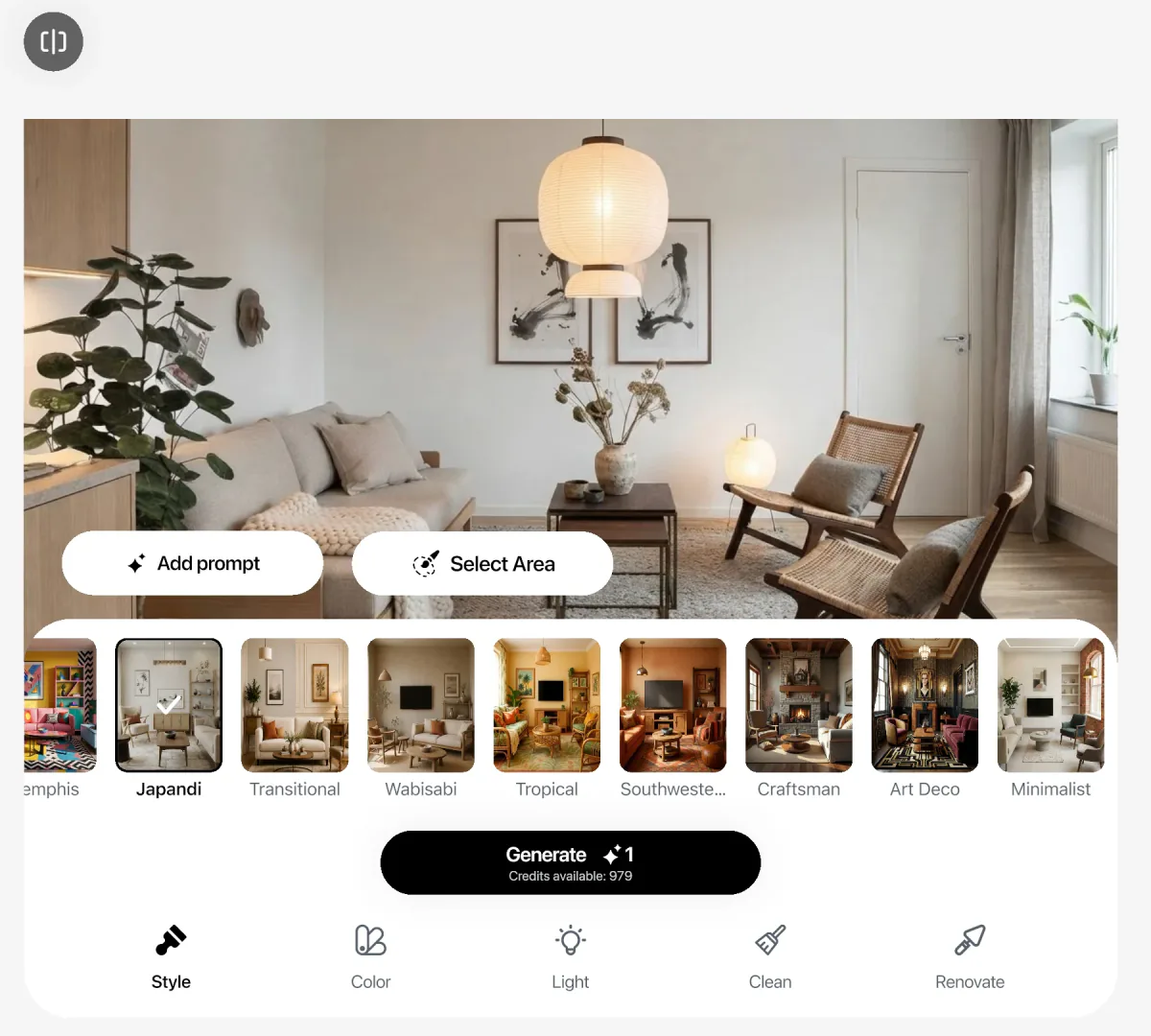
The style changes furniture, colors and decor together. Compare every result with your photo in one tap.
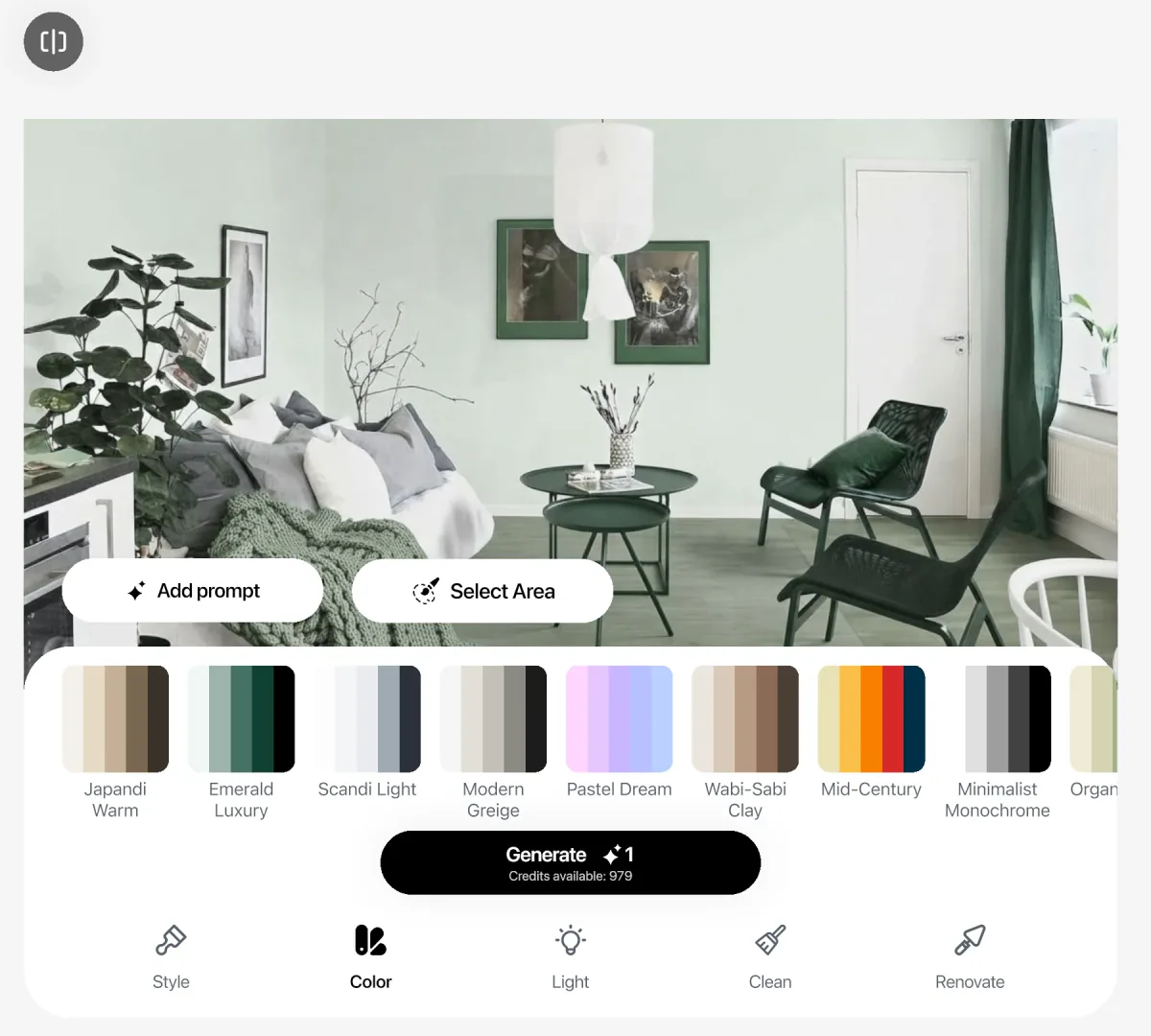
Palettes like Sage Harmony or Desert Sand recolor walls, textiles and decor and keep your furniture in place.
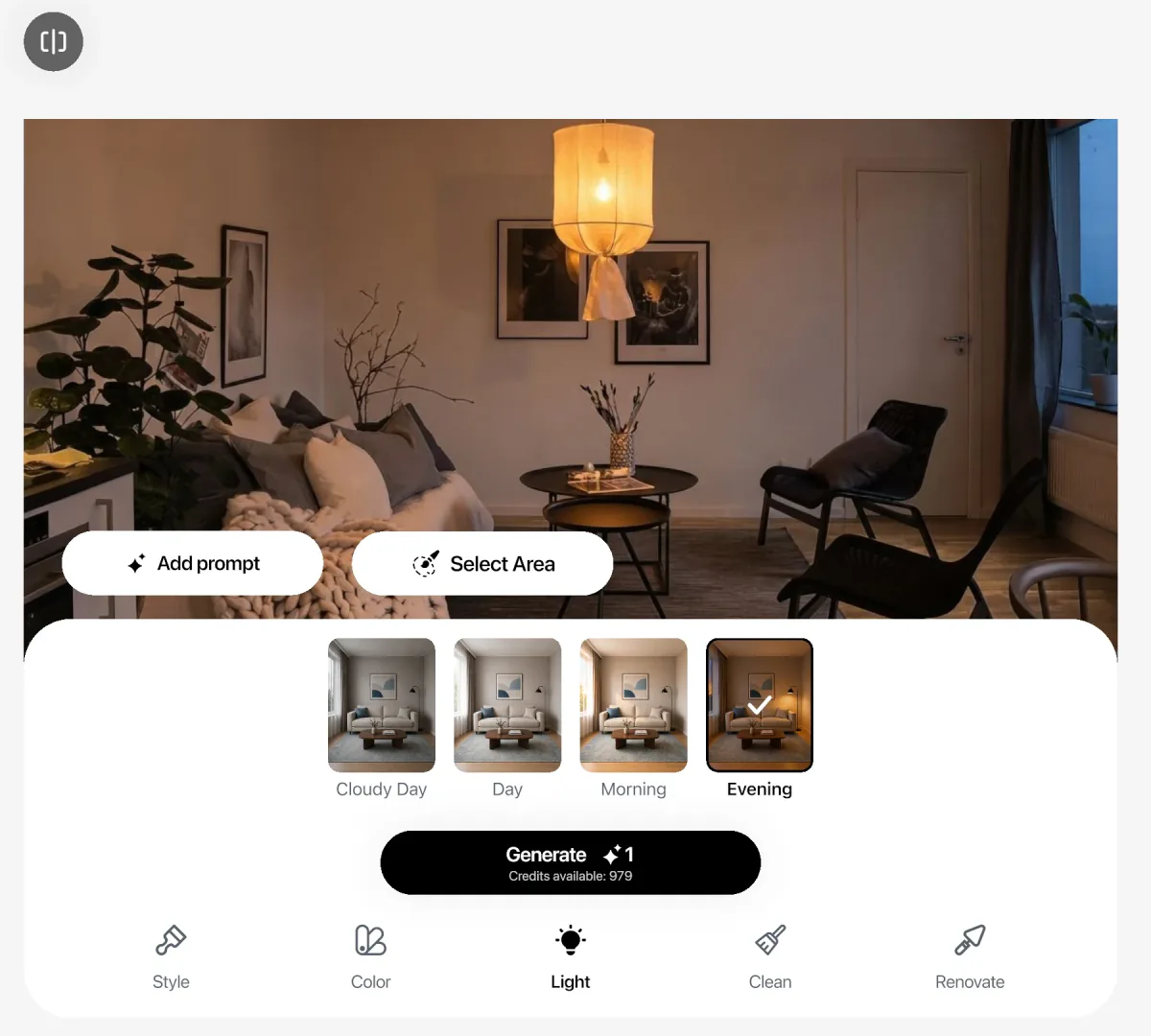
See how the room feels at different times of day before you choose lamps or curtains.
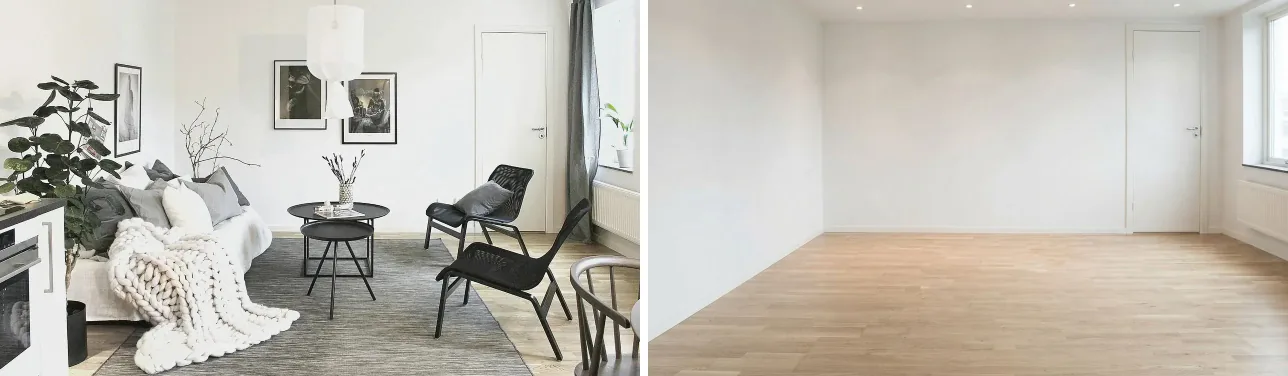
Empty the room to start fresh, tidy it up, or brush over one object to remove it.
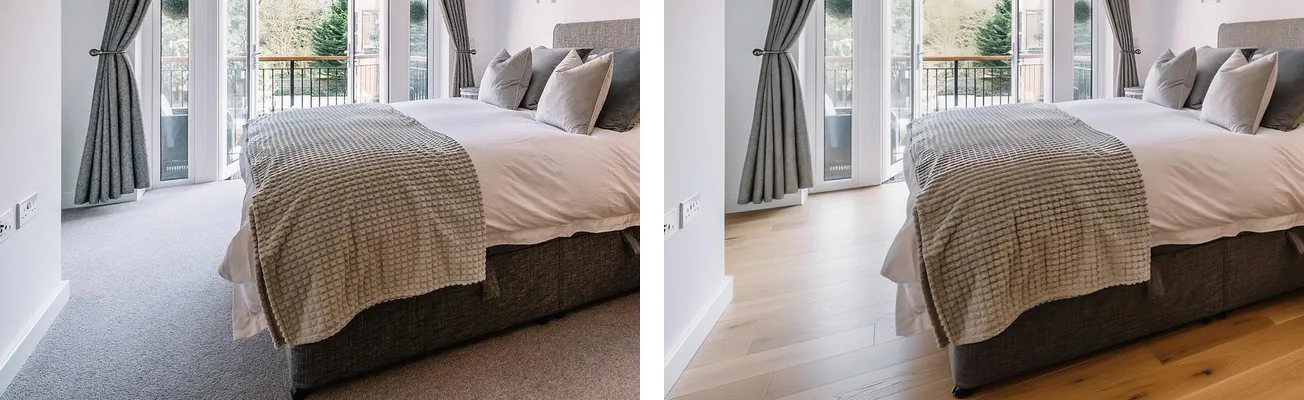
Try white oak, terrazzo, limewash or Carrara marble on one surface. Or add a photo of the tile you saw in the store.
Your idea, your words · in the app
Brush over the sofa and write “a green velvet sofa”. Add a photo of a lamp or a fabric you like. The AI changes that spot and keeps the rest of the room as close as it can.
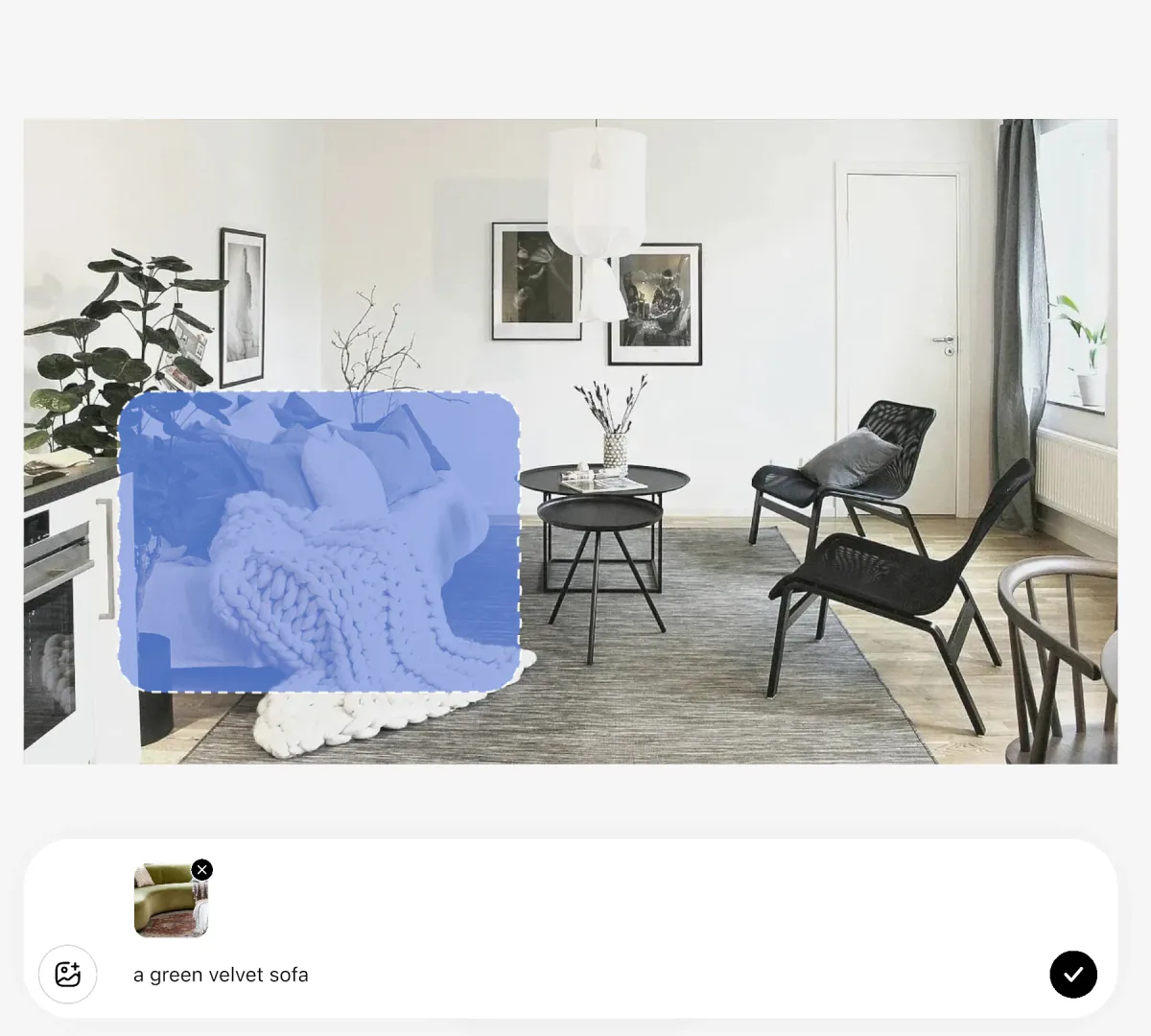
Every version, side by side
Each redesign stays next to the others in the Home Planner app. Compare any result with your photo in one tap, then keep going from the one you like.
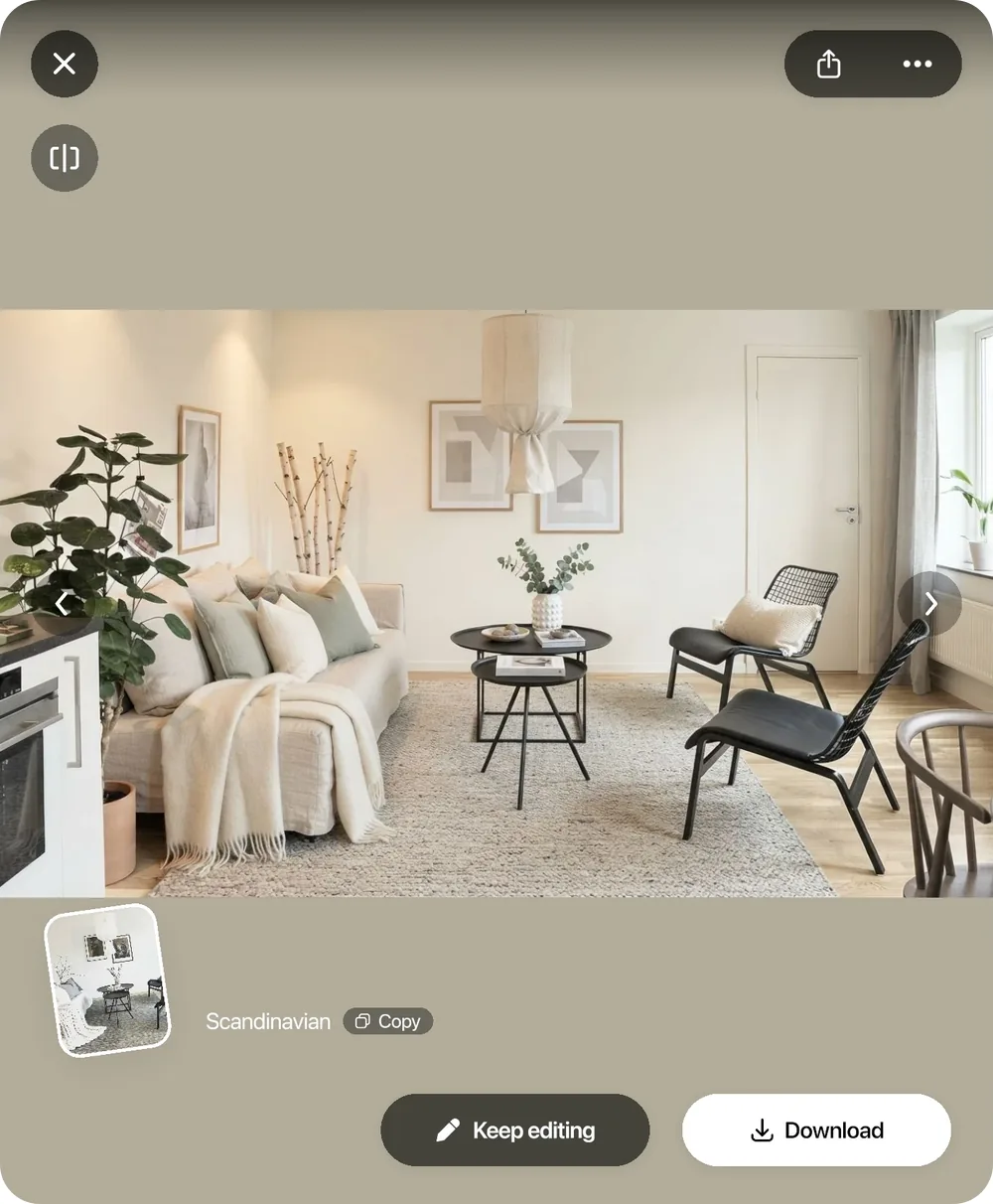
An AI image shows the mood. Home Planner also gives you the plan: your walls, real furniture and a 3D room you can walk through. With PRO, you set every wall to the size you measured. You build the plan in the planner; the AI image is your reference.
Redesign your photo until you like the style.
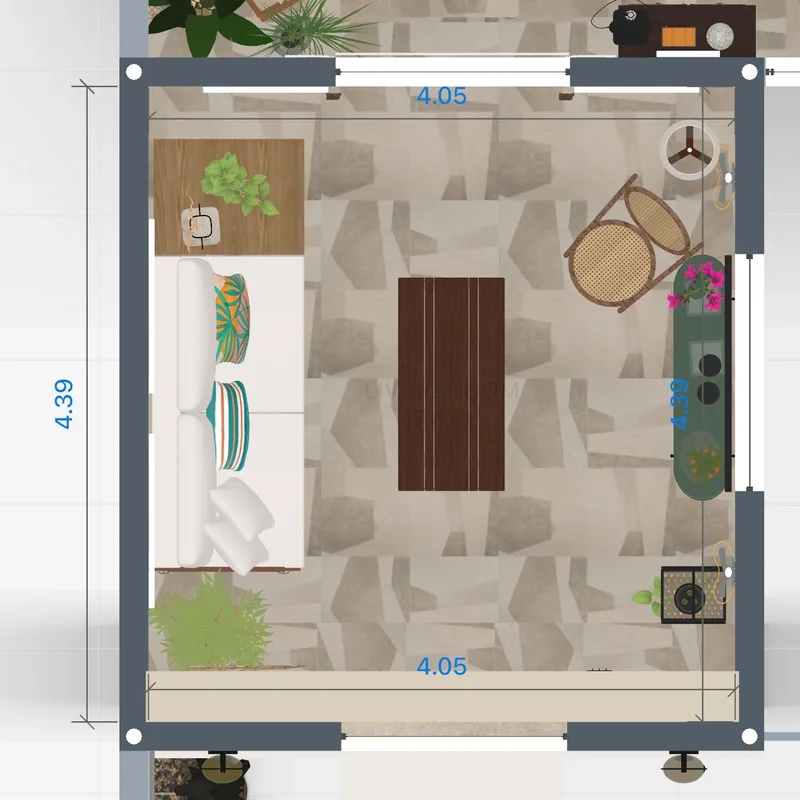
Draw the walls on a grid, or scan the room with a supported phone or tablet. With PRO, set each wall to the size you measured and edit the scan.
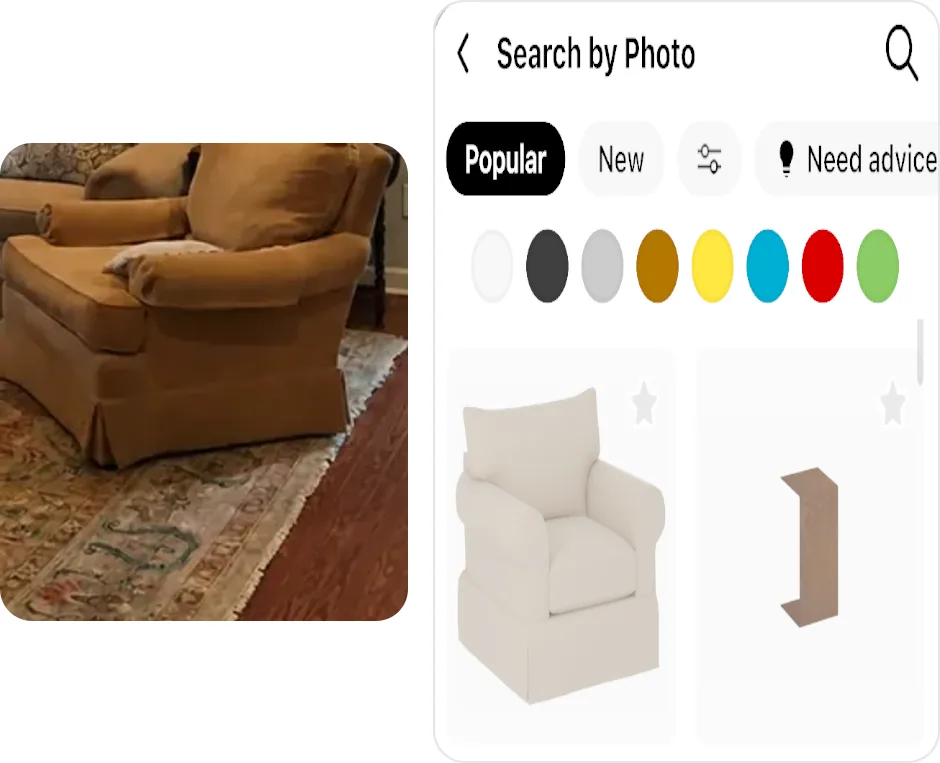
Find similar furniture from a picture, in a starter catalog or, with PRO, in all 560,000+ items.
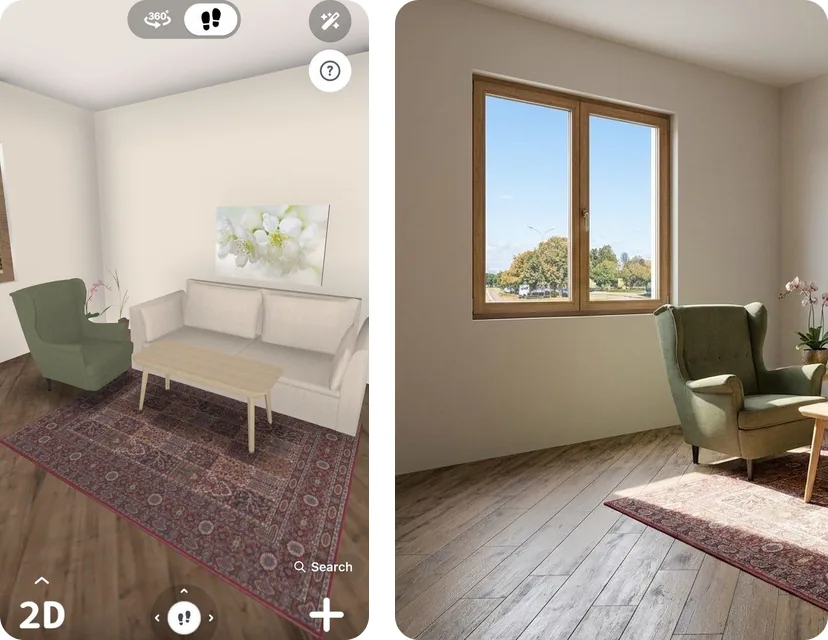
Walk through it in 3D, then turn the design into a photo-realistic image with AI Photo.
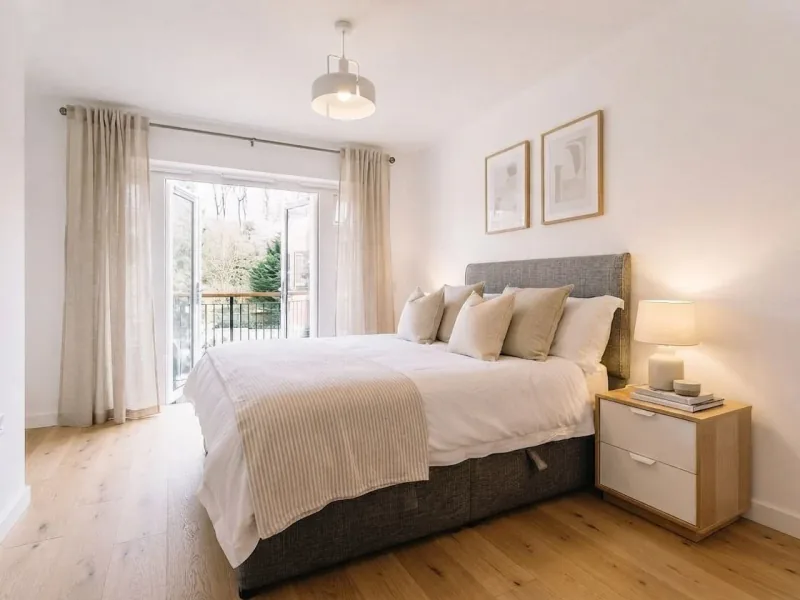
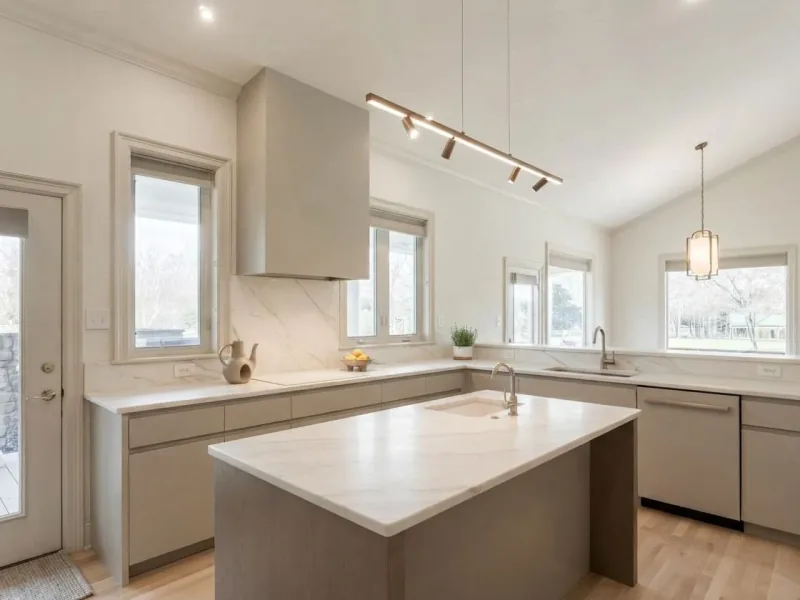
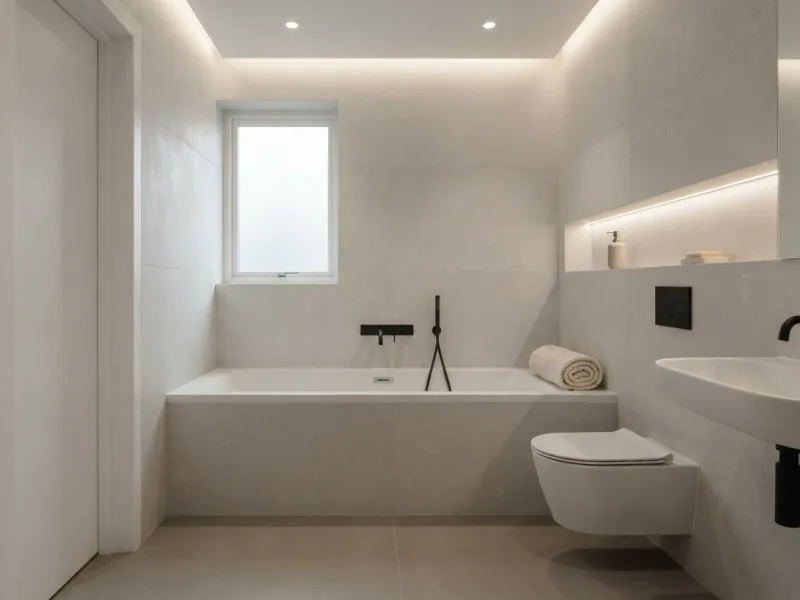
Redesign a living room, a bedroom or a bathroom. To redesign the outside of your home, pick House front or Backyard / Garden below.
Planning from scratch? Living room · Bedroom · Bathroom · Home office · Kids room · Outdoor space
Start in the browser in a minute. Use the app when you want the full editor and the 3D plan.
Pick a style for a room, garden, house front or outdoor space. Sign in to see your result; your images stay in your account.
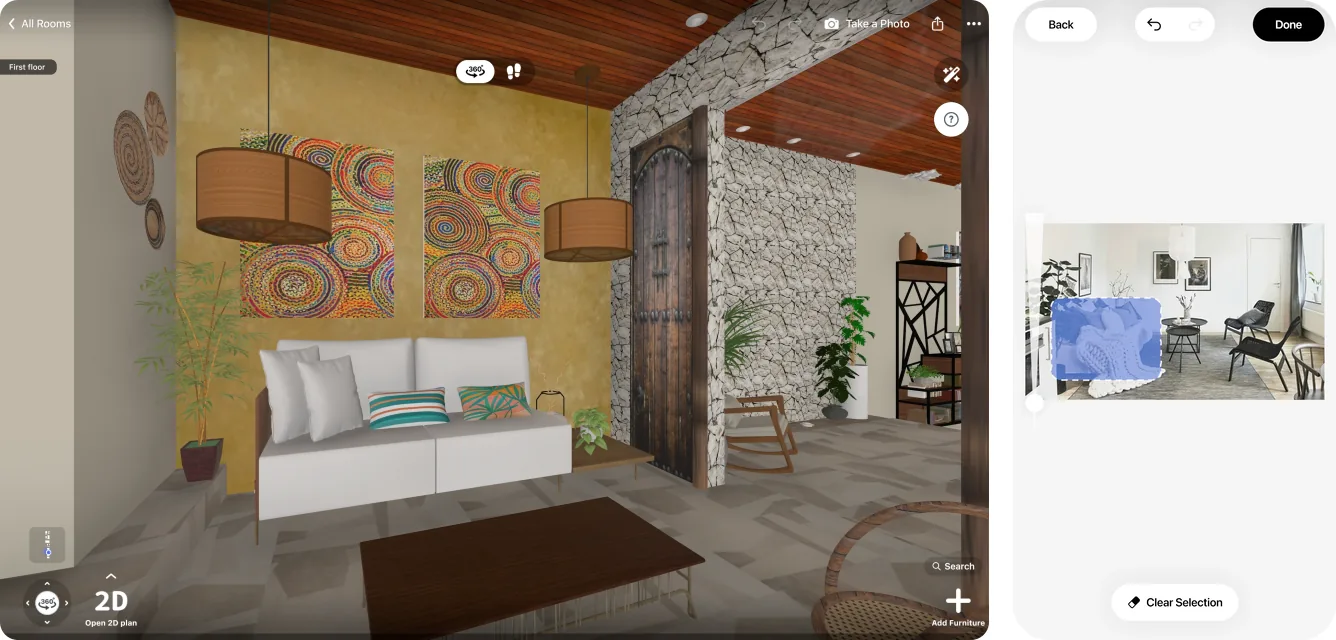
The full AI editor with brush, reference photos and versions, plus the 3D planner and the furniture catalog. On iPhone, iPad, Android, Mac and Windows.
AI images to try in your browser: 3. The Home Planner app adds 4 AI redesigns, a 2D plan, a 3D view and a starter furniture catalog.
Yes. Upload a photo of your room, pick a style, and the AI shows the same room redesigned. For a room you can actually build, draw the plan in Home Planner and furnish it with real items in 3D.
Home Planner has a free start on iPhone, iPad, Android, Mac and Windows: 4 AI redesigns in the app and 3 AI images to try in the browser.
You can start for free: 4 AI redesigns in the app and 3 AI images to try in the browser. For more images and higher quality, see the plans on the pricing page.
In the app, yes: your first redesigns need no account. In the browser, you upload a photo first, then sign in with Google, Apple, Facebook or email to see the result, so your images are saved to your account.
It tries to, but no AI is perfect, so a window or a door can move. Compare each result with your photo before you plan around it.
AI home design gives you a picture of an idea. A 3D planner gives you a plan of your home with real furniture, and with PRO you set the exact size of every wall. Home Planner has both: redesign the photo first, then plan the room in 3D.
Yes. Pick House front, Garden or Outdoor in the browser tool, or the facade and yard room types in the app.
Your photos and AI images are saved to your account. To make a redesign, the photo is sent to AI services that process it for us. Other people see your images only if you publish or share them.
Our guide has tips for photos, styles and prompts: how to use AI for interior design.
Read the guide: How to use AI for interior design
Upload one photo. Plan the room in 3D when you like what you see.
Home Planner is not affiliated with, endorsed or sponsored by Apple, Google, Microsoft, Valve or Meta; their names and marks belong to their owners. iPhone, iPad and Mac are trademarks of Apple Inc., registered in the U.S. and other countries. Android is a trademark of Google LLC.